How to Add and Organize Glances on Apple Watch
How to Add and Organize Glances on Apple WatchFriday May 8, 2015 1:35 PM PDT by Lory GilThe Glances feature of Apple Watch allows you to see an overview of content from specific apps. It is a great way to get a quick update on the
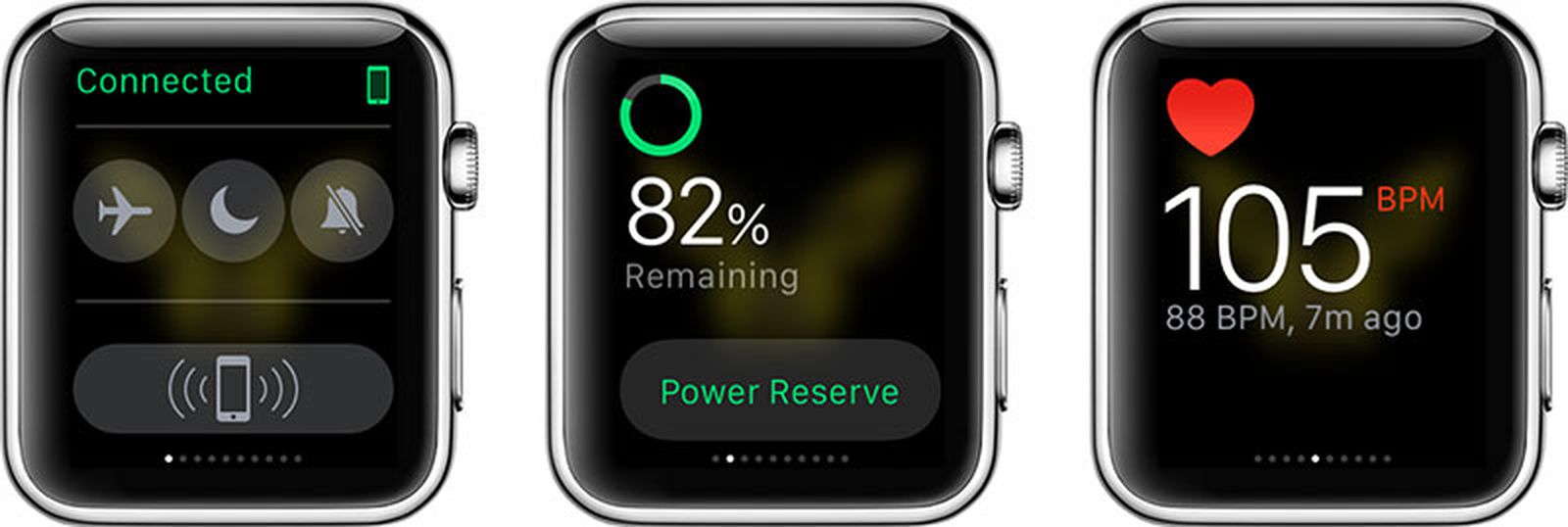
Table of Contents
- 1. Viewing Glances
- 2. Adding Glances
- 3. Organizing and Removing Glances
- 4. Popular Stories
- 5. Apple Watch Series 12, Ultra 4 Owners Report Skin Irritation
- 6. MacRumors Giveaway: Win an Apple Watch Series 12 and a Nylon Band From Southern Straps
- 7. Apple's $634 Million Apple Watch Patent Bill Just Got Even Bigger
- 8. Next Article
How to Add and Organize Glances on Apple Watch
The Glances feature of Apple Watch allows you to see an overview of content from specific apps. It is a great way to get a quick update on the day's content without having to open an app, either on your iPhone or on Apple Watch.
For those interested in learning the basics of the Glances feature, today we are going to show you how to add, remove, and organize Glances on Apple Watch so you can customize your content for a more personalized experience.

Viewing Glances
- Press the Digital Crown to navigate to the watch face on Apple Watch if necessary.
- Swipe up from the bottom of the screen.
- Swipe left or right to view all of your Glances.
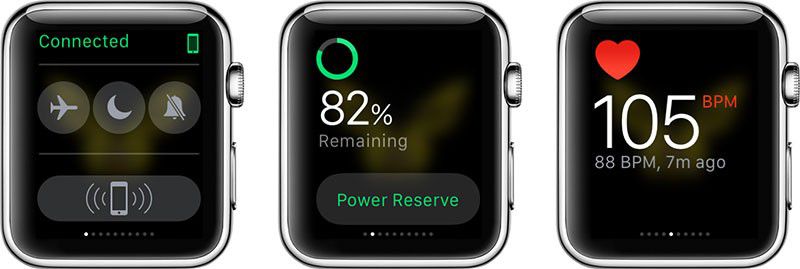
There are several default Glances that will be immediately available on your Apple Watch right out of the box. These include a Control Center for pinging the iPhone and controlling features like Airplane Mode/Do Not Disturb, a battery Glance that offers up current battery life plus an option for Power Reserve mode, and Glances for Weather, Calendar events, current heart rate, activity level, world clock, and stocks.
You can't interact with Glances (there are no special Force Press options here) but tapping on many of the Glances with accompanying apps will open up the app. For example, tapping the Weather Glance will open up the full Weather app. You can add additional Glances through third-party apps and control which Glances are displayed and in which order, as outlined below.
Adding Glances
Some third-party Apple Watch apps include Glances, which need to be manually enabled using the Apple Watch companion app on your iPhone. Once turned on, you can access the Glances as you would the default Glances.
- Open the Apple Watch app on your iPhone.
- Tap the My Watch tab.
- Scroll down to the list of compatible apps and select the one you wish to add.
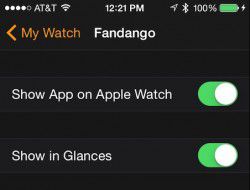
- If it is not already on your Apple Watch, toggle the "Show App on Apple Watch" switch to the On position.
- Toggle the "Show in Glances" switch to the On position.
- The app will automatically be added to your list of Glances.
You can also add a Glance via the Apple Watch app on your iPhone under the Glances section in the My Watch tab. Simply scroll down to the "Do Not Include" section and tap the green add icon on the left side of the app.
Organizing and Removing Glances
Similar to the way you organize the Today View widgets on your iPhone, you can also organize Glances for your Apple Watch.
- Open the Apple Watch app on your iPhone
- Tap the My Watch tab.
- Select Glances.
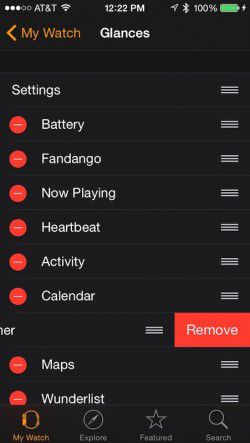
- To remove an app, tap the red remove icon on the left side of the app.
- To reorder apps, hold and drag the reorder icon on the right side of the app and move it to the new location on the list.
Experiment with your Glances. You may discover that some are more important to you than others, and keeping this section culled down to your most used apps can make it easy to access them quickly. Once your Glances are in order, you will be able to quickly see a short summary of the content of your most important apps.
Popular Stories

Apple Watch Series 12, Ultra 4 Owners Report Skin Irritation
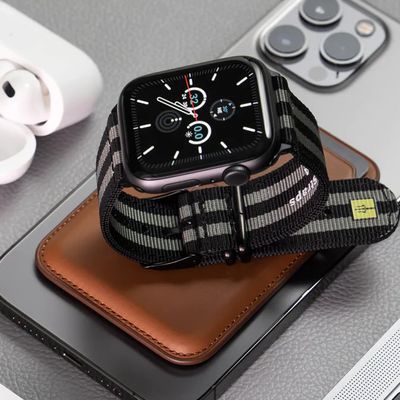
MacRumors Giveaway: Win an Apple Watch Series 12 and a Nylon Band From Southern Straps