
How to Adjust TV App Streaming Quality Settings on iPhone
How to Adjust TV App Streaming Quality Settings on iPhoneFriday March 27, 2020 4:29 PM PDT by Tim HardwickIf you have an Apple TV+ subscription or you've rented or purchased movies via iTunes, you can stream them over Wi-Fi or cel

Table of Contents
- 1. How to Adjust Streaming Quality Over Cellular
- 2. How to Adjust Streaming Quality Over Wi-Fi
- 3. Popular Stories
- 4. New Apple TV 4K, HomeView, and HomePod Mini: 16 Details Just Leaked
- 5. New Apple TV 4K Announced With A19 Chip, Updated Siri Remote, More
- 6. Three New Apple Smart Home Products Coming on October 13
- 7. Next Article
How to Adjust TV App Streaming Quality Settings on iPhone
 If you have an Apple TV+ subscription or you've rented or purchased movies via iTunes, you can stream them over Wi-Fi or cellular using Apple's TV app for iPhone and iPad.
In iOS 13.4 and later, iPhone and iPad users can control the streaming quality of TV app content over Wi-Fi and cellular, which is particularly good for those who don't have unlimited streaming plans or don't want to hog the household bandwidth.
Simply follow the series of steps below to adjust the streaming quality over the data connection that applies to you.
How to Adjust Streaming Quality Over Cellular
- Launch the Settings app on your iPhone
- Scroll down and tap TV.
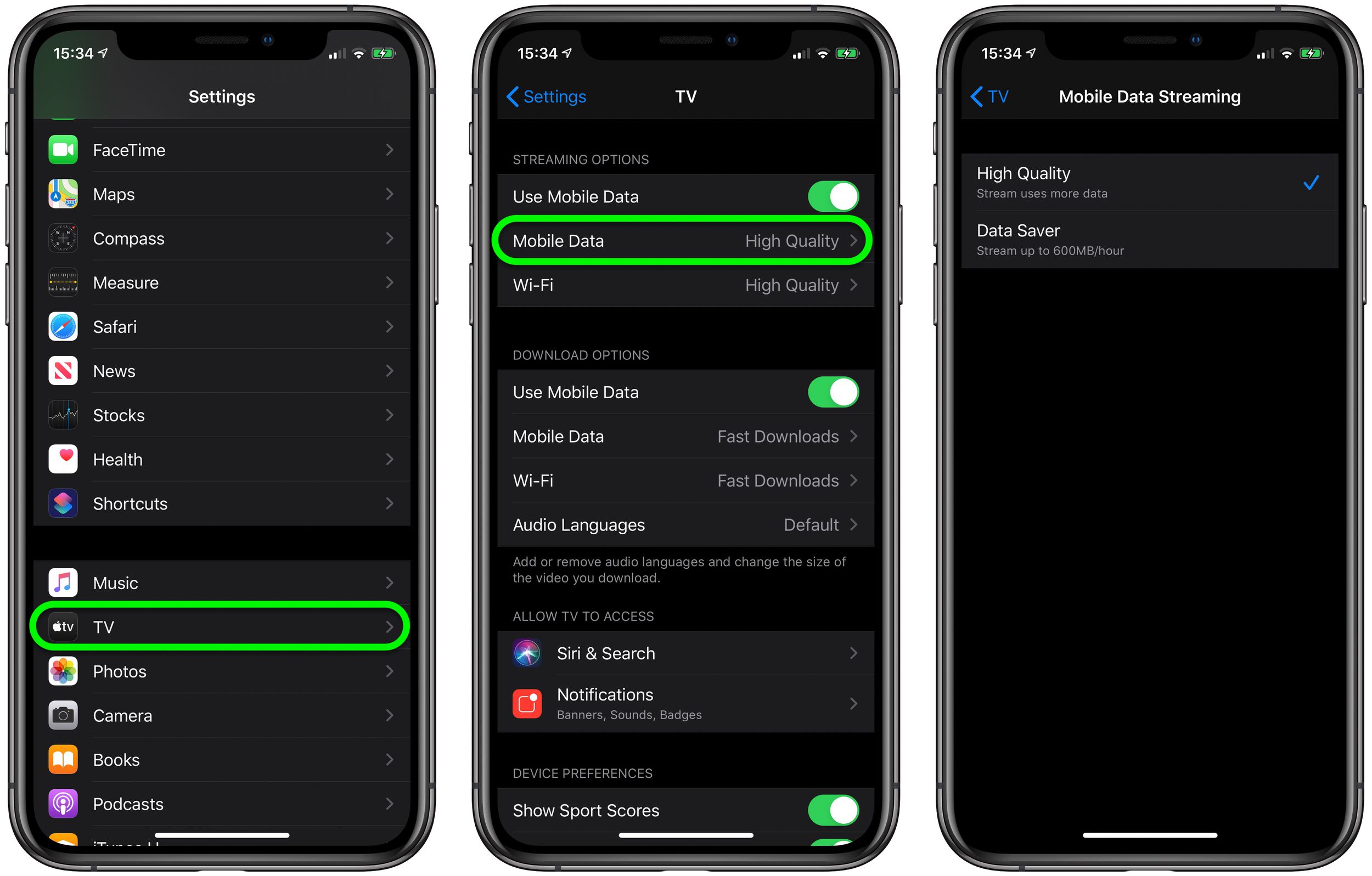
- Under Streaming Options, tap Cellular (or Mobile Data).
- Select High Quality (uses more data) or Data Saver (limits streams up to 1GB an hour).
How to Adjust Streaming Quality Over Wi-Fi
- Launch the Settings app on your iPhone
- Scroll down and tap TV.
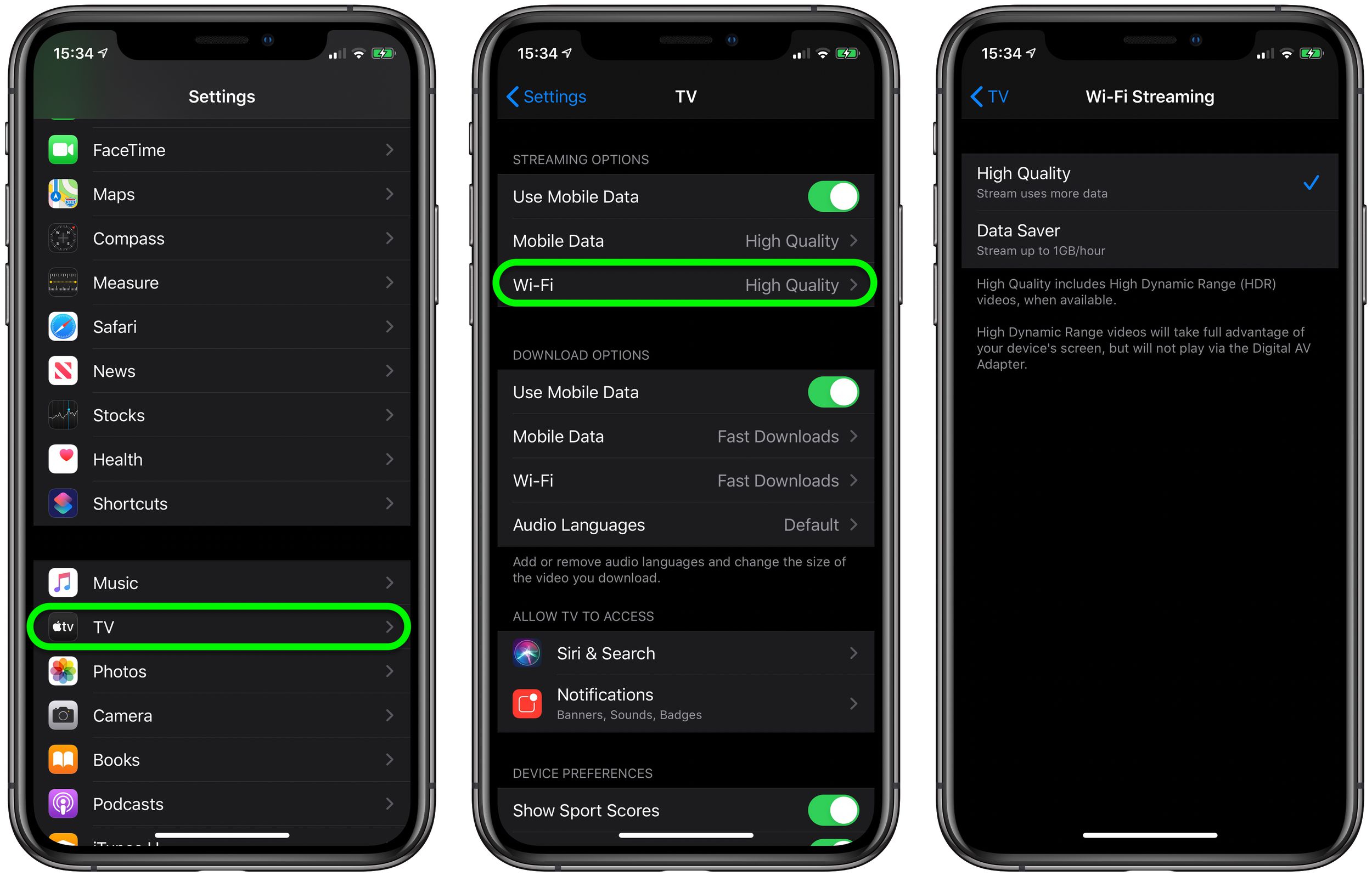
- Under Streaming Options, tap Wi-Fi.
- Select High Quality (uses more data) or Data Saver (limits streams up to 1GB an hour).
Note that selecting High Quality allows High Dynamic Range (HDR) video to be streamed to your device when available.
Popular Stories
New Apple TV 4K, HomeView, and HomePod Mini: 16 Details Just Leaked

New Apple TV 4K Announced With A19 Chip, Updated Siri Remote, More

