
How to Control the Active Noise Cancellation Feature on AirPods Max
How to Control the Active Noise Cancellation Feature on AirPods MaxWednesday January 13, 2021 12:46 PM PST by Tim HardwickThis article explains how to control the Active Noise Cancellation feature on Apple's AirPods Max headphones

Table of Contents
- 1. What is the Active Noise Cancellation Feature on AirPods Max?
- 2. How to Control Active Noise Cancellation on AirPods Max
- 3. Method 1:
- 4. Method 2:
- 5. Method 3:
- 6. How to Control Active Noise Cancellation on Mac
- 7. Popular Stories
- 8. Crackgate? iPhone Duo Owners Report Screens Breaking Along the Hinge
- 9. Apple Responds to iPhone Duo Display Cracking Reports
- 10. iPhone Duo Fails JerryRigEverything's Dusty Durability Test
- 11. Next Article
How to Control the Active Noise Cancellation Feature on AirPods Max
This article explains how to control the Active Noise Cancellation feature on Apple's AirPods Max headphones. Bear in mind that iOS devices need to be running iOS 14.3 or later in order to support AirPods Max. You can check that your device is updated by launching the Settings app and going to General -> Software Update.

What is the Active Noise Cancellation Feature on AirPods Max?
AirPods Max are Apple's first own-brand over-ear headphones with Active Noise Cancellation (ANC), which is designed to block out the outside world so you can focus on what you're listening to. Several microphones on the outside of the headphones listen to the noise around you and then create an inverse wave to reduce the volume of the incoming sound.
In contrast, Transparency mode allows you to simultaneously listen to music while still hearing the environment around you – whether that's to hear traffic during a walk or an important train announcement during the morning commute. It uses the same external microphones as ANC to monitor the sound, but that sound is then passed through the headphones just like any other audio, while advanced software ensures that your own voice sounds natural as your audio continues to play perfectly.
How to Control Active Noise Cancellation on AirPods Max
There are three ways of controlling Active Noise Cancellation on AirPods Max. The first method involves using a physical button on the headphones themselves that offers default settings, while the second and third methods are accessed via onscreen menus on the connected iOS device.
Method 1:
- Allow your AirPods Max to connect to your iPhone or iPad in the usual way, by taking them out of the Smart Case and putting them over your ears.
- Press the noise control button on the top of the right ear cup to cycle between Noise Cancellation and Transparency, depending on your preference.

- You'll hear a tone when switching between the two functions.
If you want, you can customize the noise control button on the AirPods Max, and even use it to turn off the noise control features completely.
Method 2:
- Allow your AirPods Max to connect to your iPhone or iPad in the usual way, by taking them out of the Smart Case and putting them over your ears.
- Launch the Settings app on your iOS device.
- Tap Bluetooth.

- Under My Devices, tap the information icon (the circled "i") next to AirPods Max in the list.
- Under Noise Control, tap Noise Cancellation, Off, or Transparency, depending on your preference.
Method 3:
- Allow your AirPods Max to connect to your iPhone or iPad in the usual way, by taking them out of the Smart Case and putting them over your ears.
- Open Control Center on your iOS device: On an iPad with a Home button, double-tap the Home button; on iPhone 8 or earlier, swipe up from the bottom of the screen; and on a 2018 iPad Pro or iPhone X and later, swipe down from the upper right of the screen.
- Press and hold the Control Center volume bar (pair of earbuds will be visible inside of it to indicate the AirPods Max are connected.)
- Tap the Noise Control button.
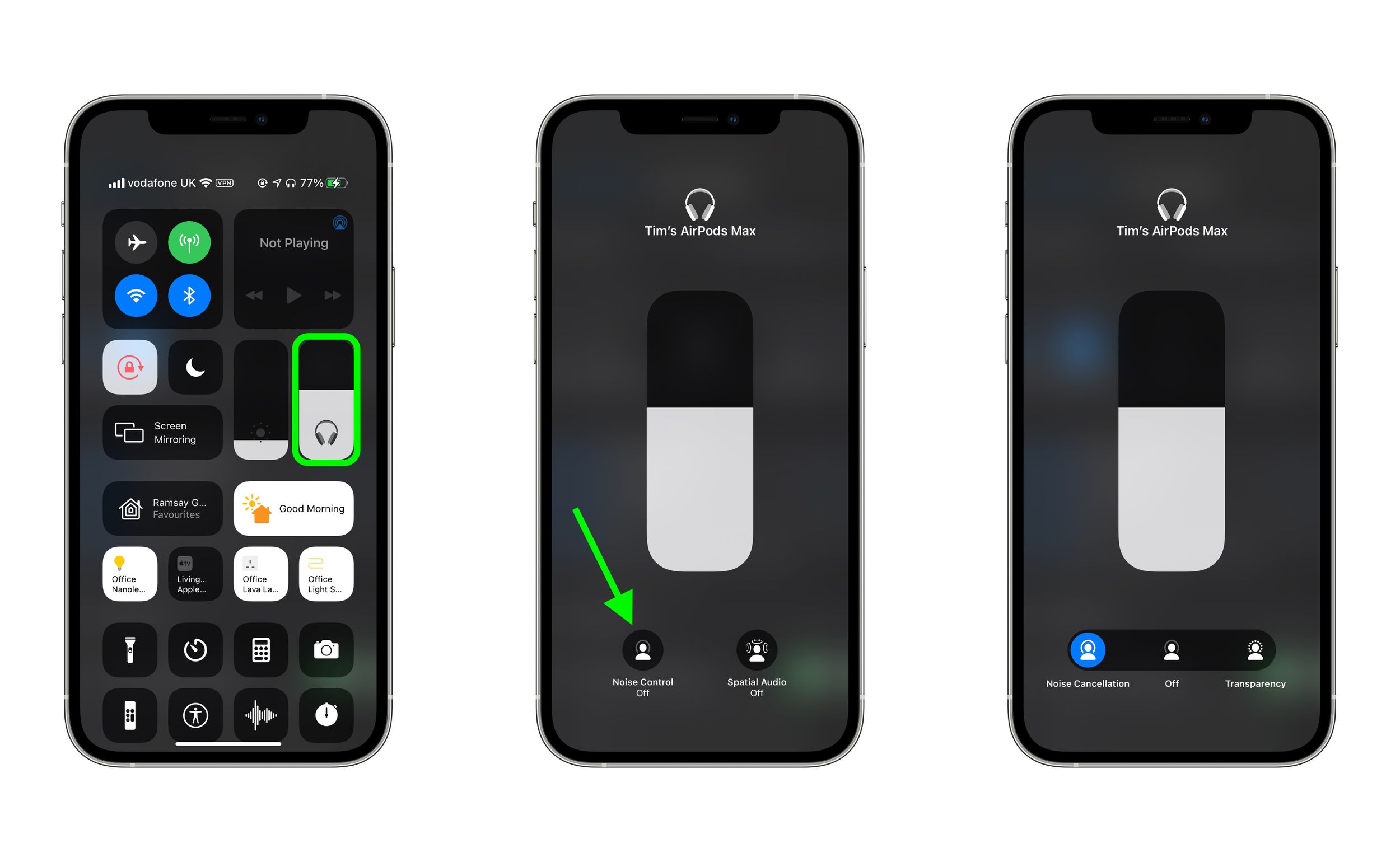
- Use the strip of buttons to switch between Noise Cancellation, Off, or Transparency, depending on your preference.
How to Control Active Noise Cancellation on Mac
If you've got your AirPods Max connected to a Mac running macOS Catalina or later, you can also control noise cancellation from the volume icon in the menu bar. Simply hover over your AirPods Max in the Output Device list to reveal a submenu, where you can click Transparency, Noise Cancellation, and Off.
Popular Stories

Crackgate? iPhone Duo Owners Report Screens Breaking Along the Hinge

Apple Responds to iPhone Duo Display Cracking Reports

