NEWS · Apple How-To

How to Customize Your Apple Music Library

How to Customize Your Apple Music LibraryTuesday February 19, 2019 6:03 PM PST by Tim HardwickOnce you've familiarized yourself with the main sections of the Apple Music app, there are a few options that you can customize which ca

vinkoweb · Oct 28, 2026 · 1 views
How to Customize Your Apple Music Library
Table of Contents
  1. 1. Customize the Library View
  2. 2. Customize the Albums and Songs Views
  3. 3. Popular Stories
  4. 4. Apple Music Has a Hidden iPod You Can Play With
  5. 5. Apple Music's New Look Officially Announced
  6. 6. Apple Music Is Getting a New Logo
  7. 7. Next Article

How to Customize Your Apple Music Library

by Tim Hardwick

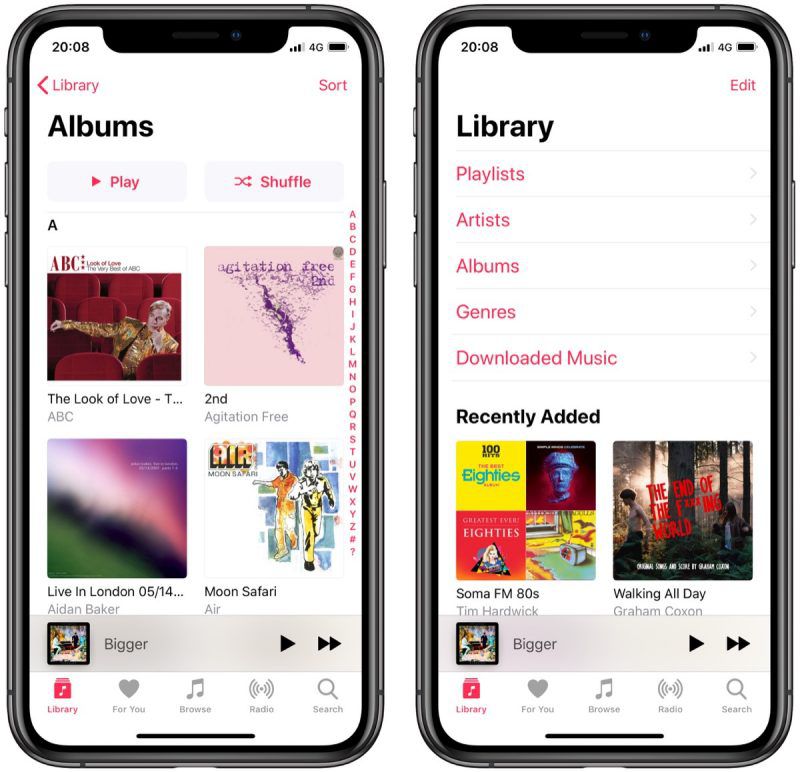
Once you've familiarized yourself with the main sections of the Apple Music app, there are a few options that you can customize which can enhance your enjoyment of the streaming service.
customize apple music library
These are essentially tweaks to the Music app's Library section that can make navigating your music easier. Keep reading to learn what they are.

Customize the Library View

In the ‌Apple Music‌ app, the top of Library view displays the default headings Playlists, Artists, Albums, Genres, and Downloaded Music, in that order.

You can customize the headings that are displayed at the top of your library and use additional headings that aren't immediately obvious.

customize apple music library 2
Tap the Library tab, and then tap Edit in the upper right corner of the screen, and you'll see the list of headings expand to include Songs, Music Videos, Compilations and Composers.

Tap the boxes next to the headings to include or exclude them. You can also re-arrange the order in which they appear by dragging the bars on the far right.

Customize the Albums and Songs Views

The Albums and Songs views include several sorting options that you can choose from to make browsing your music library more convenient.

customize apple music library 3
Simply tap Sort in the upper right corner of the Album or Songs screen and select Artist, Title, or Recently Added from the pop-up menu.

Apple Music iPod Page Not Found

Apple Music Has a Hidden iPod You Can Play With

Friday October 23, 2026 7:11 am PDT by Joe Rossignol
Apple Music has a 404 page easter egg on the web: a functional iPod that appears when you load a page that does not exist, such as music.apple.com/macrumors. "Page Not Found," says Apple. "Give this a spin instead." Apple is clever with this. If you navigate to music.apple.com/ipod instead, the page says "Looking for something?" instead of "Page Not Found." The easter egg is only...
Apple Music New Branding

Apple Music's New Look Officially Announced
Wednesday October 21, 2026 9:06 am PDT by Joe Rossignol
Following the introduction of a new Apple Music logo and app icon earlier this month, Apple today officially introduced Apple Music's new brand identity. In a YouTube video shared today, Apple said the new Apple Music visuals were "made by sound." More specifically, Apple said it played a sound through a container of water, resulting in the liquid moving at the frequency of the notes. Apple...
apple music new logo red
Tuesday October 6, 2026 4:06 am PDT by Tim Hardwick
Apple appears to be rolling out a new logo for Apple Music in its upcoming set of software updates. The logo has been spotted in both macOS 27.2 beta 3 and iOS 27.2 beta 3, and it's identical to the one that Apple used in its Apple Music Hall announcement last month. When Apple used the logo in the venue's press materials and on its new official website, it wasn't clear if this was a one-off ...
'); }
← More tech stories