
How to Disable Personal Requests on HomePod
How to Disable Personal Requests on HomePodFriday February 3, 2023 4:28 AM PST by Tim HardwickYou can use Siri on your HomePod to access your messages, notes, and reminders, all of which are what Apple calls Personal Requests. As
Table of Contents
How to Disable Personal Requests on HomePod
You can use Siri on your HomePod to access your messages, notes, and reminders, all of which are what Apple calls Personal Requests. As a rule, these only work when the device that was used to set up HomePod is connected to the same local network, which Siri interprets to mean that you're home.
If the option is enabled, Siri can also recognize your voice so it knows that it's you if a personal request is made. That's nice to know, but you might just not want personal requests features enabled on your HomePod for security reasons.
If you're already using your HomePod, you may recall being asked during the setup process whether or not you'd like to enable Personal Requests. Regardless of what you selected during setup, you can turn Personal Requests on and off from your iPhone or iPad whenever you like. Here's how to do it.
How to Enable/Disable Siri Personal Requests
- Open the Home app on your iOS device.
- Tap the ellipsis button (three encircled dots) in the top-right corner of the screen.
- Tap Home Settings in the dropdown menu.
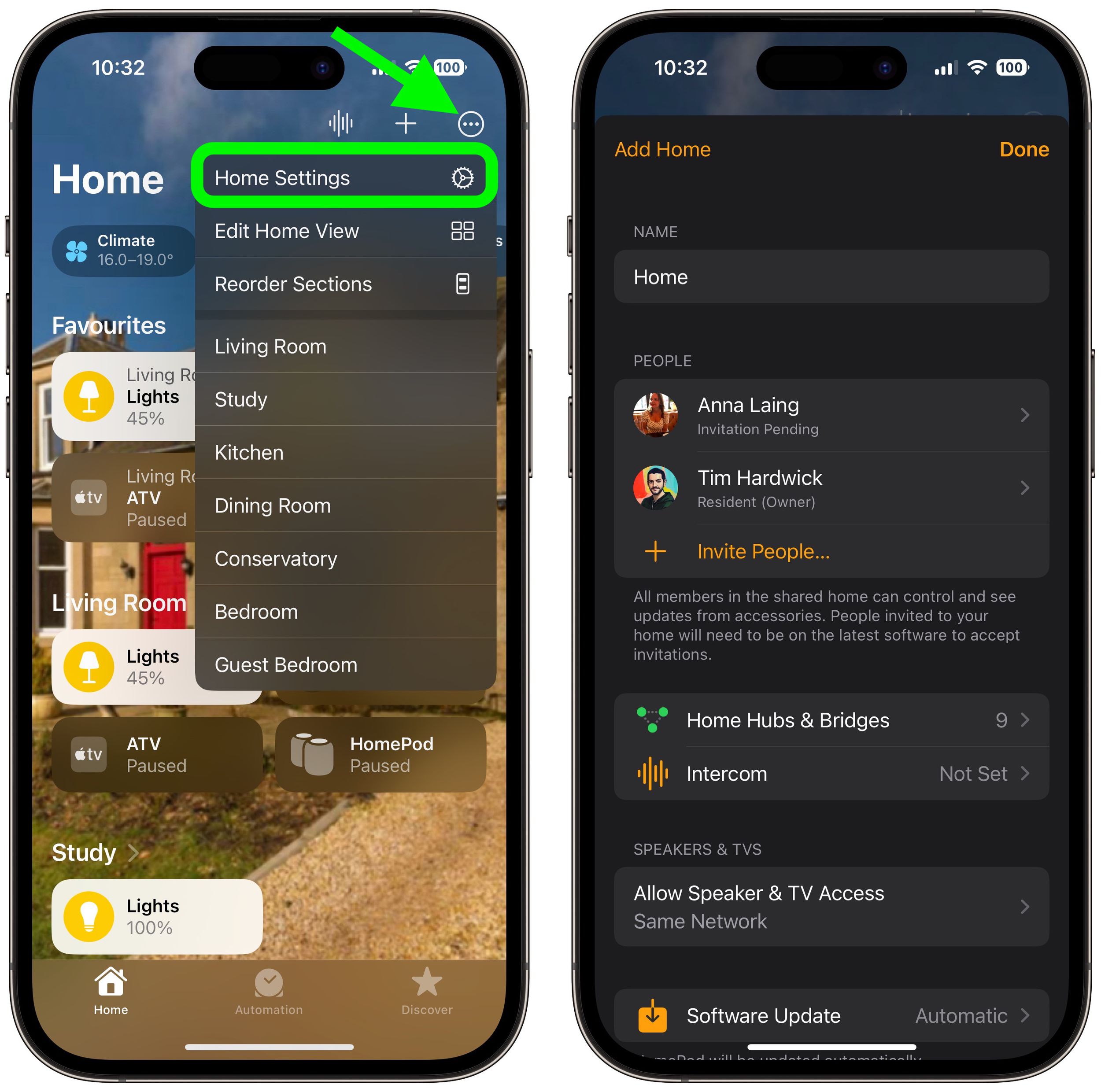
- Under the "People" section, tap your profile picture.
- Under "Siri", tap Personal Requests, then toggle on/off the Personal Requests button.
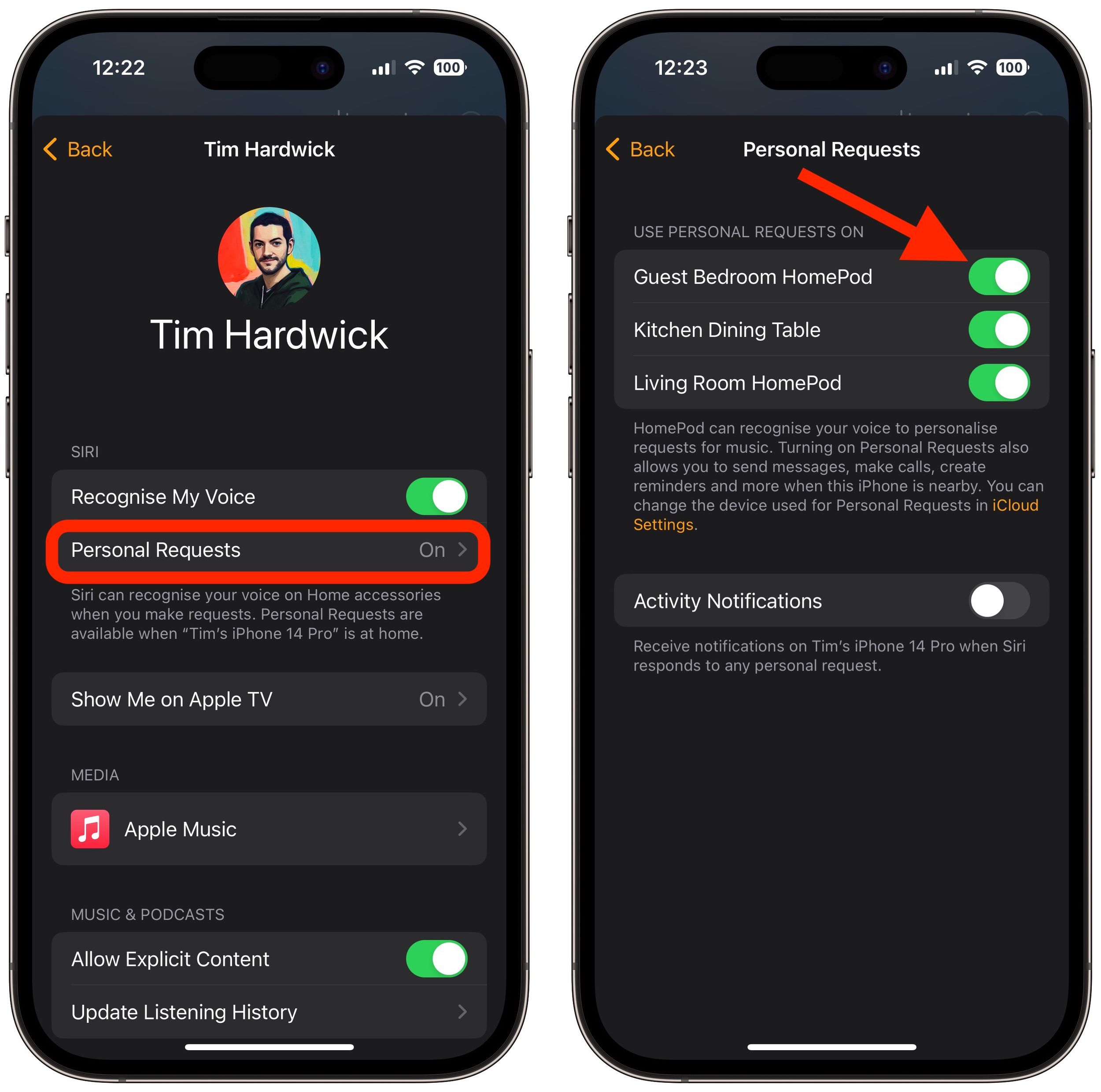
Note that the "Siri" section includes a toggle to enable/disable the Recognize My Voice feature.
Popular Stories

New Apple TV 4K, HomeView, and HomePod Mini: 16 Details Just Leaked

Three New Apple Smart Home Products Coming on October 13

