How to Download Beats 1 Playlists for Offline Listening
How to Download Beats 1 Playlists for Offline ListeningFriday August 7, 2015 10:08 PM PDT by Lory GilNow that you've been testing out Apple Music for about a month, you've probably come across some questions about what else you ca
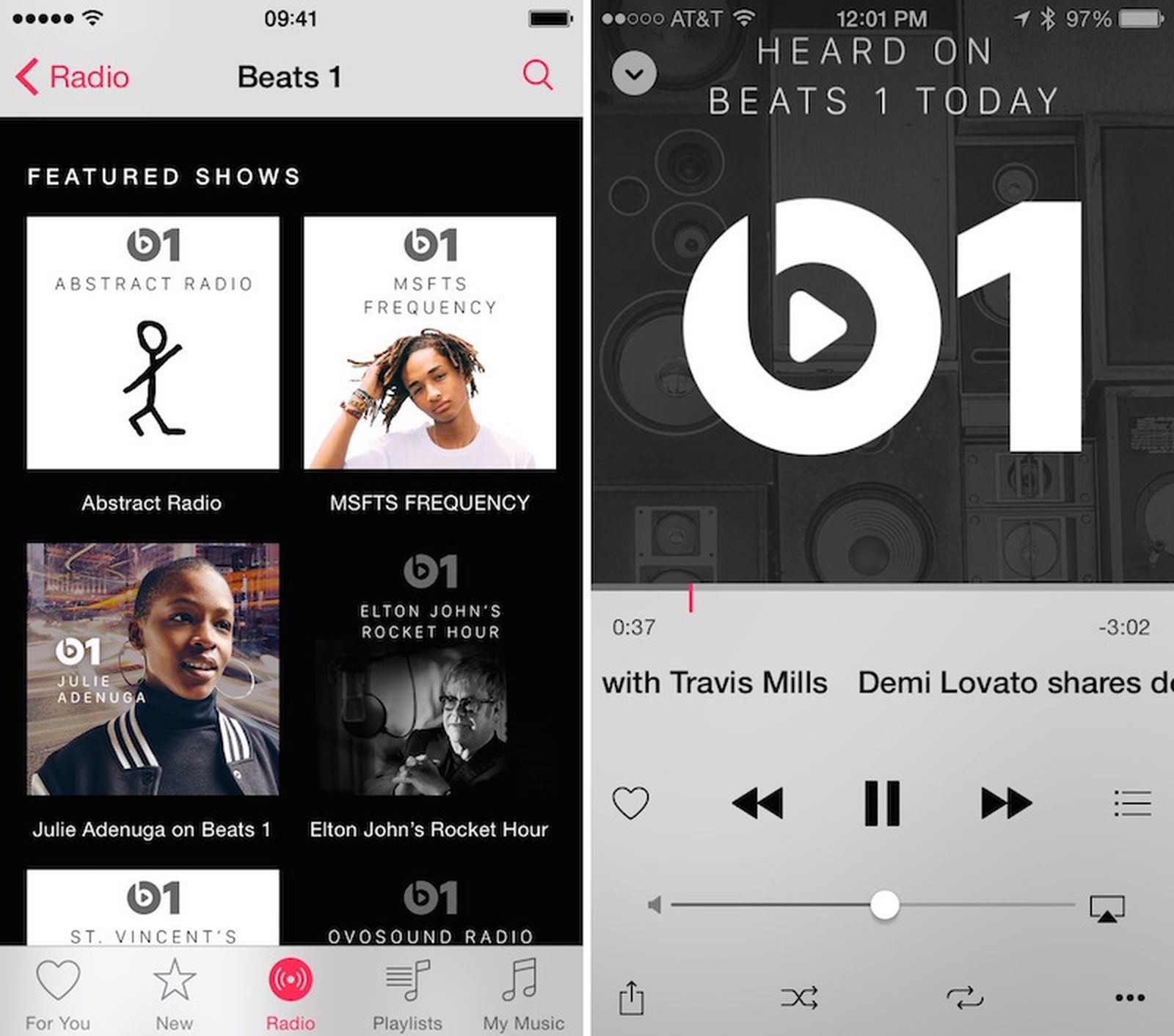
Table of Contents
How to Download Beats 1 Playlists for Offline Listening
Now that you've been testing out Apple Music for about a month, you've probably come across some questions about what else you can do with the streaming music service. We sure have.
If you are a fan of Beats 1 but don't want to use up your data listening to Zane Lowe's voice on your commute to work everyday, you can download the playlist from your favorite deejays and listen to their chosen tunes offline for as long as you wish.
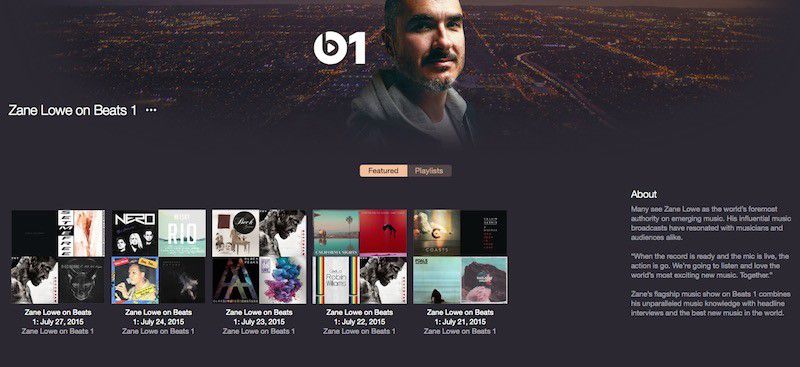
You can't listen to Beats 1 live in offline mode, but you can access playlists from a deejay's previous radio show similar to the way you would access cable movies and television shows on-demand.
Step 1: Find a Deejay
The first thing you will need to do is find the deejay playlist you wish to listen to. If you want to find out whom Elton John is listening to, or think Julie Adenuga plays the songs you want to hear, you can find their Beats 1 playlists on their Apple Connect pages by performing a quick search in iTunes while in the Radio tab.
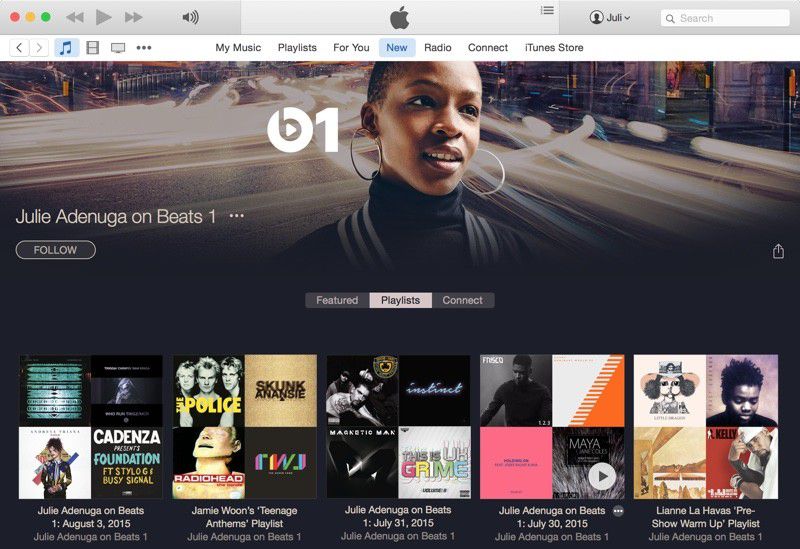
The search will usually turn up "X on Beats 1" where X is the name of the deejay. Select that result to see a list of the deejay's playlists. Tracks will be listed by date, so you can easily find the most recent radio show, or even start from the beginning.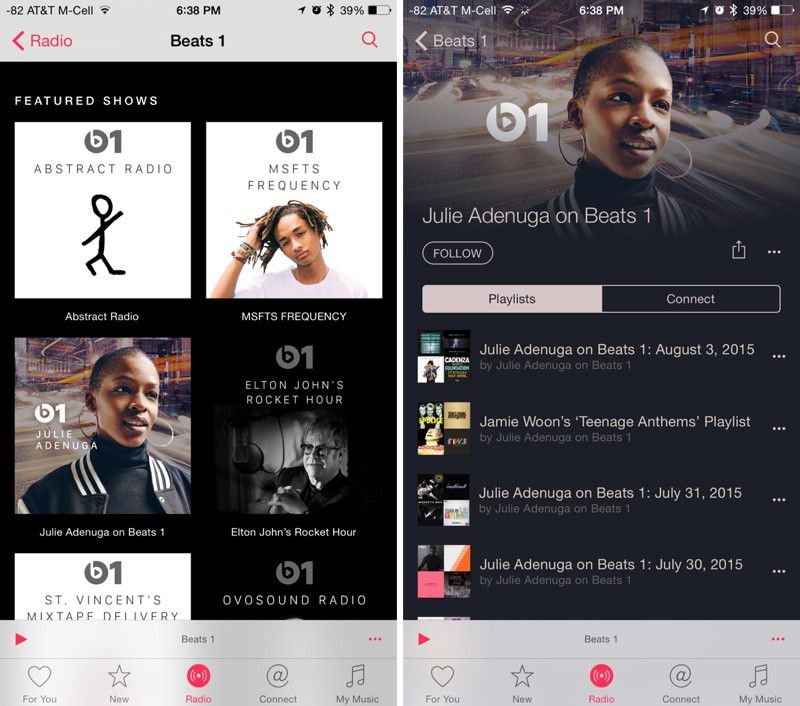
On iOS, you can also find featured deejays under the Beats 1 tab. Tap the Beats 1 banner (not the Now Playing button) to access more information. Scroll down to Featured Shows and select one.
Step 2: Add Playlists to Your iOS Device
Select a playlist and add it to My Music. Tap the "..." symbol (aka the more tab) and tap "Add to My Music." Then tap "Make Available Offline." Or, tap the add (+) button below the playlist title.
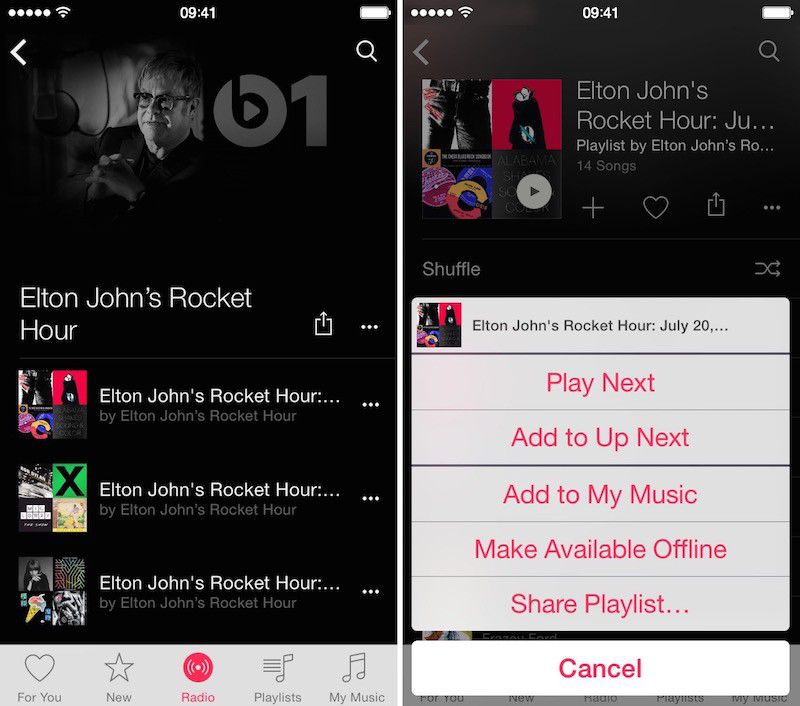
Songs will download onto your iPhone so you can take the playlists with you on the road. Tap the Playlist tab in your Music app to find them.
Step 3: Remove Playlists From Your iOS Device
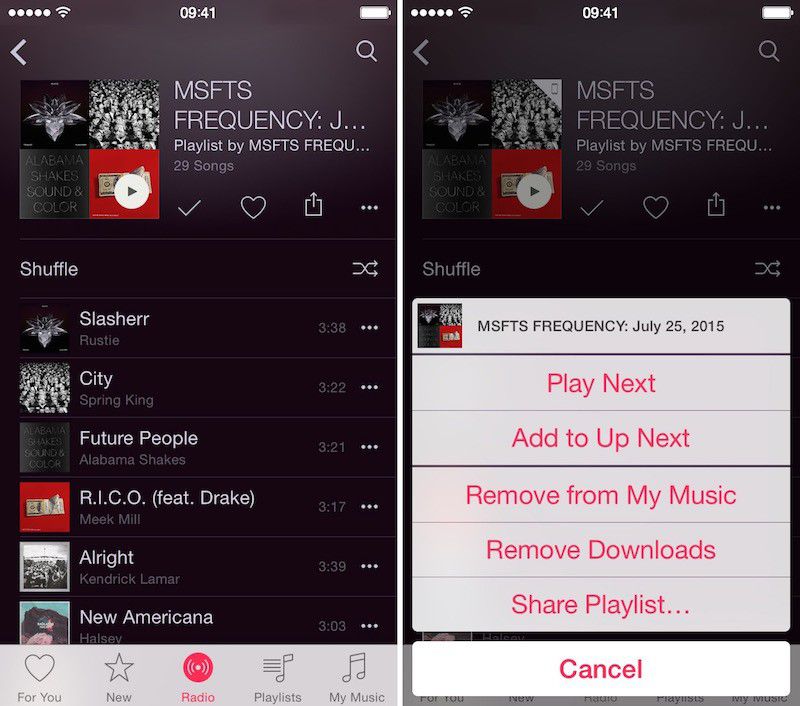
Once you've finished listening to a Beats 1 playlist, you can remove it from your iOS device in the same way you added it. Go to the playlist and either tap the check mark, then tap "Remove from My Music" or tap the "..." symbol, then tap Remove Downloads.
If you have not yet started your free 90-day trial of Apple Music, but are thinking about giving the streaming service a try, check out our Getting Started Guide and our additional Tidbits article. Remember, you must have iOS 8.4 on your iPhone or iPad and iTunes 12.2 on your Mac or PC.
If, after your three-month trial, you decide not to keep your subscription to Apple Music, you can disable automatic renewal through your account under the Subscription Management section. Without an Apple Music subscription, you can still listen to Beats 1 songs, but you won't be able to save them for offline listening.
Popular Stories

Apple Music Has a Hidden iPod You Can Play With

Apple Music's New Look Officially Announced