
How to Enable Two-Step Verification for Apple ID
How to Enable Two-Step Verification for Apple IDThursday January 7, 2016 11:43 AM PST by Joe RossignolApple introduced an additional layer of security for iPhone, iPad and Mac users in 2013 by rolling out two-step verification for

Table of Contents
How to Enable Two-Step Verification for Apple ID
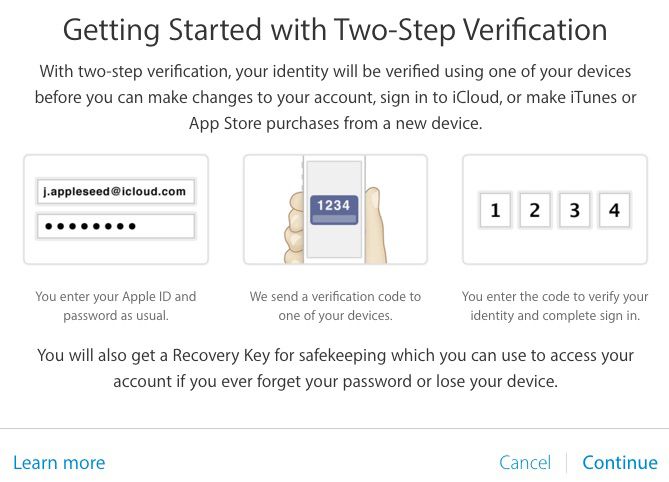
Apple introduced an additional layer of security for iPhone, iPad and Mac users in 2013 by rolling out two-step verification for Apple ID accounts. Two-step verification prevents anyone but you from accessing your Apple ID account, even if they know the password, by requiring a four-digit verification code sent via SMS or Find My iPhone on trusted devices. When you enable two-step verification, you must register at least one trusted device capable of receiving SMS text messages.

Once activated, two-step authentication is required when managing your Apple ID through My Apple ID, signing into iCloud, or making iTunes, iBooks or App Store purchases from a new device. Apple has also expanded two-step authentication to iMessage and FaceTime, requiring users to input an authentication code from a verified device on accounts that have two-factor verification enabled to prevent unauthorized entry attempts through both services.
Overview
Steps to Enable Two-Step Verification
- Sign in to your Apple ID.

- Click on "Get Started…" under Security > Two-Step Verification.

- Answer your Apple ID security questions if set and click Continue.

- Read "Getting Started with Two-Step Verification" and click Continue.
- Add a trusted phone number that can receive SMS text messages and click Continue.

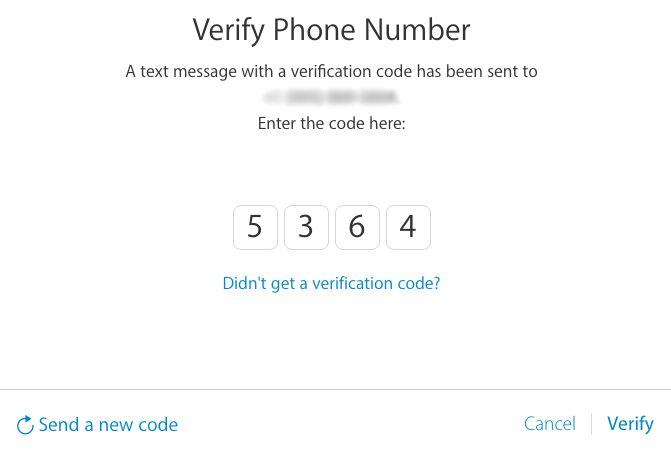
- A text message with a verification code will be sent to your trusted phone number. Enter the code and click Verify.
- Verify your trusted iPhone, iPad or iPod touch devices with Find My iPhone enabled and click Continue. Or click Skip This Step.

- Print or write down your Recovery Key to access your Apple ID account if you ever forget your password or lose your trusted devices.
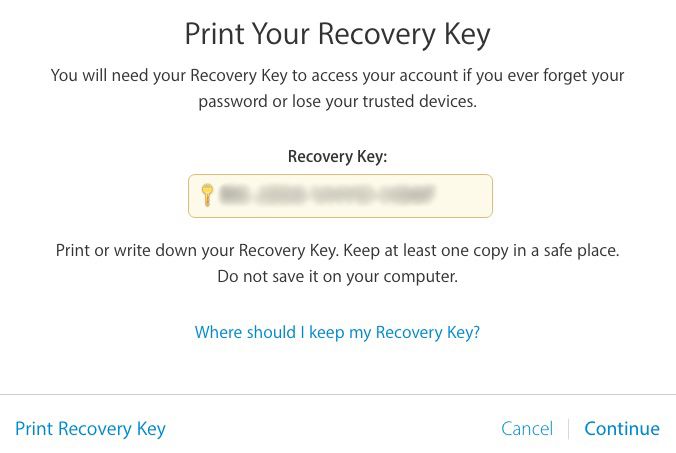
- Confirm your Recovery Key and click Confirm.

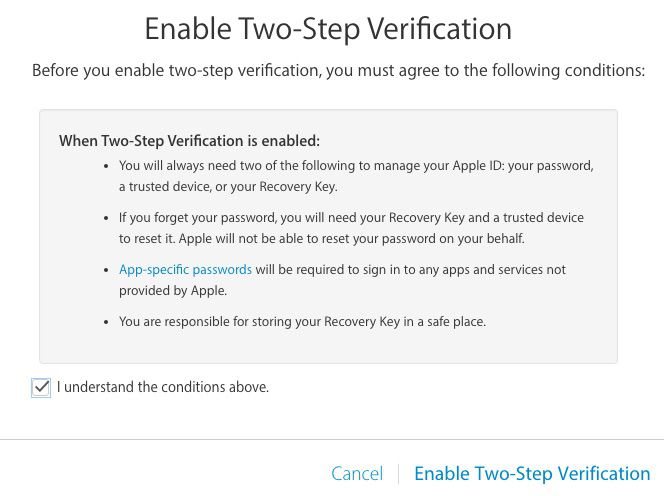
- Click on the checkbox if you agree to Apple's terms and conditions and click on Enable Two-Step Verification.
Final Words
To ensure continued access to your Apple ID account after enabling two-step verification, it is essential that you record your recovery key in a safe place. Losing your two-factor recovery key could permanently lock you out of your Apple ID account, especially in the event you are being hacked. Without the recovery key, you will be forced to create a new Apple ID.
Two-step verification may provide an additional layer of security, but it is still highly recommended that you set a secure password for your Apple ID account. Avoid using common names, phrases or dictionary words in your password, and try to use as many lowercase and uppercase letters, numbers and symbols as possible.
Popular Stories

Apple Responds to iPhone Duo Display Cracking Reports

Apple Announces New iPad Mini With 8.5-Inch OLED Display, A20 Pro Chip, and More

