
How to Factory Reset HomePod Mini
If you're having trouble with your HomePod mini, need to send it in for servicing, or want sell it or give it away, you'll want to return it to factory settings first. Keep reading to learn how. There are three simple ways to rese
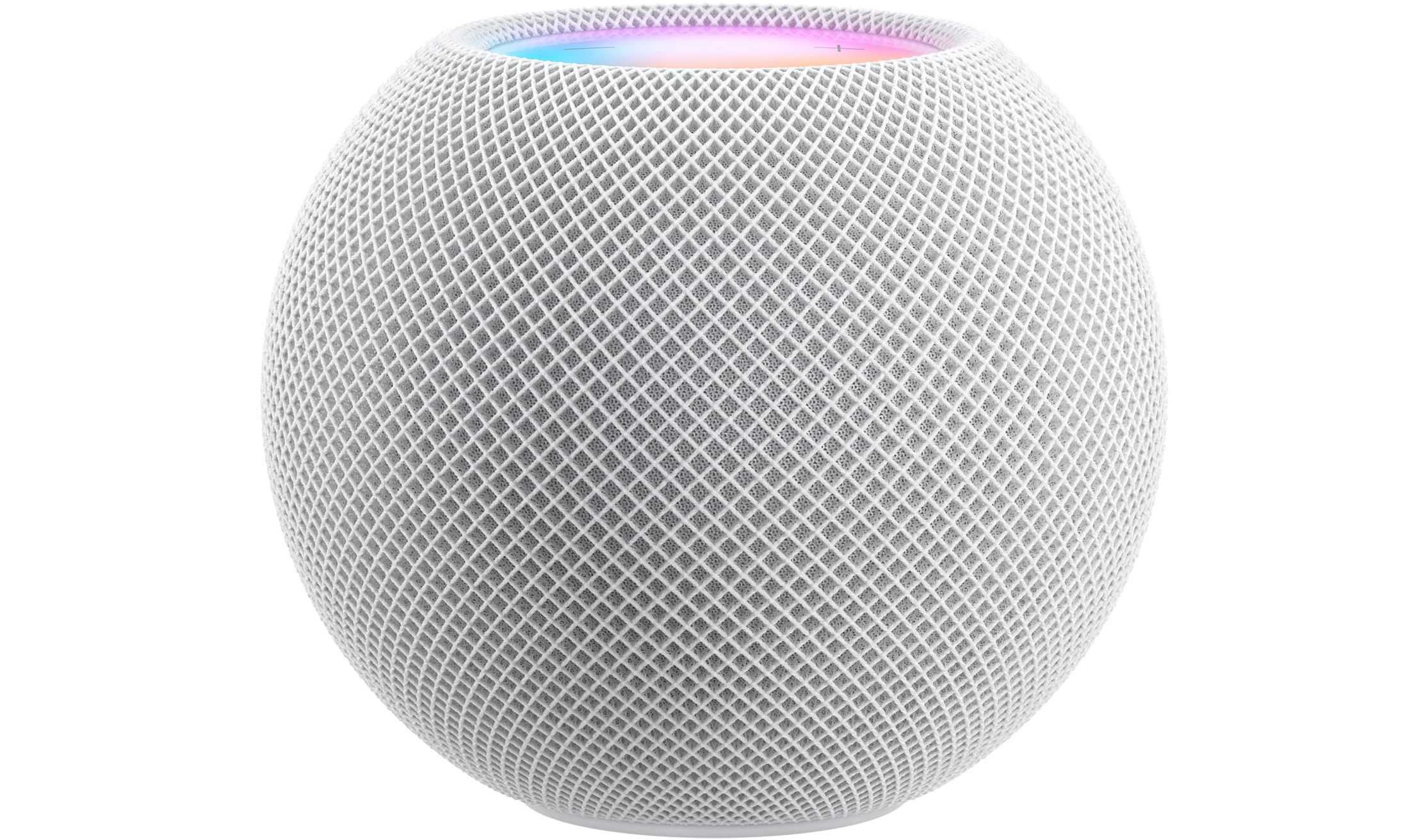
Table of Contents
- 1. How to Reset HomePod mini Using iPhone or iPad
- 2. How to Reset HomePod mini Without an iOS Device
- 3. How to Reset HomePod mini via Mac or PC
- 4. Popular Stories
- 5. New Apple TV 4K, HomeView, and HomePod Mini: 16 Details Just Leaked
- 6. Three New Apple Smart Home Products Coming on October 13
- 7. Apple Expected to Release New Products on Next Four Fridays
If you're having trouble with your HomePod mini, need to send it in for servicing, or want sell it or give it away, you'll want to return it to factory settings first. Keep reading to learn how.
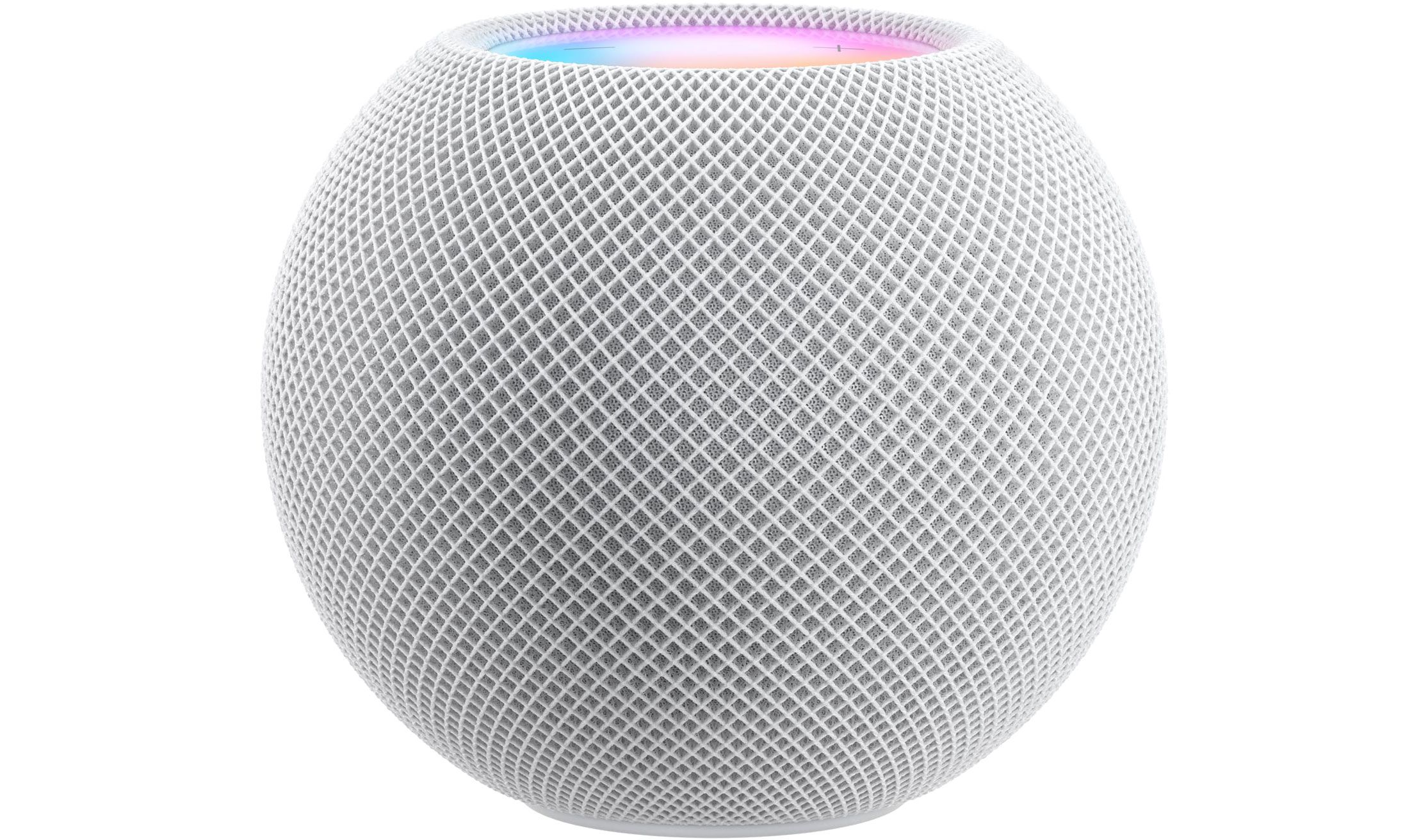
There are three simple ways to reset a HomePod mini. The first can be done via the Home app on iPhone or iPad, the second uses the physical controls on the speaker, and the third involves a computer. If the first method doesn't work, try the second, and if for whatever reason that doesn't work either, use the third.
Note: If you have two HomePod mini speakers set up as a stereo pair, you'll need to ungroup them in the Home app before you can reset either speaker.
How to Reset HomePod mini Using iPhone or iPad
Make sure you're signed into your iPhone or iPad with the Apple ID that you used to set up the smart speaker.
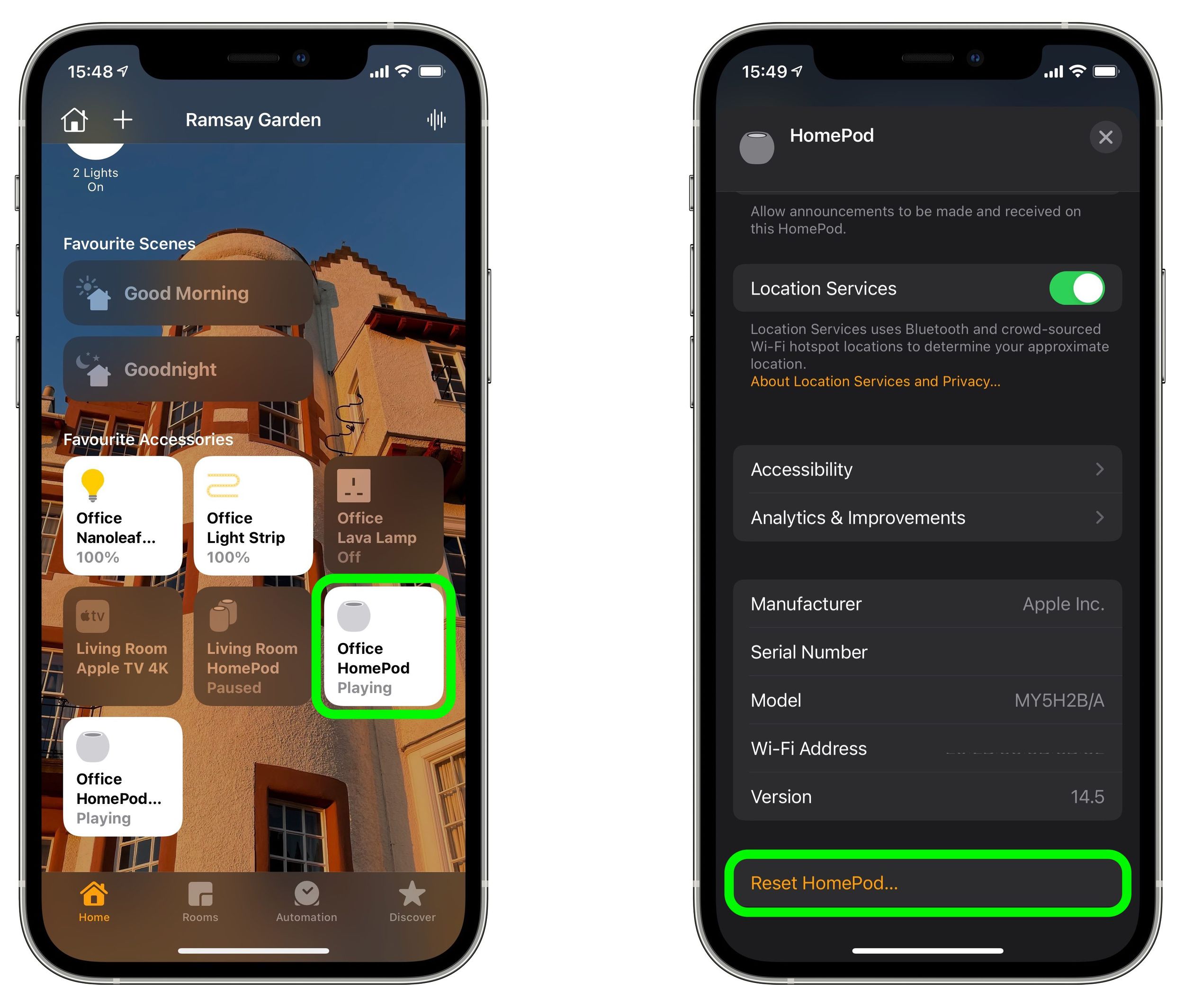
- Open the Home app on your iOS device.
- Press and hold the HomePod mini card.
- Scroll to the bottom and tap Remove Accessory.
- Tap Remove.
How to Reset HomePod mini Without an iOS Device
If you can't remove the HomePod mini from the Home app, you can press the top of the speaker to reset it to its factory settings.
- Unplug the power adapter for the HomePod mini, wait 10 seconds, then plug it back in.
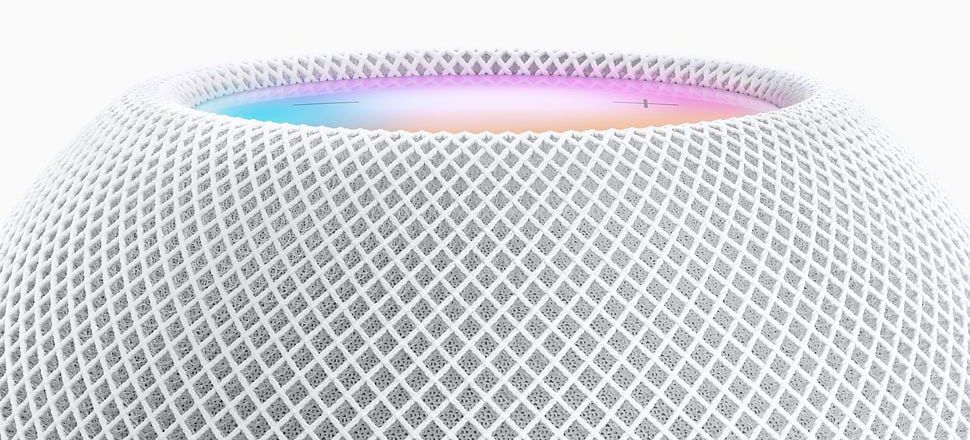
- Wait another 10 seconds, then press the touch surface on the top of the HomePod mini and hold it there.
- The white spinning light will turn red. Keep your finger down.
- Siri will say that your HomePod mini is about to reset. When you hear three beeps, lift your finger.
If you still see HomePod in the Home app after you reset it, you'll need to manually remove it using the first method described above.
How to Reset HomePod mini via Mac or PC
You can also factory reset a HomePod mini using a computer. Just follow these steps.
- Plug HomePod mini into your computer using the USB-C cable that came with it.
- Wait a few seconds. If you're on a Mac, open a Finder window. If you're using a PC, open iTunes (make sure it's the latest version).
- Select your HomePod when it appears in the sidebar in Finder or iTunes.
- Click the blue Restore HomePod... button.
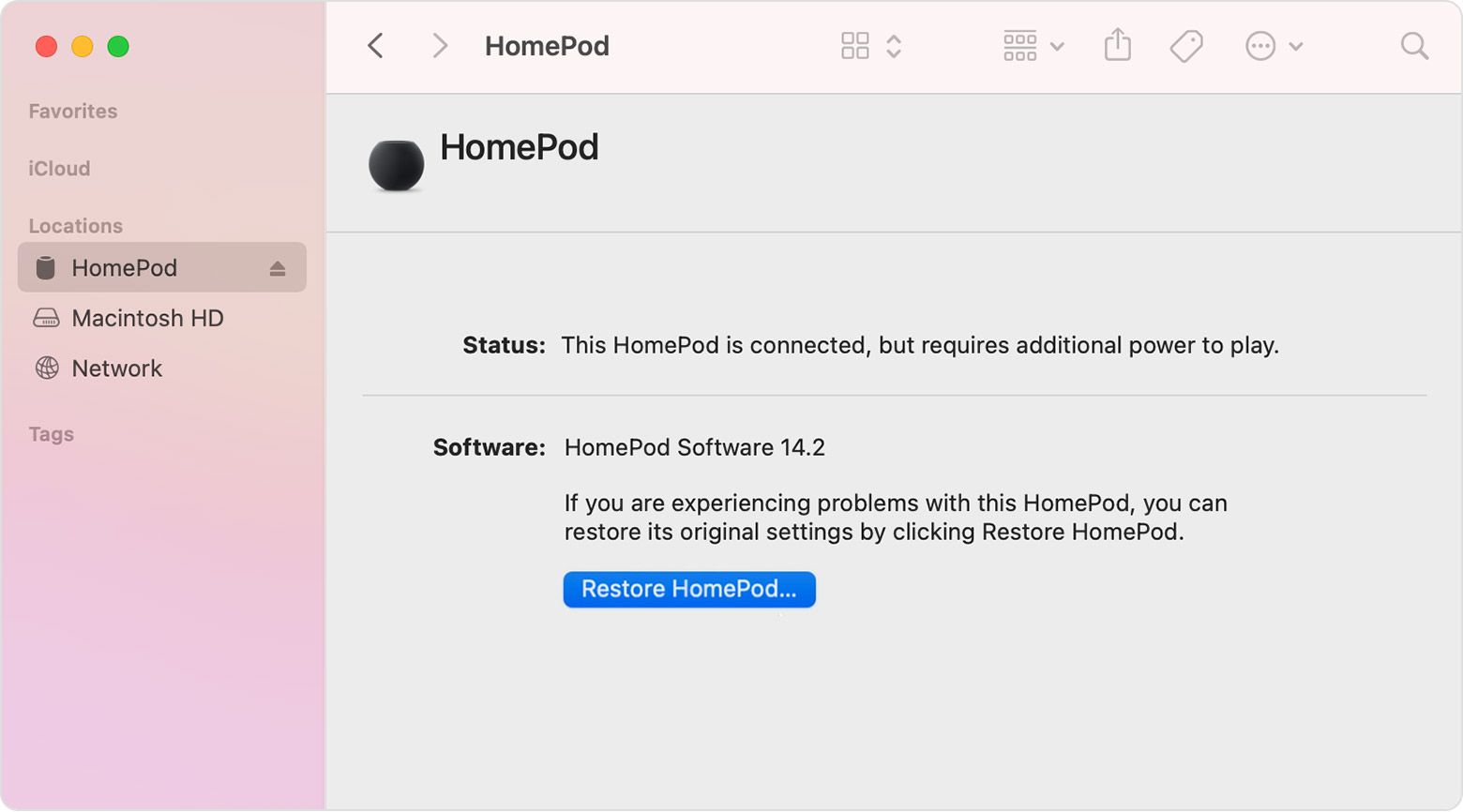
Your computer will then start the restore process for the software on your HomePod mini. You'll know when your HomePod mini has finished restoring when there's no longer an orange flashing light on top of it.
Popular Stories

New Apple TV 4K, HomeView, and HomePod Mini: 16 Details Just Leaked

Three New Apple Smart Home Products Coming on October 13
