
How to Subscribe to a Friend's Playlist in Apple Music
How to Subscribe to a Friend's Playlist in Apple MusicFriday February 22, 2019 5:45 PM PST by Tim HardwickIf you're an Apple Music subscriber, you can download the playlists that your friends on the service have elected to share.
Table of Contents
How to Subscribe to a Friend's Playlist in Apple Music
by Tim Hardwick
If you're an Apple Music subscriber, you can download the playlists that your friends on the service have elected to share.
Before you can see what your friends are listening to in Apple Music you need to set up your profile and start sharing. Follow the first set of steps below to do so, and then continue onto the second series of steps to view your friends' shared playlists in Apple Music.
How to Start Sharing
- Launch the Music app on your iPhone or iPad, or open iTunes on your Mac or PC.
- Select the For You tab.
- Tap or click your profile picture in the upper right corner of the screen or iTunes window.
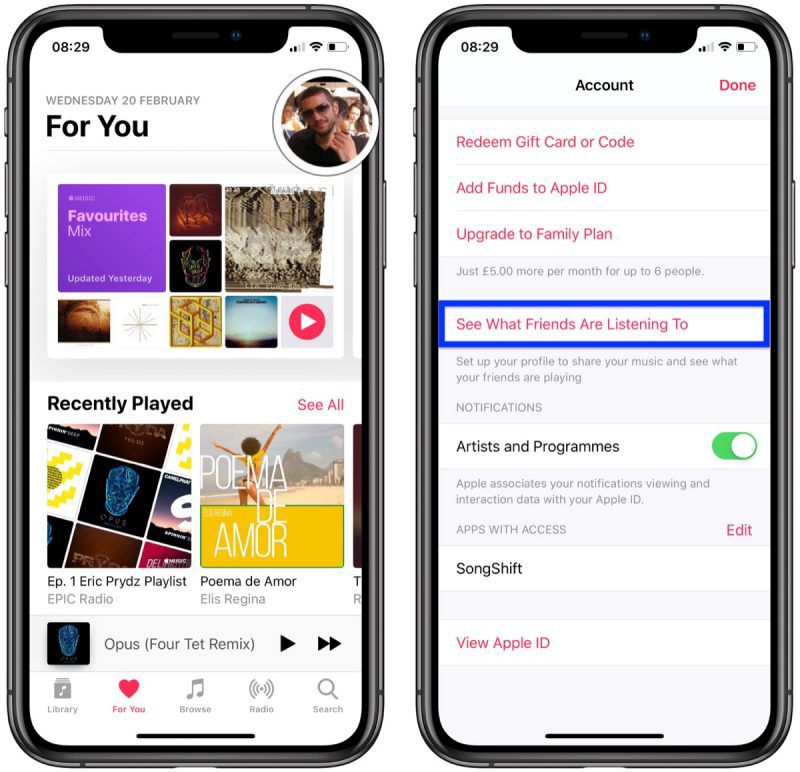
- Tap See What Friends Are Listening to; in iTunes, click Get Started.
- Follow the steps to set up your Apple Music profile and start sharing. After you've done so, your shared playlists and songs that you listen to will be displayed on your profile page.
How to Subscribe to a Friends' Playlist
- Tap or click the For You tab.
- Tap or click your profile picture in the upper right corner of the screen or iTunes window.
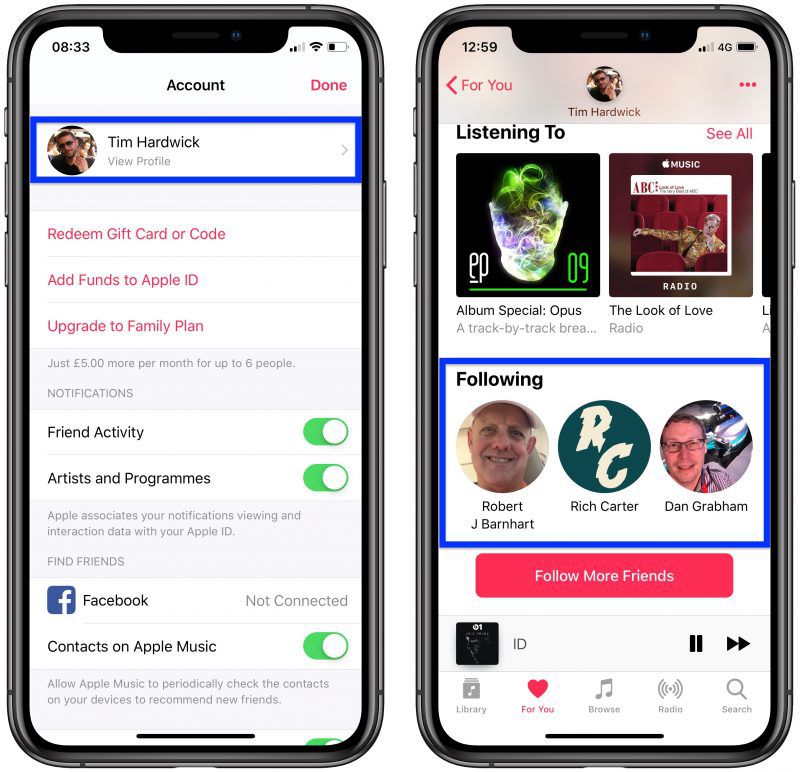
- Tap or click your profile picture on the Account page.
- Scroll down and select one of your friends under Following.
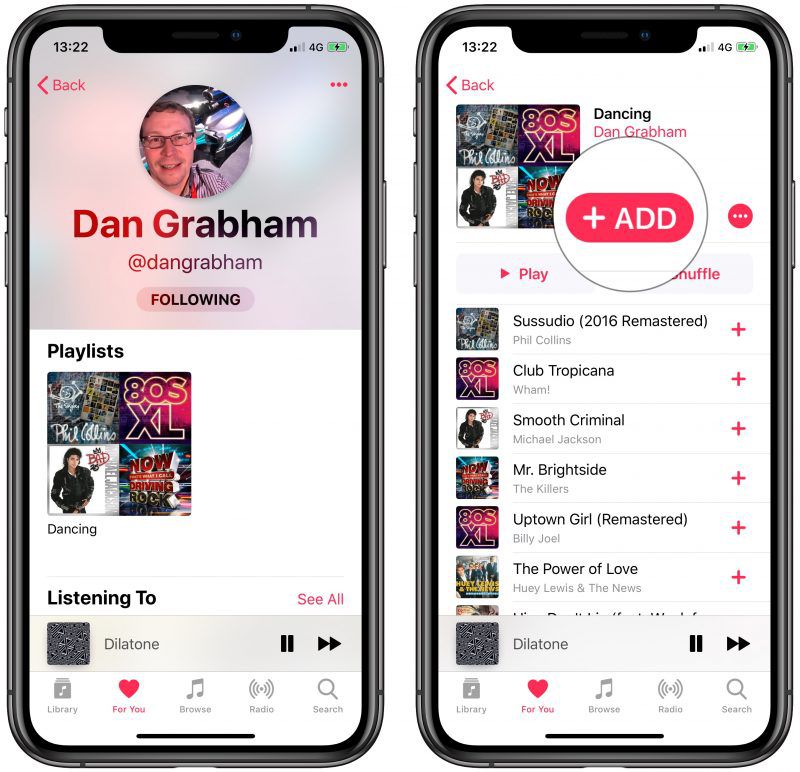
- If your friend is sharing playlists, you should see them under their profile -- tap or click a playlist to open it.
- Tap or click the +Add button to add your friend's playlist to your library.
- Every time your friend adds a song to the playlist, it will be updated with the new content, so this is a good way to effectively subscribe to the music that your friends are listening to.
Tag: Apple Music Guide
Popular Stories

Apple Music Has a Hidden iPod You Can Play With
Friday October 23, 2026 7:11 am PDT by Joe Rossignol
Apple Music has a 404 page easter egg on the web: a functional iPod that appears when you load a page that does not exist, such as music.apple.com/macrumors.
"Page Not Found," says Apple. "Give this a spin instead."
Apple is clever with this. If you navigate to music.apple.com/ipod instead, the page says "Looking for something?" instead of "Page Not Found."
The easter egg is only...

Apple Music's New Look Officially Announced
Wednesday October 21, 2026 9:06 am PDT by Joe Rossignol
Following the introduction of a new Apple Music logo and app icon earlier this month, Apple today officially introduced Apple Music's new brand identity.
In a YouTube video shared today, Apple said the new Apple Music visuals were "made by sound." More specifically, Apple said it played a sound through a container of water, resulting in the liquid moving at the frequency of the notes. Apple...
Apple Music Is Getting a New Logo
Tuesday October 6, 2026 4:06 am PDT by Tim Hardwick
Apple appears to be rolling out a new logo for Apple Music in its upcoming set of software updates. The logo has been spotted in both macOS 27.2 beta 3 and iOS 27.2 beta 3, and it's identical to the one that Apple used in its Apple Music Hall announcement last month.
When Apple used the logo in the venue's press materials and on its new official website, it wasn't clear if this was a one-off ...
