How to Use Spatial Audio on AirPods Pro and AirPods Max
Spatial audio is a sonic feature exclusive to AirPods Pro and AirPods Max that adds surround sound to Apple's premium audio wearables. By utilizing dynamic head tracking, it brings a theater-like audio experience to the movie or v

Table of Contents
- 1. What You Need
- 2. Make Sure Your AirPods Pro Firmware is Up to Date
- 3. How to Turn on Spatial Audio
- 4. How to Turn Off Spatial Audio
- 5. How to Turn Spatial Audio On and Off in Control Center
- 6. Popular Stories
- 7. AirPods Pro Hearing Aid Feature Launching in These Canadian Provinces
- 8. Apple Responds to iPhone Duo Display Cracking Reports
- 9. Crackgate? iPhone Duo Owners Report Screens Breaking Along the Hinge
Spatial audio is a sonic feature exclusive to AirPods Pro and AirPods Max that adds surround sound to Apple's premium audio wearables. By utilizing dynamic head tracking, it brings a theater-like audio experience to the movie or video you're watching, so that it seems as if the sound is coming from all around you.
Spatial audio uses the gyroscope and accelerometer in your AirPods Pro or AirPods Max and iOS device to track the motion of your head and the position of your iPhone/iPad, compares the motion data, and then maps the sound field to what's happening on the screen even as you move your head or your device.
What You Need
To take advantage of spatial audio on AirPods Pro or AirPods Max, you'll need an iPhone 7 or later or one of the iPad models listed below.
- iPad Pro 12.9‑inch (3rd generation) and later
- iPad Pro 11‑inch
- iPad Air (3rd generation)
- iPad (6th generation) and later
- iPad mini (5th generation)
You'll also need iOS 14 or iPadOS 14 or later installed on your device, as well as the latest firmware on your AirPods Pro or AirPods Max.
Make Sure Your AirPods Pro Firmware is Up to Date
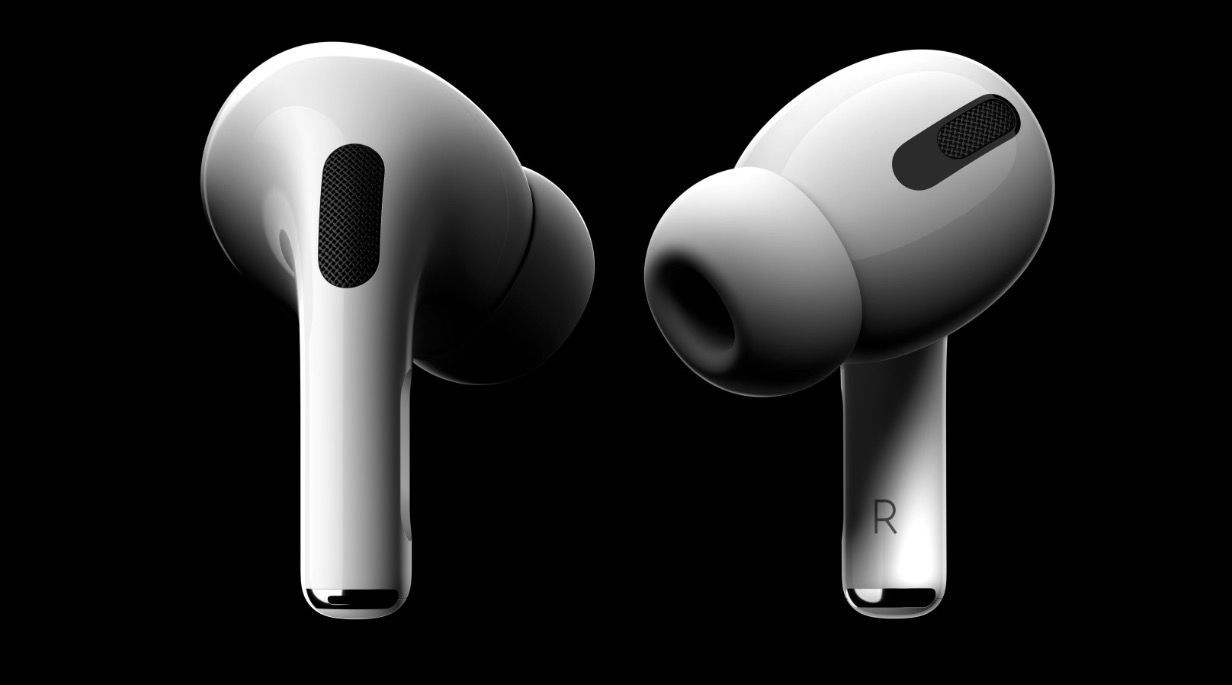
While there's no clear cut way to upgrade the firmware of the AirPods Pro and AirPods Max, with new firmware installed over-the-air when the AirPods are connected to an iOS device, putting your AirPods in the case, connecting them to a power source, and then pairing the headphones to an iPhone or an iPad should force the update after a short period of time.
Apple in September 2020 released the 3A283 firmware for AirPods Pro that introduced spatial audio. Apple may have released newer firmware by the time you read this, but you can check your AirPods Pro firmware by following these steps:
- Make sure the AirPods or AirPods Max are connected to your iOS device.
- Open the Settings app.
- Tap General.
- Tap About.
- Tap AirPods or AirPods Max.
- Look at the number next to "Firmware version."
How to Turn on Spatial Audio
- Make sure the AirPods or AirPods Max are connected to your iOS device.
- Launch the Settings app on your iPhone or iPad.
- Find your AirPods Pro/Max in the list (Tim's AirPods Pro, for example).
- Tap the info (i) button next to your AirPods.
- Toggle the switch next to Spatial Audio to the green ON position.
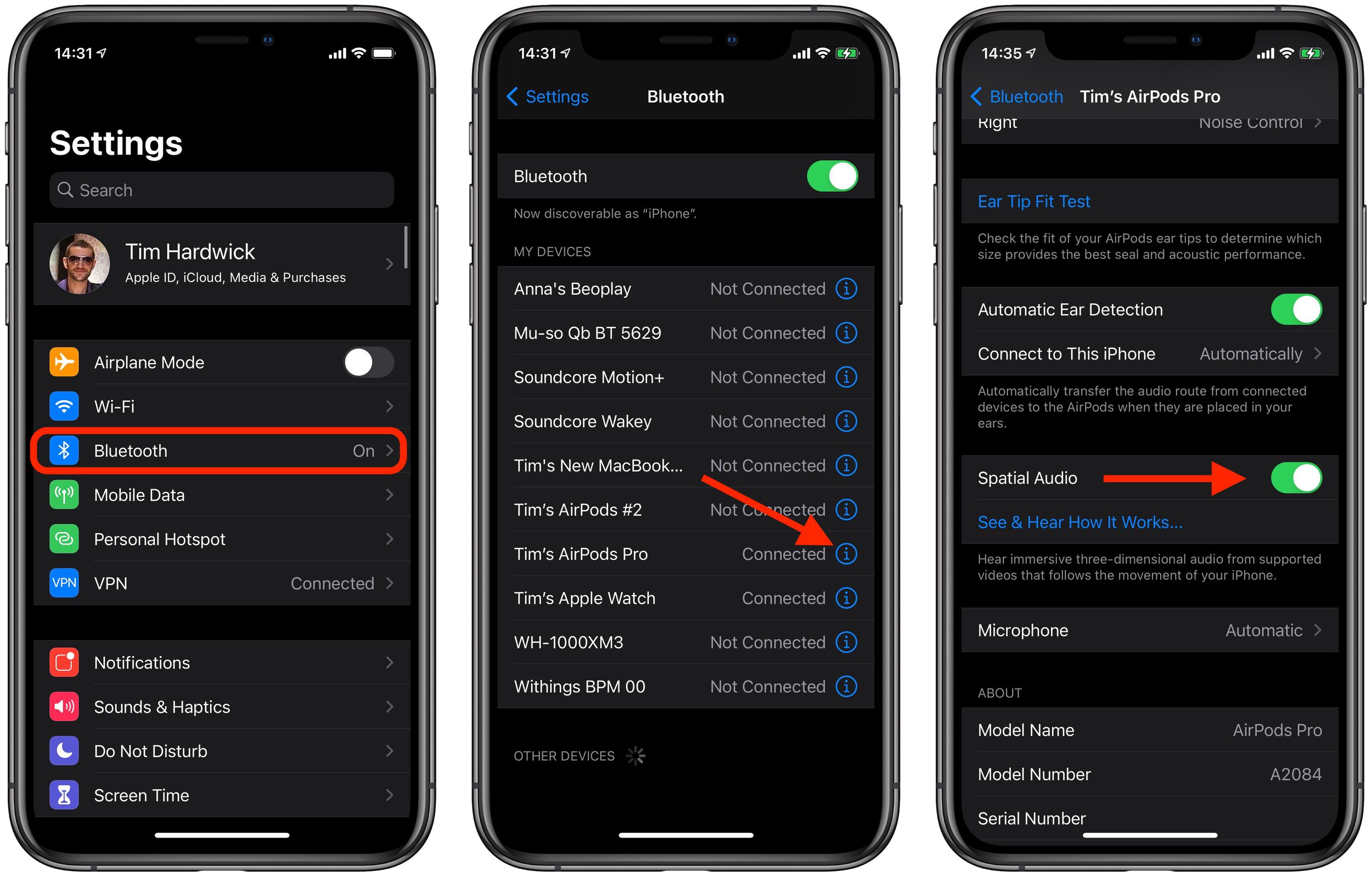
You can listen to a demonstration of spatial audio by tapping See & Hear How It Works. You can then switch from stereo audio to spatial audio to hear the difference between them.
How to Turn Off Spatial Audio
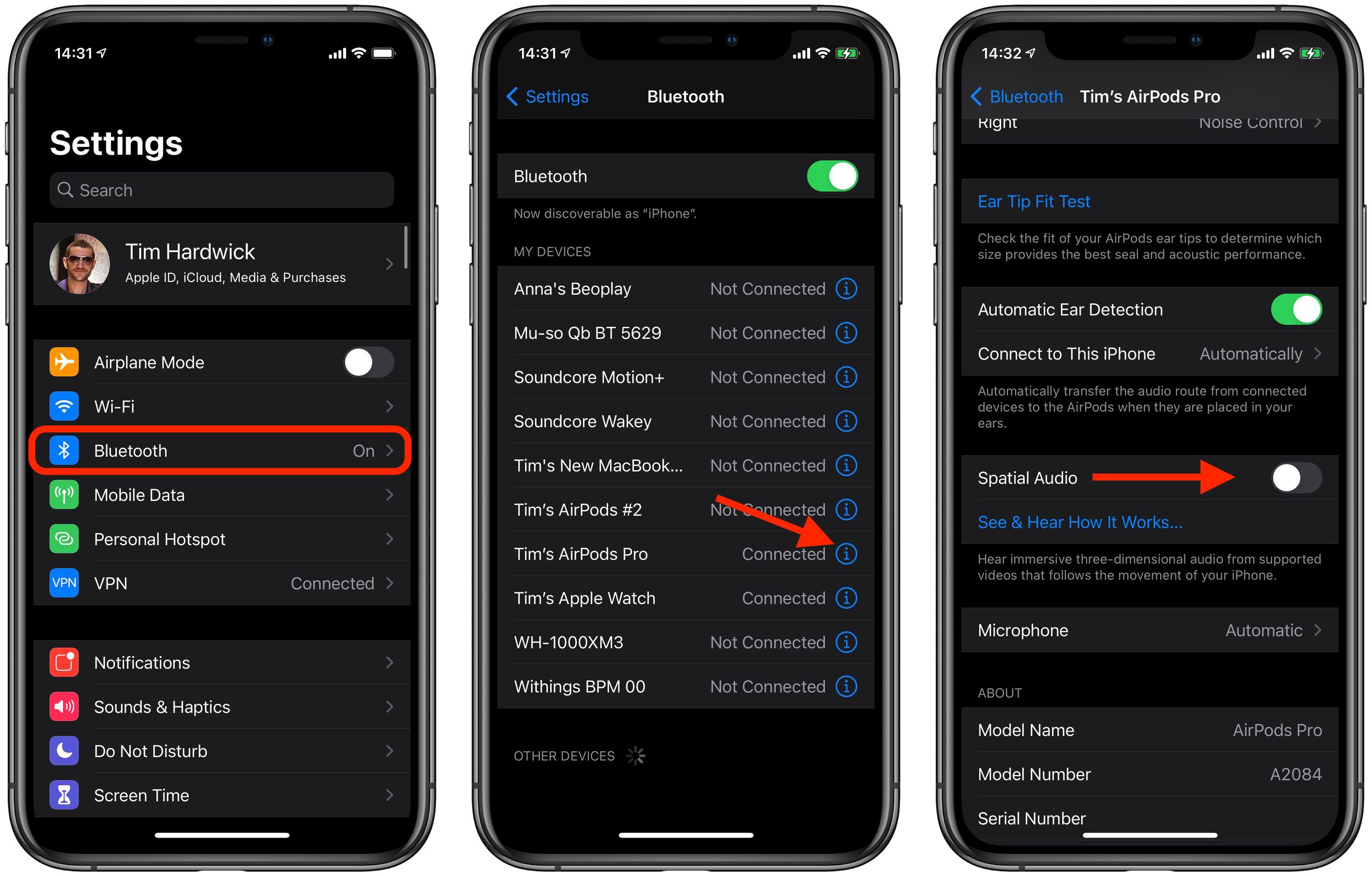
- Make sure the AirPods Pro/Max are connected to your iOS device.
- Launch the Settings app on your iPhone or iPad.
- Find your AirPods Pro/Max in the list (Tim's AirPods Pro, for example).
- Tap the info (i) button next to your AirPods Pro/Max.
- Toggle the switch next to Spatial Audio to the grey OFF position.
How to Turn Spatial Audio On and Off in Control Center
- Make sure the AirPods Pro/Max are connected to your iOS device.
- Launch the Control Center: On an iPad with a Home button, double-tap the Home button; on iPhone 8 or earlier, swipe up from the bottom of the screen; and on a 2018 iPad Pro, 2020 iPad Air, or iPhone X and later, swipe down from the upper right of the screen.
- Touch and hold the volume control bar.
- Tap the Spatial Audio button to turn it on or off.

If spatial audio is enabled and active, the spatial audio button will be blue and animated with audio waves around the listener's head. If spatial audio is enabled but not active for the audio content that you're listening to, the spatial audio button will be blue but static.
Popular Stories

AirPods Pro Hearing Aid Feature Launching in These Canadian Provinces

Apple Responds to iPhone Duo Display Cracking Reports