
How to Use the Effects Camera in Messages
In iOS 12, Apple added a new Effects camera in Messages that's similar to the live camera features in Snapchat and Instagram, allowing you to take a photo in the Messages app and then edit it with stickers, filters, text, and more
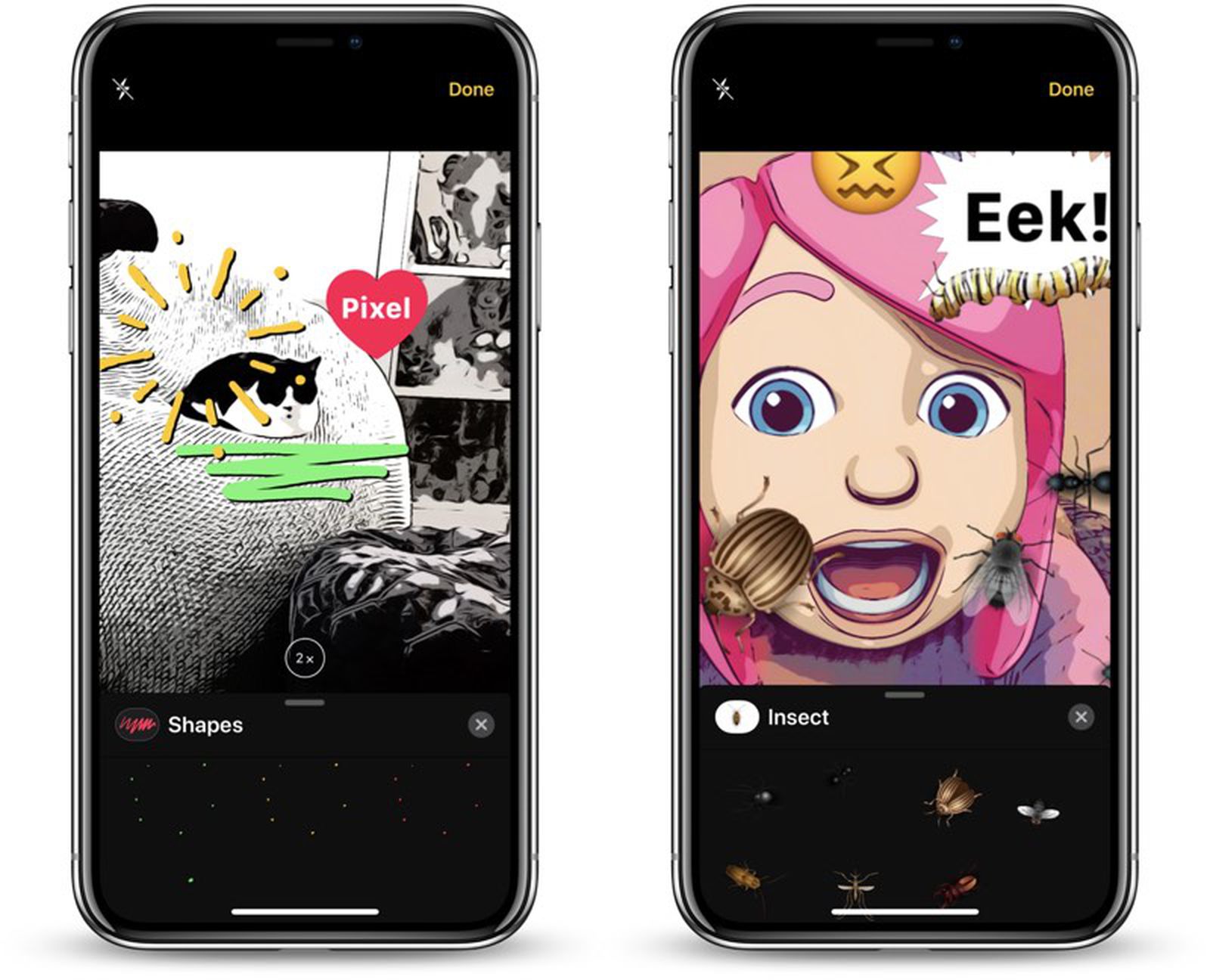
Table of Contents
- 1. Accessing the Effects Camera
- 2. Available Effects Camera Features
- 3. Animoji and Memoji
- 4. Filters
- 5. Text
- 6. Shapes
- 7. Stickers
- 8. Stacking Effects
- 9. Removing Effects
- 10. Popular Stories
- 11. Apple Responds to iPhone Duo Display Cracking Reports
- 12. Crackgate? iPhone Duo Owners Report Screens Breaking Along the Hinge
- 13. Apple Announces New iPad Mini With 8.5-Inch OLED Display, A20 Pro Chip, and More
In iOS 12, Apple added a new Effects camera in Messages that's similar to the live camera features in Snapchat and Instagram, allowing you to take a photo in the Messages app and then edit it with stickers, filters, text, and more.
On devices with a TrueDepth camera system, the Effects camera even works with Memoji and Animoji, allowing you to overlay cartoon emoji heads over your own head.
Accessing the Effects Camera
The Effects camera lives in the Messages app, and Apple's made it easy to locate.
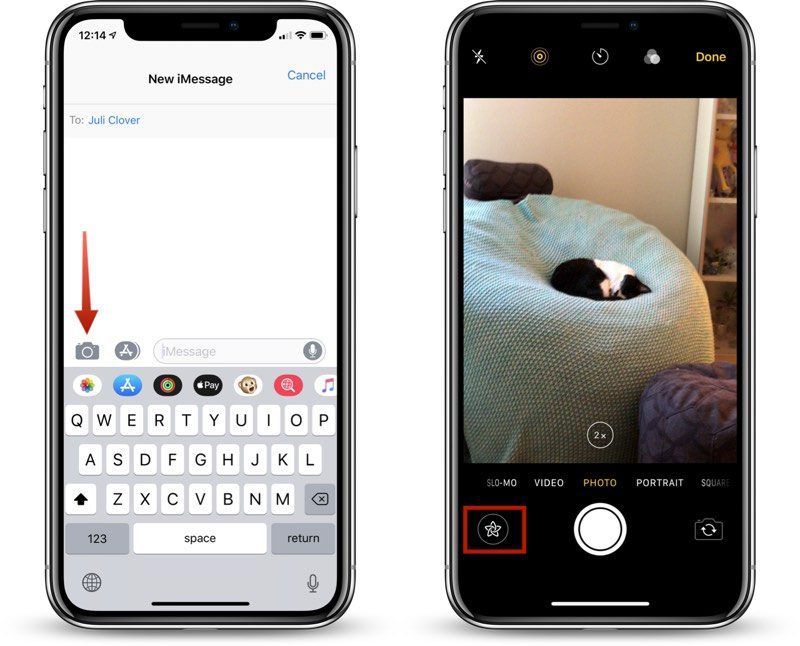
- Open the Messages app.
- Choose a conversation with someone.
- Tap on the Camera icon next to the App Store icon.
- Make sure you're in either standard Photo or Video mode.
- To get to the available Effects, tap on the small star-shaped icon to the left of the shutter button.
The Camera in the Messages app is located in the same place that it was in iOS 11, but instead of opening up a smaller camera window that also provides access to your already-captured photos, it is a full-screen camera complete with editing tools.
To get to photos you've already taken in the Messages app, you need to open up the app drawer by tapping on the App Store "A" icon and then choosing the Photos icon.
Available Effects Camera Features
There are multiple tools for editing your photos, all of which are displayed in a bar above the camera shutter, organized by icon. Here are the options, in the order that you'll see them in the app.
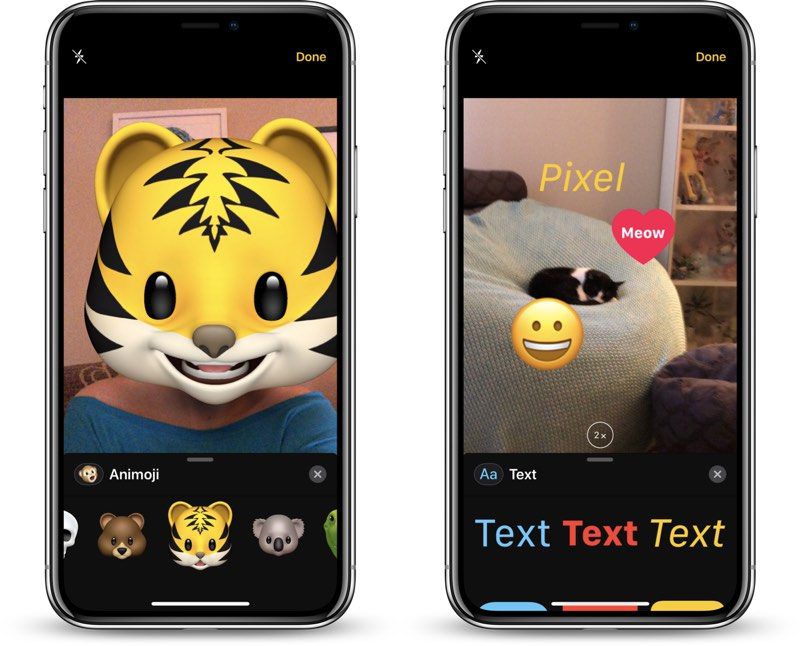
- Animoji/Memoji (TrueDepth devices and front-facing camera only)
- Filters
- Text
- Shapes
- Sticker packs
After the four main sections, every other icon represents a different sticker pack that you have installed on your device.
All of these options work in photo and video mode with both the rear and front-facing cameras, with the exception of Animoji and Memoji, which only work with the front-facing camera.
You cannot use the Effects camera with slo-mo videos, portrait mode photos, square-shaped photos, or panoramas, but you can access these types of images in the Messages camera.
Animoji and Memoji
With the Animoji and Memoji filters, you can choose an Animoji or a previously created Memoji that will be displayed over your own face when using the front-facing camera of a device with a TrueDepth camera system.
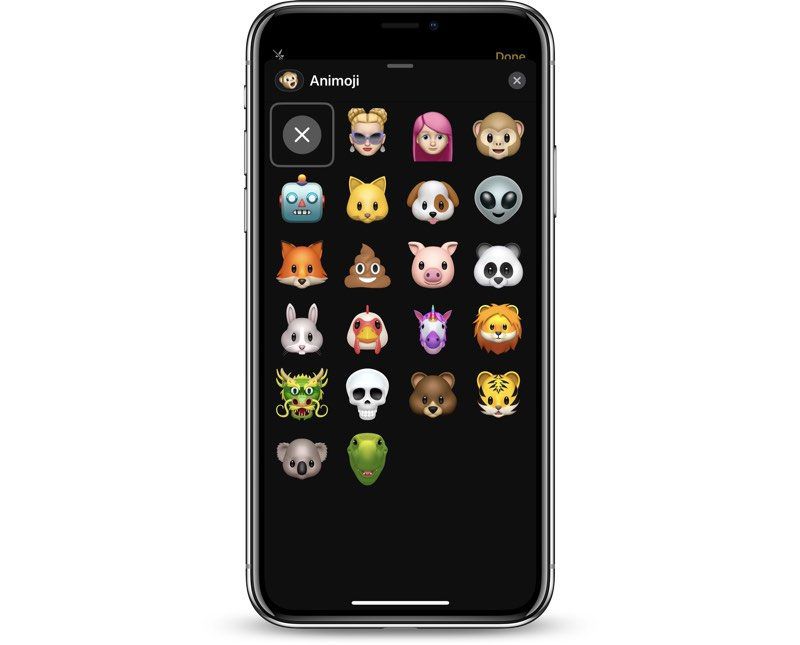
The Memoji and Animoji filter looks similar to what you might expect from a Snapchat filter, and because it uses the TrueDepth system, the Animoji and Memoji stay lined up with your head while you move and talk, mimicking your facial expressions just like when you use Animoji in Messages.
Filters
There are more than a dozen filters you can add to your photos or videos, which display in realtime. The filter section of the Effects Camera is accessed by tapping on the icon that looks like three RBG dots.
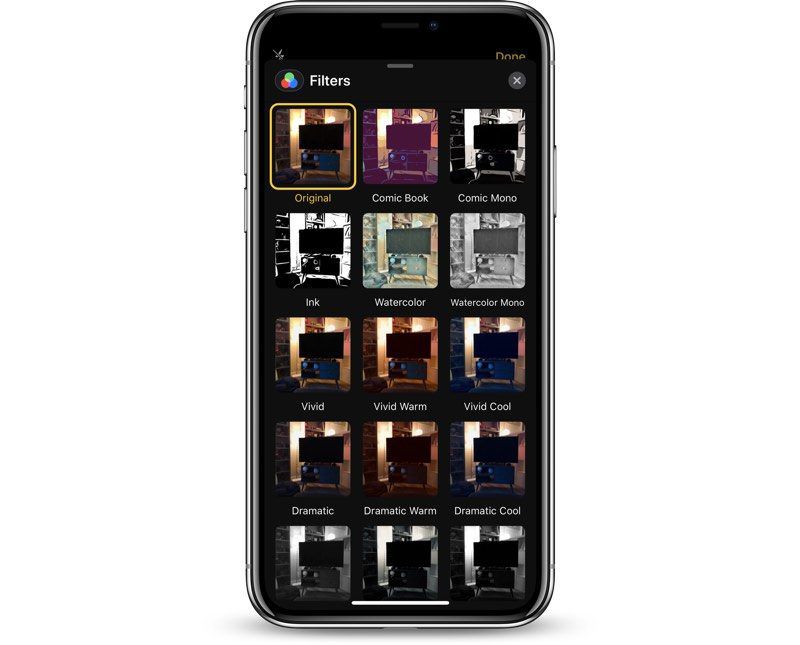
There are standard filters for making a photo or video warmer or cooler, several black and white filters, and a selection of fun filters like watercolor, ink, and comic book, that give you a sketched or painted look.
Text
Text can be added to a photo or video by tapping on the icon that looks like "Aa," with plain text, text in bubbles, and text in shapes as available options.
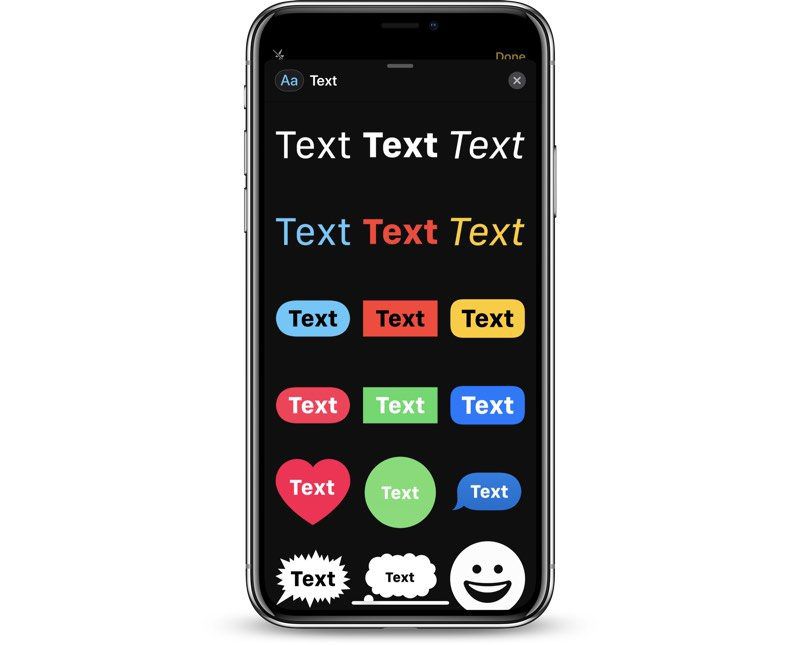
Pick the text design that you want and then type in your message. After you tap "Done," you can resize the text with pinch gestures.
If you choose the icon that looks like a smiley face, you can add any emoji that you want to the photo or the video, and resize it just like standard text.
Shapes
With the Shapes tool, you can insert a variety of shapes in a sketched style, with options that include arrows, fireworks, circles, checkmarks, and squiggles.
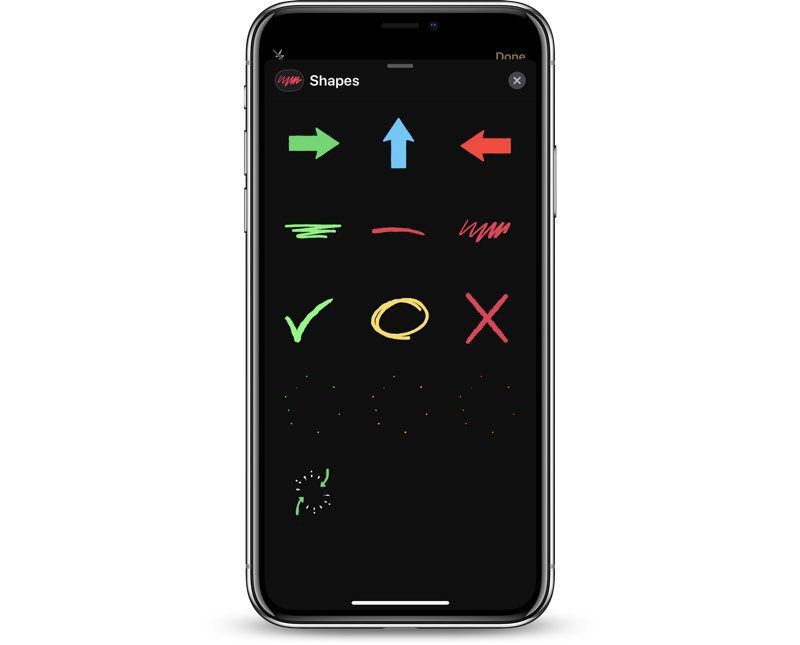
There are no options to draw your own shapes, so you can only use the stock options. Shapes are static when used in photos, but will animate when used in videos.
Shapes can be resized with pinch gestures and relocated by placing a finger on the shape and dragging it to a new location.
Stickers
After the four available built-in options, all of the additional icons in the Effects camera will be the sticker packs that you have installed. These sticker packs will vary based on your own downloads and apps, and it will look different for everyone.
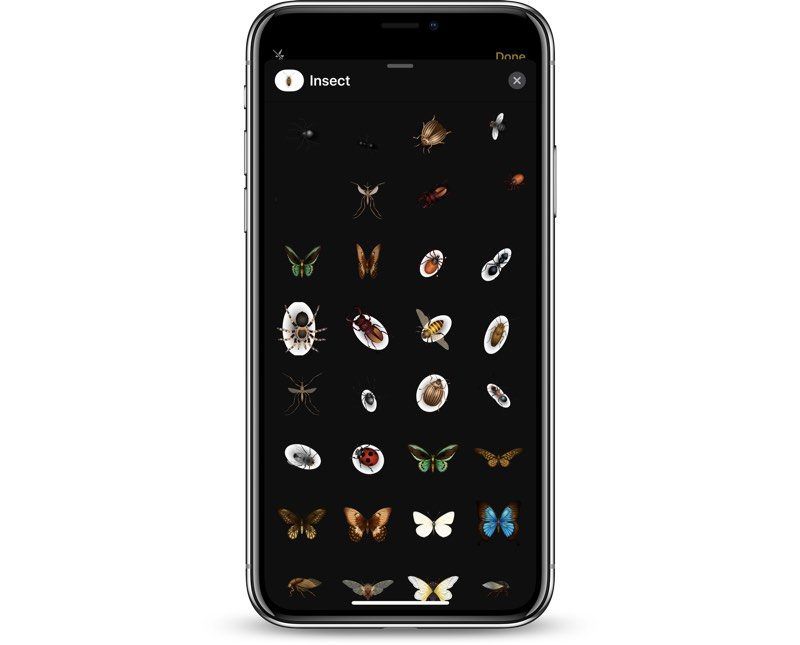
Like Text and Shape Effects, stickers can be placed anywhere on the photo or video and resized using pinch gestures. You can drag the sticker anywhere on the photo and reposition it using the same gestures you would use to put stickers within iMessages.
For stickers that animate, you will see the animations when using them in video mode, but there are no animations in photo mode.
New sticker packs for use with the Effects camera can be downloaded from the Messages App Store using these directions:
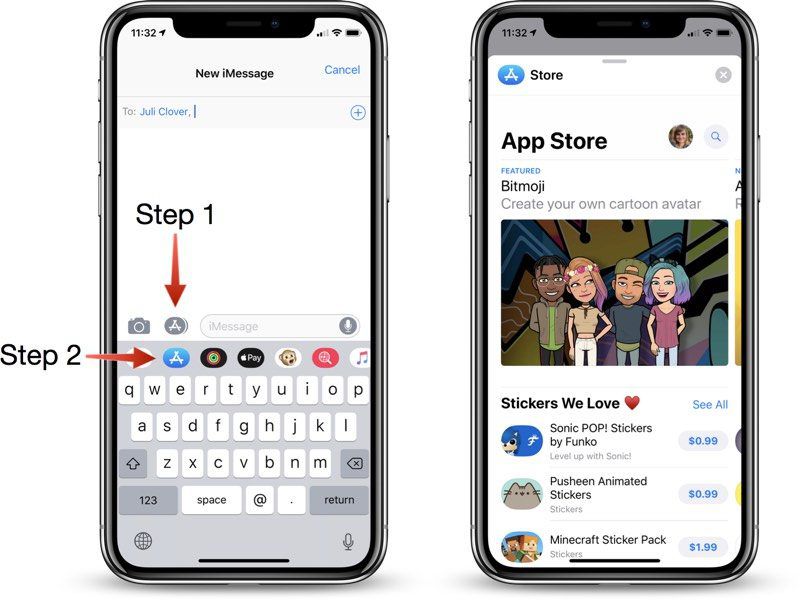
- Open the Messages app.
- Tap on the gray App Store Icon to make sure the app drawer is open.
- With the app drawer open, tap on the blue App Store logo to open up the App Store.
- From here, you can browse through popular stickers, search for sticker packs, or find games and apps that come with stickers you can use with the camera.
Some of the sticker packs are free, while others are available for $0.99 to $1.99 on average.
Stacking Effects
All of the different effects can be stacked up, so you can combine multiple options. You can use filters with Animoji, for example, and also decorate photos and videos with stickers.
To use multiple effects, select your first option, such as Animoji, and choose what you want to apply. From there, tap the "X" in the upper right corner to go back to the Effects camera options and you can choose another category.
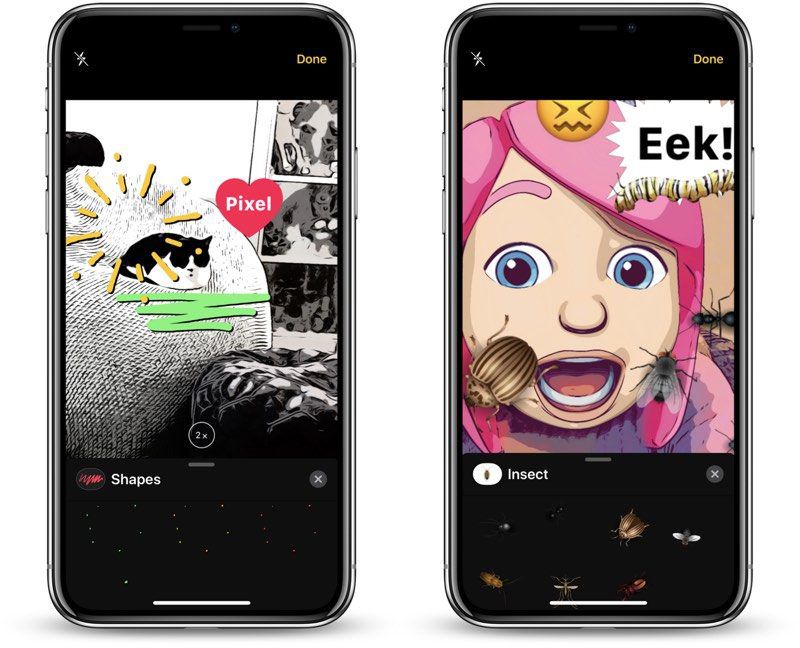
Using this method, you can stack up all of the effects if desired, using filters, stickers, shapes, and text with Animoji and Memoji options.
Make sure not to tap the Effects camera again while applying your different filters and effects because when you tap it, it will clear all of your set options.
Removing Effects
To remove an Animoji or Memoji filter, tap on the Animoji icon and then tap on the big "X" all the way at the left of Animoji/Memoji list.
To remove a photo filter, open up the filter menu and then scroll over to the first option, which is "Original" and select it.
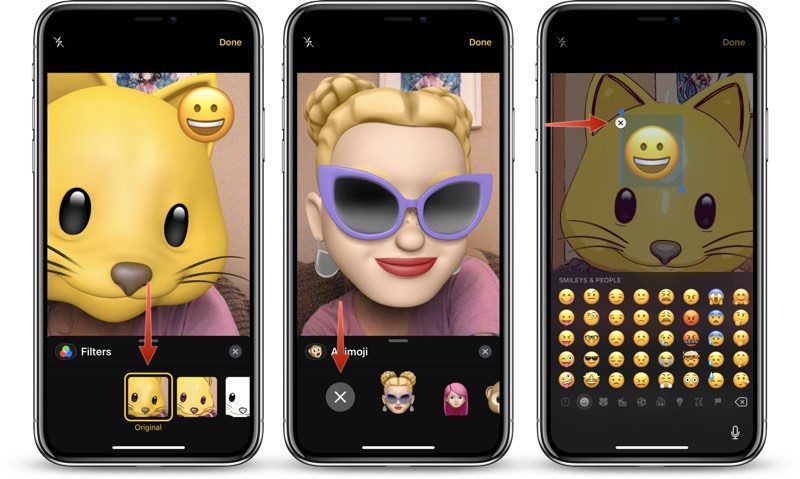
To remove text, stickers, or shapes, tap the item you want to remove in the photo or video field and then tap the "X" to delete it.
If you want to remove all of the effects that you've put in place at once, tap the Effects icon again to go back to the main camera interface. This clears all of your settings, and if you tap the Effects camera icon again, you'll have a blank slate to work with.
Popular Stories

Apple Responds to iPhone Duo Display Cracking Reports
Crackgate? iPhone Duo Owners Report Screens Breaking Along the Hinge
