iOS 14: How to Actually Hide the Hidden Photos Album
iOS 14: How to Actually Hide the Hidden Photos AlbumThursday September 17, 2020 9:51 AM PDT by Tim HardwickSometimes you might not want certain pictures shot on your iPhone or iPad to be visible in your Photo Library, but for what
Table of Contents
iOS 14: How to Actually Hide the Hidden Photos Album
Sometimes you might not want certain pictures shot on your iPhone or iPad to be visible in your Photo Library, but for whatever reason, you might not want to outright delete them either. That's why Apple's Photos app includes an option to hide certain photos from the main library.
Prior to iOS 14, this option would hide pictures from the Photos and For You sections of the Photos app, but they would still show up in the Albums section under an album called "Hidden," which wasn't exactly an inconspicuous way of squirreling away private pictures.
With that in mind, Apple has added an option in iOS 14 and iPadOS 14 that allows users to hide the Hidden album from the Photos app, quite literally. The following steps run you through the process of hiding a picture and then making sure the Hidden album is concealed in the Photos app.
Once you've completed the steps, the Hidden album won't show up in the Photos app; just be aware that you'll still see the Hidden album when you use the image picker in third-party apps, so it's not completely invisible from prying eyes.
How to Hide a Photo
- Launch the Photos app on your iPhone or iPad.
- Tap Select in the top-right corner of the screen.
- Tap the pictures you want to hide.
- Tap the Share button in the bottom-left corner of the screen. (It looks like a square with an arrow pointing out.)
- In the Share Sheet's actions menu, select Hide.
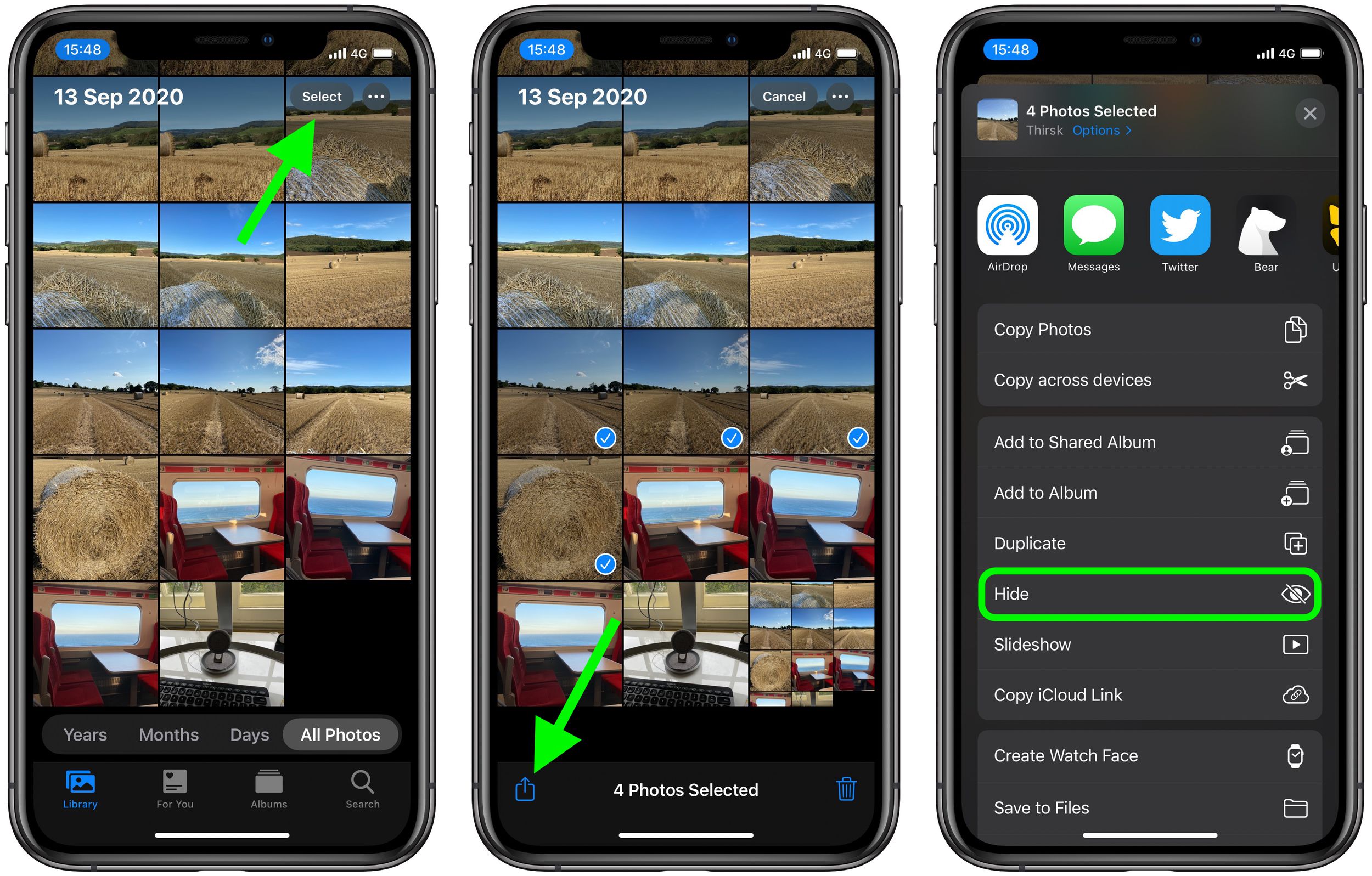
- Tap the prompt that appears at the bottom of the screen to confirm.
Again, this hides the photo from the general album view, but conspicuously places the photo in an album called "Hidden". To hide that "Hidden" folder in iOS 14:
How to Hide the 'Hidden' Folder in Photos
- Launch the Settings app.
- Scroll down and select Photos.
- Make sure the switch next to Hidden Album is in the grey OFF position.
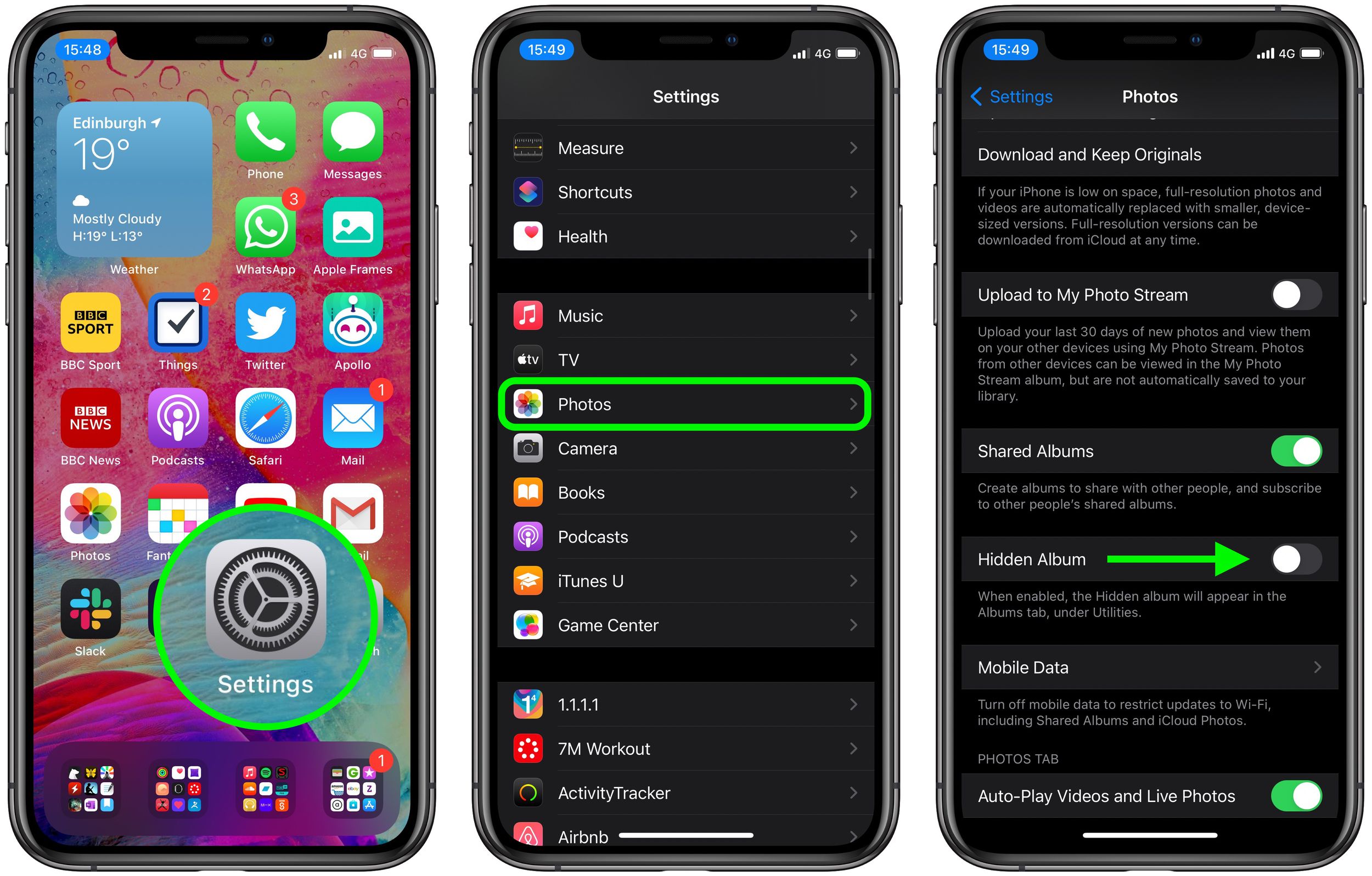
If you ever want your Hidden album to appear in Photos again, go to Settings -> Photos and then toggle the switch next to Hidden Album so that it's in the green ON position.
Note that while the album is hidden in the Photos app, it can appear in the photo picker from 3rd party apps. At best this just makes it harder for casual snoopers from running across your private photos.
Popular Stories

Apple Shares Photos Shot on iPhone Duo

iPhone Duo's Hidden FaceTime Camera Takes 'Trash' Photos