
iOS 15: How to Get Weather Notifications on Your iPhone
In iOS 15, Apple's stock Weather app received a major design overhaul, thanks in part to a number of features brought over from the popular weather app Dark Sky, which Apple acquired in 2020. One of those features is the ability t
Table of Contents
In iOS 15, Apple's stock Weather app received a major design overhaul, thanks in part to a number of features brought over from the popular weather app Dark Sky, which Apple acquired in 2020. One of those features is the ability to receive notifications when rain or snow is starting or stopping. This article explains how to enable them.
In Apple's revamped Weather app in iOS 15, you can sign up for next-hour precipitation notifications that will alert you when it's going to rain, snow, or hail in the next hour in your current location, or another location that you've added to the Weather app. The following steps show you how to get the weather notifications working. Note that next-hour precipitation notifications are currently only available in the United States, the United Kingdom, and Ireland.
Allow Location Access
If you want to get notifications about the weather in your current location, you'll first need to give the Weather app permission to always access your location.
- Launch the Settings app on your iPhone.
- Tap Privacy.
- Tap Location Services.
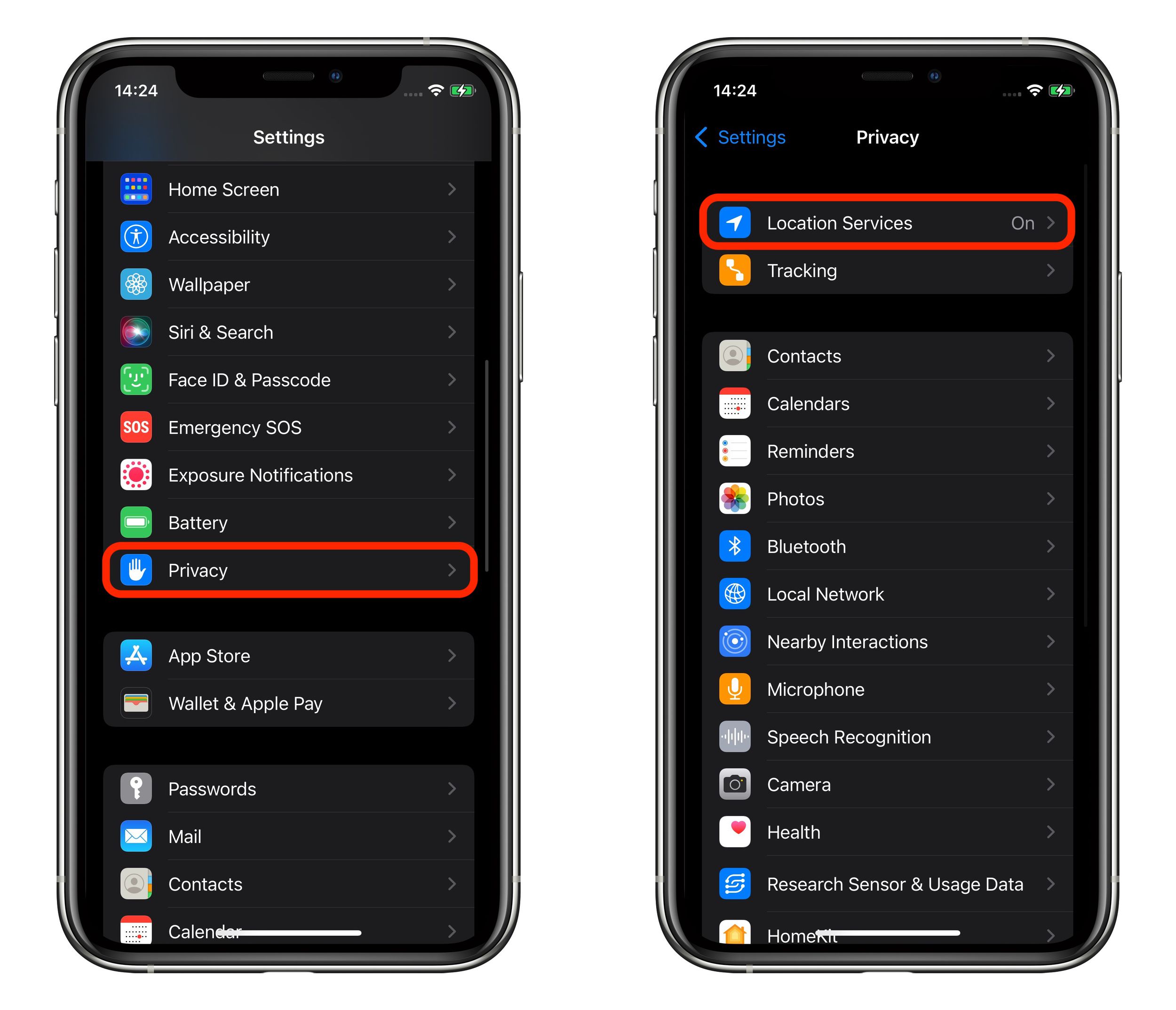
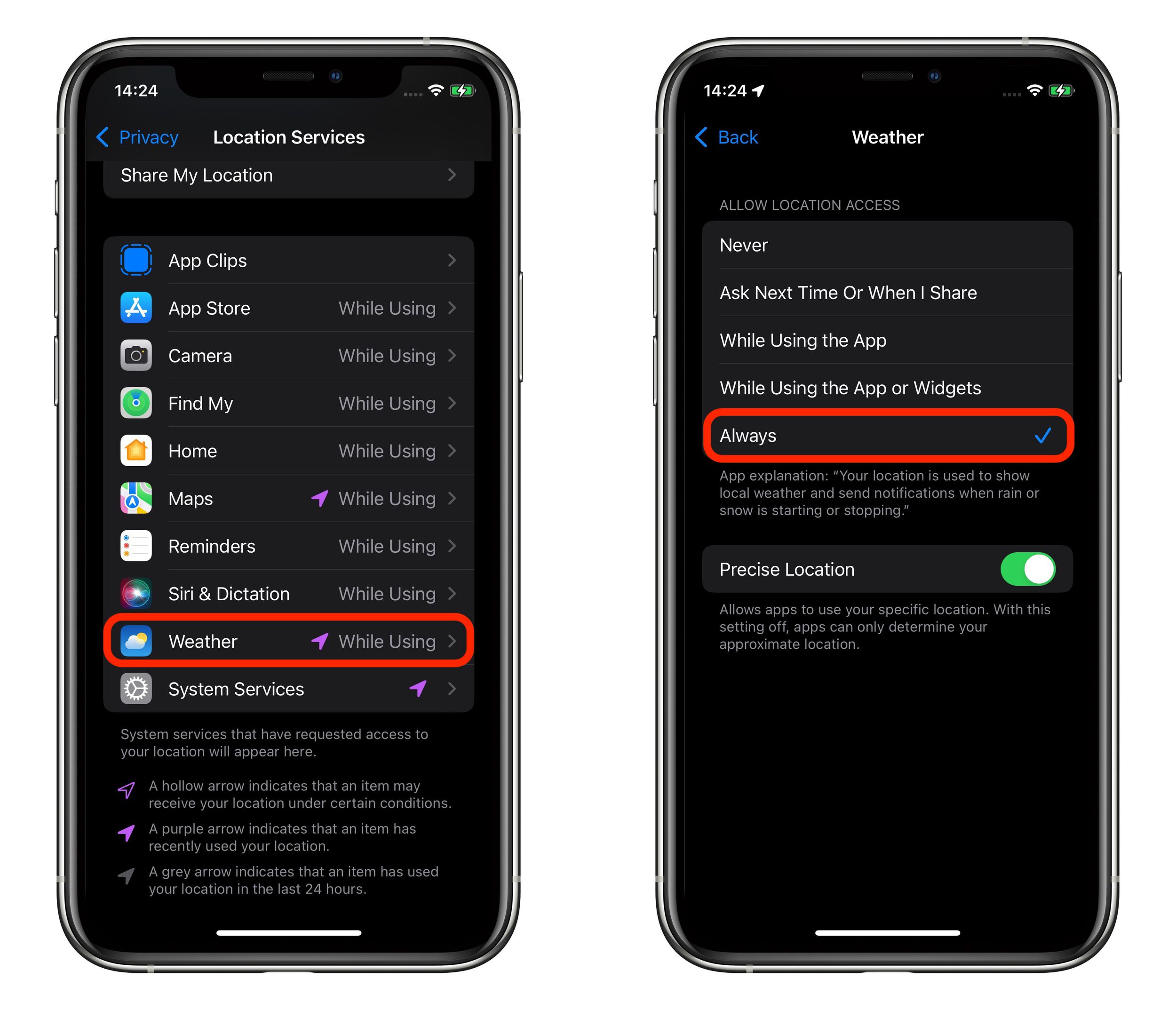
- Tap Weather.
- Under "Allow Location Access," select Always.
Enable Weather Notifications
- Launch the stock Weather app on your iPhone.
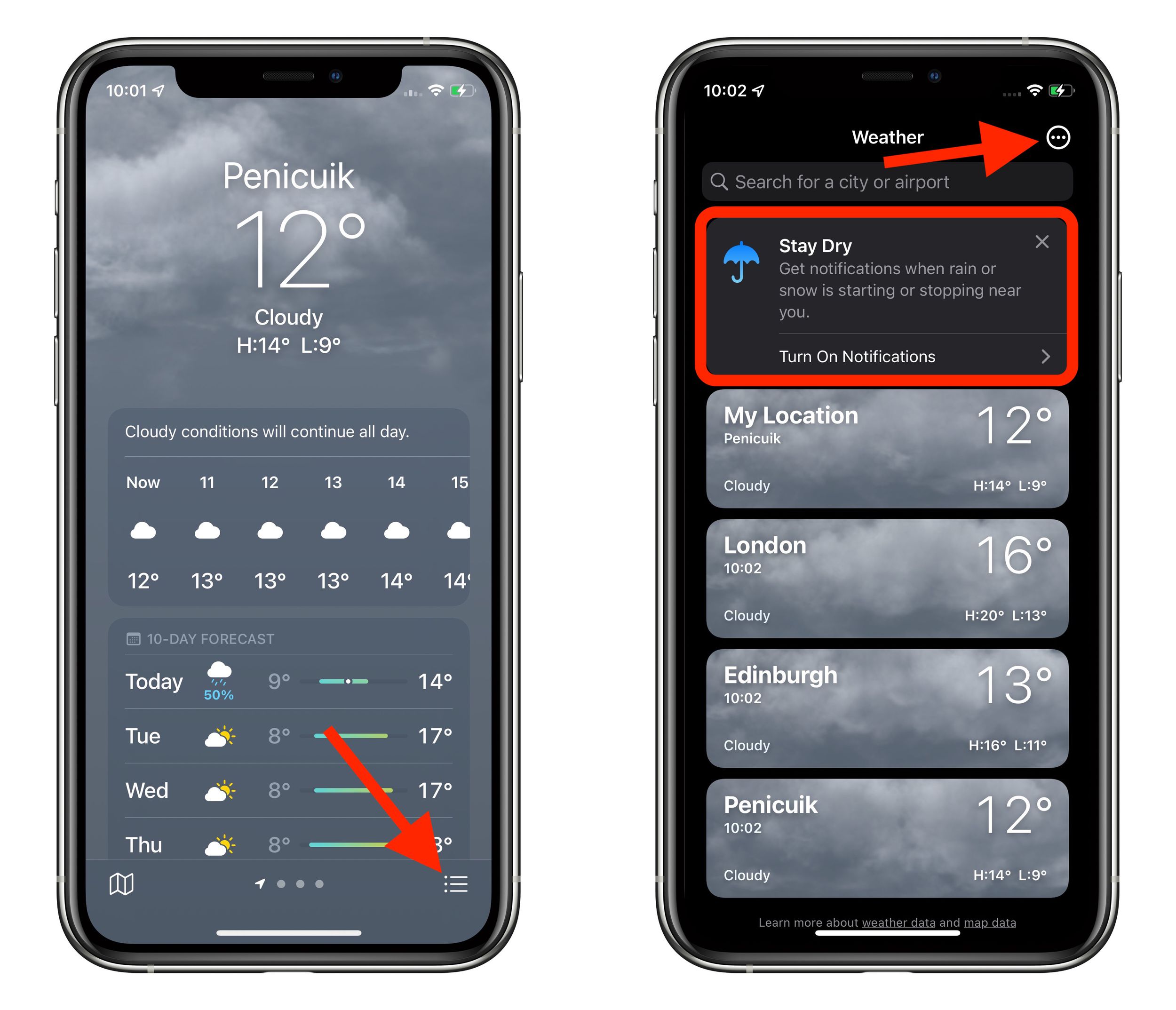
- Tap the icon in the bottom-right corner of the screen that looks like a bullet list.
- Tap Turn on Notifications at the top of the location list. If you don't see the "Stay Dry" card, tap the circular ellipsis icon in the top-right corner of the screen, then tap Notifications.
- On the "Allow Notifications" screen, tap Continue.
- In the prompt that appears, tap Allow.
- Toggle the switches next to the locations that you'd like to receive notifications for, then tap Done. Note that you need to have allowed location access if you want to get notifications about your current location.

Going forward, you should now receive notifications on your iPhone whenever rain or snow is starting or stopping.
Popular Stories

Apple Responds to iPhone Duo Display Cracking Reports
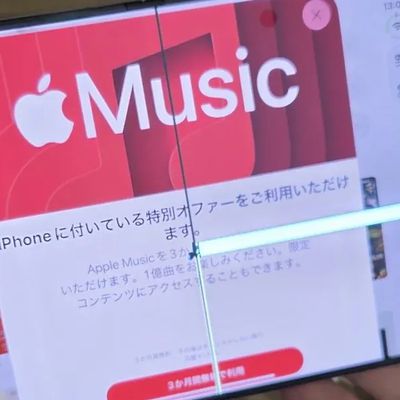
Crackgate? iPhone Duo Owners Report Screens Breaking Along the Hinge
