iOS 16: How to Unsend Emails in Apple Mail
iOS 16: How to Unsend Emails in Apple MailThursday August 4, 2022 2:20 PM PDT by Tim HardwickApple in iOS 16 and iPadOS 16 has made several improvements to its stock Mail app to put it on a similar standing to rival email apps. On

Table of Contents
iOS 16: How to Unsend Emails in Apple Mail
Apple in iOS 16 and iPadOS 16 has made several improvements to its stock Mail app to put it on a similar standing to rival email apps. One of the new features is an undo send option. Keep reading to learn how it works.

Have you ever sent an email in haste, only to immediately regret it or realize you've said completely the wrong thing? Apparently enough of us have to make Apple add a new Undo Send feature to its Mail app in iOS 16 and iPadOS 16.
Now after you send an email, Mail will give you a 10-second period in which you can unsend the email if you made a mistake. That's a shorter amount of time than, say, Gmail gives you (30 seconds), but 10 seconds is better than nothing, and it might just save you from inconvenience or even embarrassment.
Here's how to unsend a sent email in the Apple Mail app in iOS 16 and iPadOS 16.
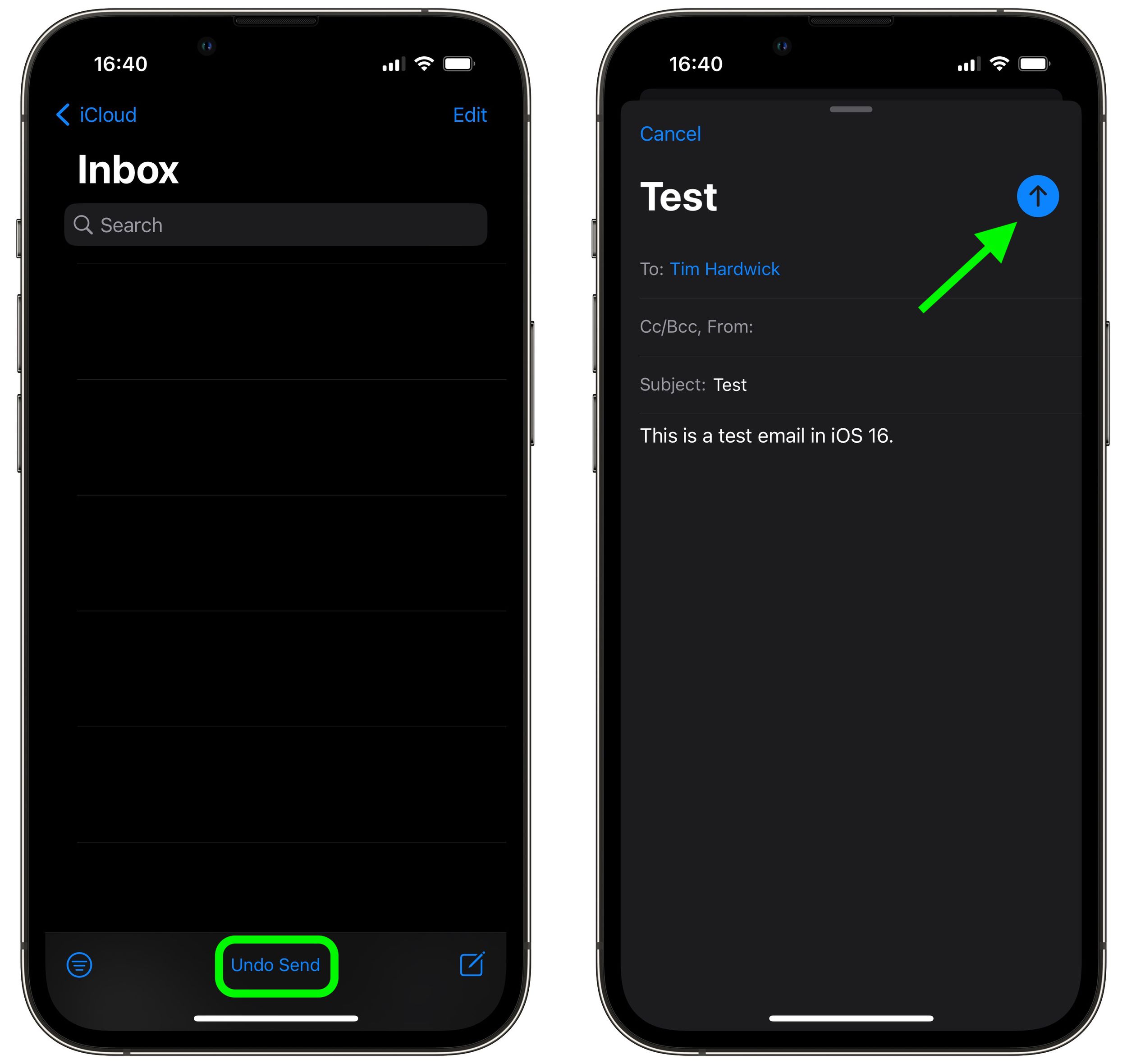
- In the Mail app, if you've just sent an email, tap the Undo Send option displayed in blue text at the bottom of your inbox. (If you don't see the option, your 10-second time window for unsending the email has elapsed.
- You should be taken back to the email compose interface, where you can correct any errors in the original email.
- Tap the blue arrow when you're done to send the email.
That's all there is to it. Note that once you've hit the Undo Send option, you can take all the time you need in the compose screen to edit your email before sending it proper, because the message has already been unsent.
Popular Stories

Microsoft 365 Work Accounts May Stop Syncing in Apple Mail

Apple Responds to iPhone Duo Display Cracking Reports