
Use ChatGPT as Your iPhone's Action Button Assistant
Use ChatGPT as Your iPhone's Action Button AssistantTuesday December 23, 2025 2:35 AM PST by Tim HardwickApple doesn't currently allow iPhone users to change the Side button's Siri functionality to another assistant, but owners of

Table of Contents
Use ChatGPT as Your iPhone's Action Button Assistant
Apple doesn't currently allow iPhone users to change the Side button's Siri functionality to another assistant, but owners of iPhone 15 Pro and newer models can assign ChatGPT to the Action button instead. Keep reading to learn how.

OpenAI's free ChatGPT app for iPhone lets you interact with the chatbot using text or voice. What's more, if you assign voice mode directly to the Action button, you can use it to jump straight into a spoken conversation, giving you quick, handsfree access to a far more capable assistant.
- Install the ChatGPT app, then sign into your account or create a new one.
- Next, open the Settings app.
- Tap Action Button.
- Swipe to Controls, then tap the two chevrons beside the currently assigned control.
- Using the control search field, type "ChatGPT."
- Select the control Open ChatGPT Voice.
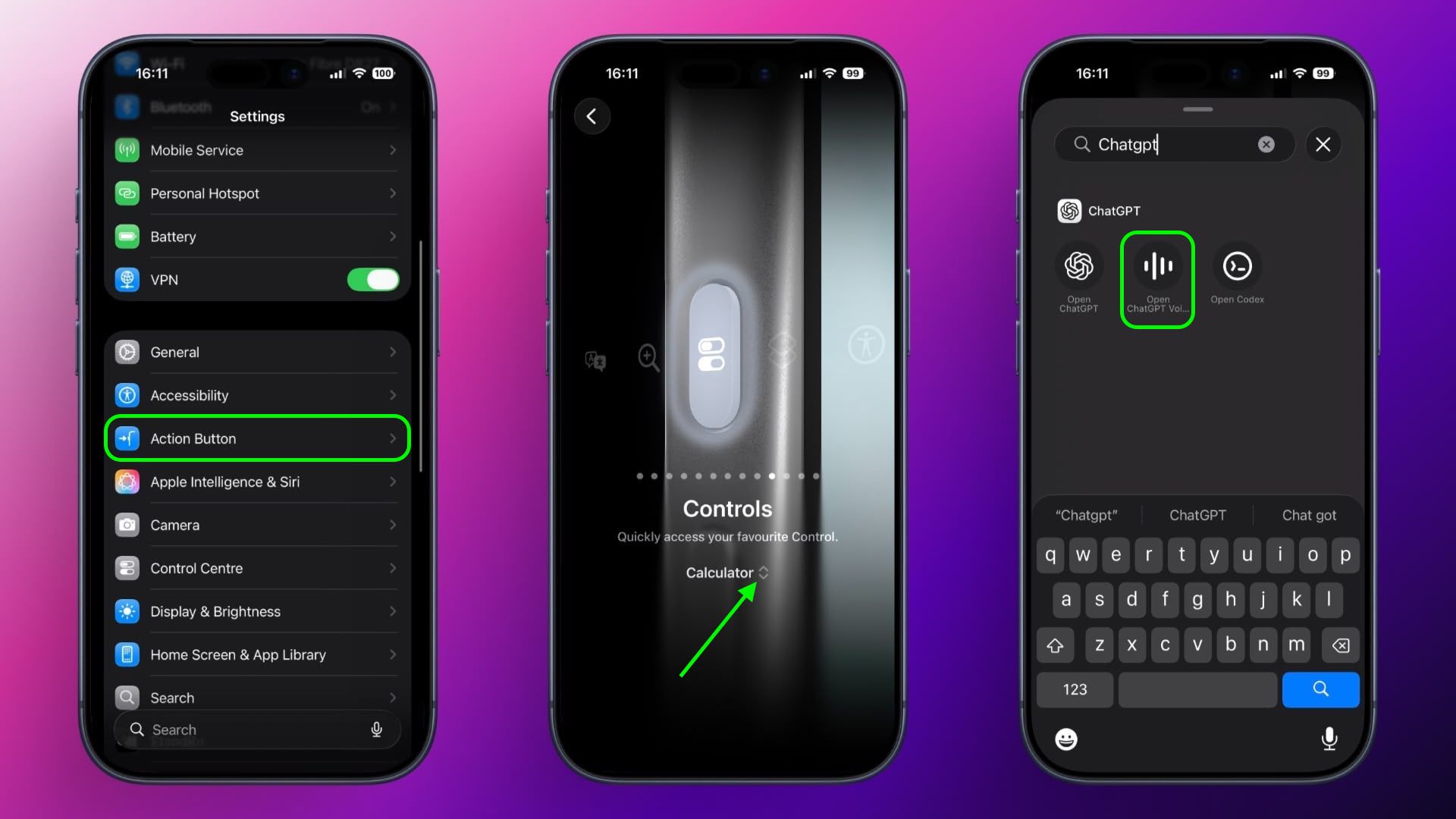
A long press of the Action button will now open ChatGPT's voice mode. The first time you activate it, the app may request microphone access. Tap Allow to proceed. After that, you can begin speaking immediately.
A recent update means voice conversations now take place inside the same chat window as text-based prompts, instead of switching to a separate voice-only interface. Responses appear in real time, combining spoken output with on-screen text and any visuals the model generates. This keeps your conversation's context intact and makes switching between typing and speaking smoother.
Continue the Conversation Anywhere
You can also leave the ChatGPT app during a voice session without ending it. When you swipe away, the conversation continues and appears in the Dynamic Island as long as the assistant is listening and preparing a response. To stop, tap the Dynamic Island to return to the app, then tap End.
Note that while this setup gives you a fast, physical shortcut to a richer, more context-aware assistant, ChatGPT can't perform Siri-like system actions like accessing your calendar or setting an alarm.
Popular Stories

ChatGPT Gets GPT-6 and New Intelligent UI With Visual Answers
Crackgate? iPhone Duo Owners Report Screens Breaking Along the Hinge

