
How to Erase Your Old iPhone or iPad Before Selling It or Trading It In
How to Erase Your Old iPhone or iPad Before Selling It or Trading It InTuesday December 26, 2017 10:56 AM PST by Juli CloverIf you got a new iPhone or iPad for Christmas, you may have an old one that you're ready to sell or trade
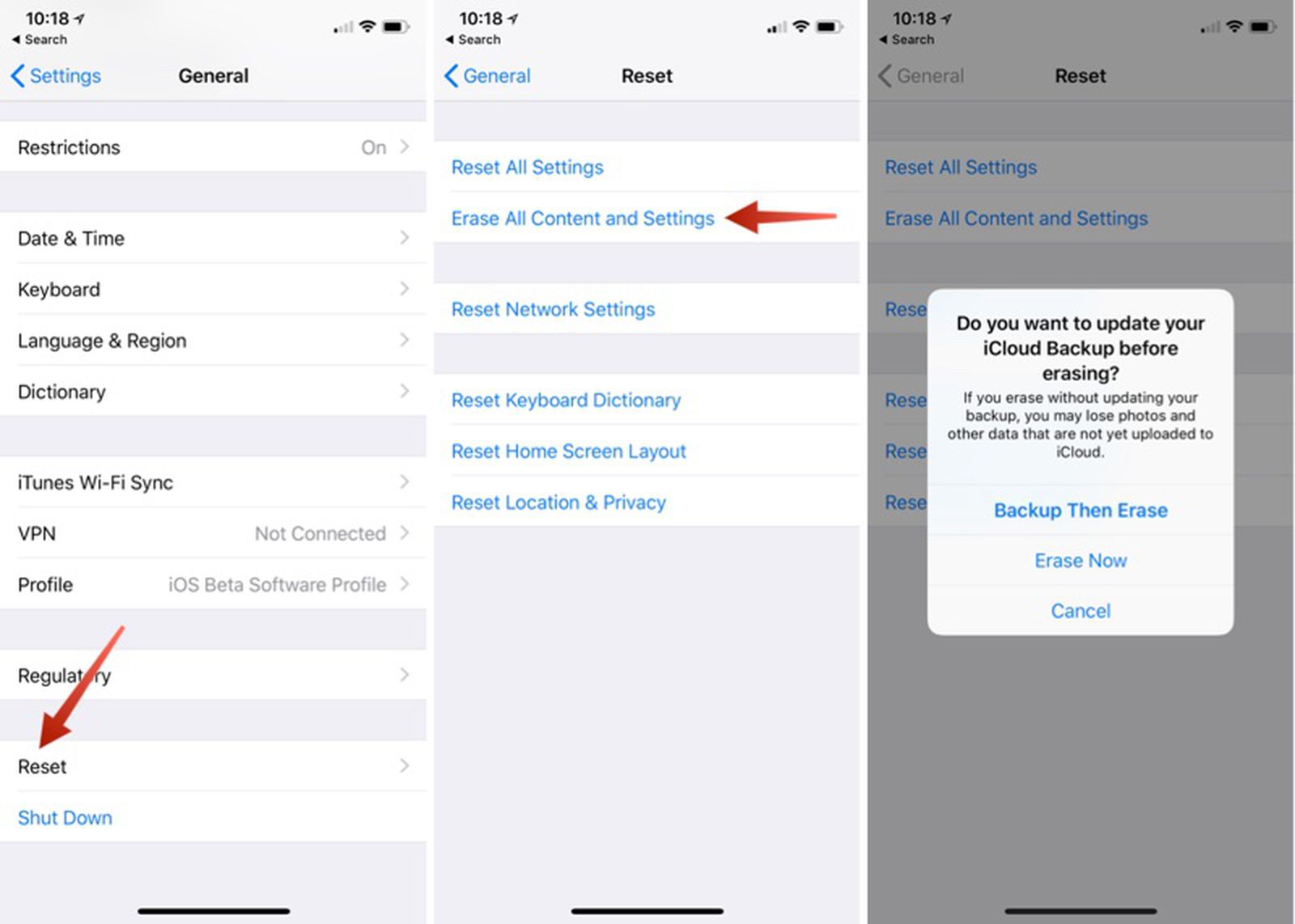
Table of Contents
How to Erase Your Old iPhone or iPad Before Selling It or Trading It In
If you got a new iPhone or iPad for Christmas, you may have an old one that you're ready to sell or trade in to get a bit of extra cash. You'll want to make sure to adequately erase everything on it to get it ready for its next owner.
There are only a few steps to follow so it take you just a few minutes to clean up an old iOS device. Here's what to do:
Unpair Your Apple Watch
If you're selling your iPhone and have an Apple Watch linked to it, you're going to want to unpair it first.
- Make sure your iPhone and Apple Watch are close to each other.
- Open up the Apple Watch app on the iPhone.
- Choose the "My Watch" tab.
- Select the Apple Watch you want to unpair and tap the "i" button.
- Tap "Unpair Apple Watch."
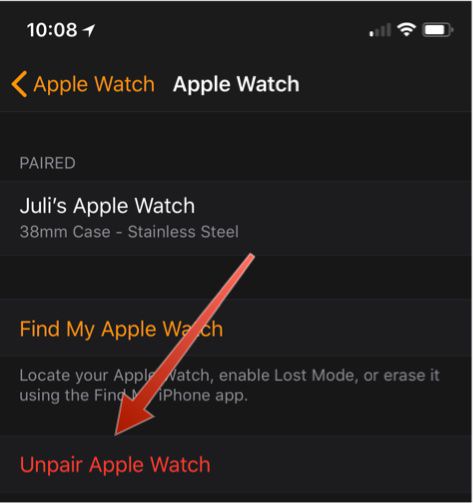
- Tap a second time to confirm.
- You'll need to enter your Apple ID password to turn off Activation Lock.
Turn Off Find My iPhone
Most trade-in sites won't accept your old iPhone or iPad if Find My iPhone isn't disabled, and if you sell an iOS device with the feature still turned on, the new owner won't be able to use it, creating a huge hassle for both of you.
Find My iPhone needs to be turned off because it's tied to Activation Lock. A phone that's linked to your iCloud account through Find My iPhone can't be used by anyone who doesn't have your Apple ID and password.
- Open the Settings app.
- Tap on your name to open your account settings.
- Tap "iCloud."
- Scroll down to "Find My iPhone."
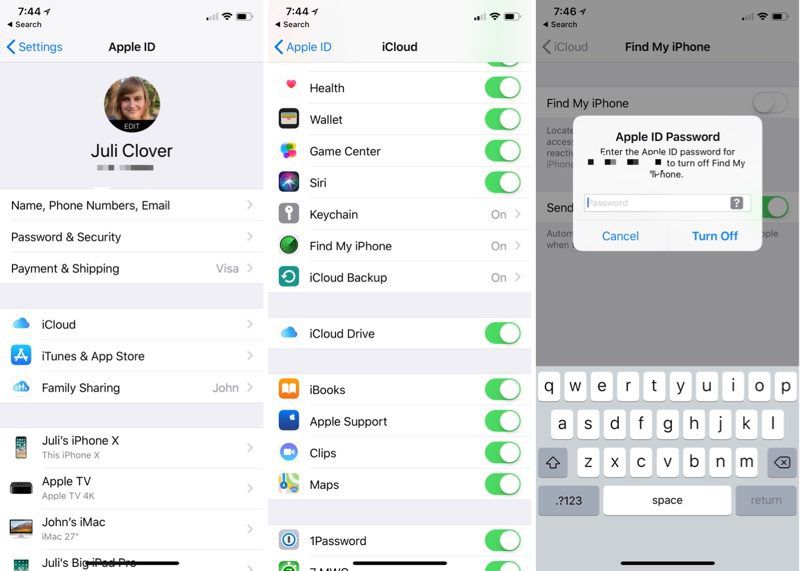
- Tap it.
- Tap the toggle to turn it off.
To turn off Find My iPhone, you'll need to enter your Apple ID password as an extra security measure, which is designed to keep someone who has your unlocked iPhone from turning the feature off.
After Find My iPhone is off, it's time to erase everything on your iPhone. Before you do this, make sure you have an iCloud backup and that there's nothing stored on your device that you're going to miss.
- Open the Settings app.
- Choose "General."
- Scroll down to the bottom of the menu.
- Select "Reset."
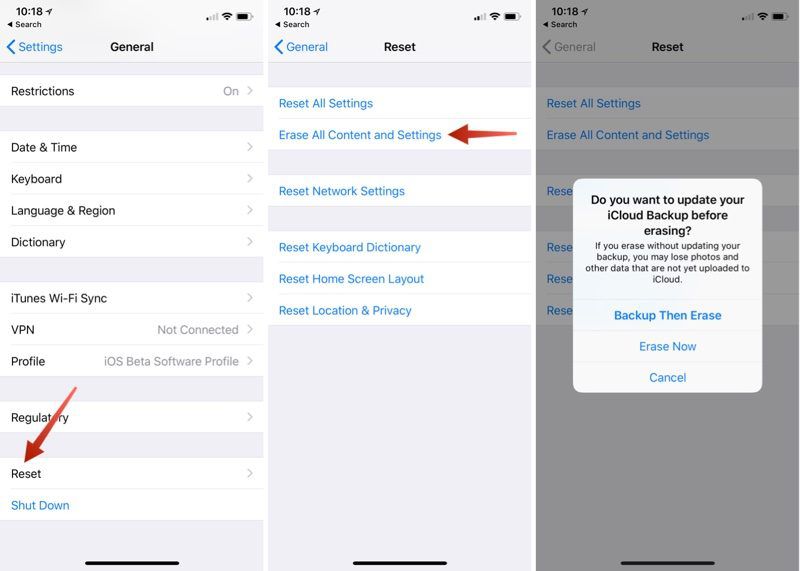
- Choose "Erase all Content and Settings."
- You'll need to enter your device passcode if you have one set.
- Tap Erase iPhone, then tap it again to confirm.
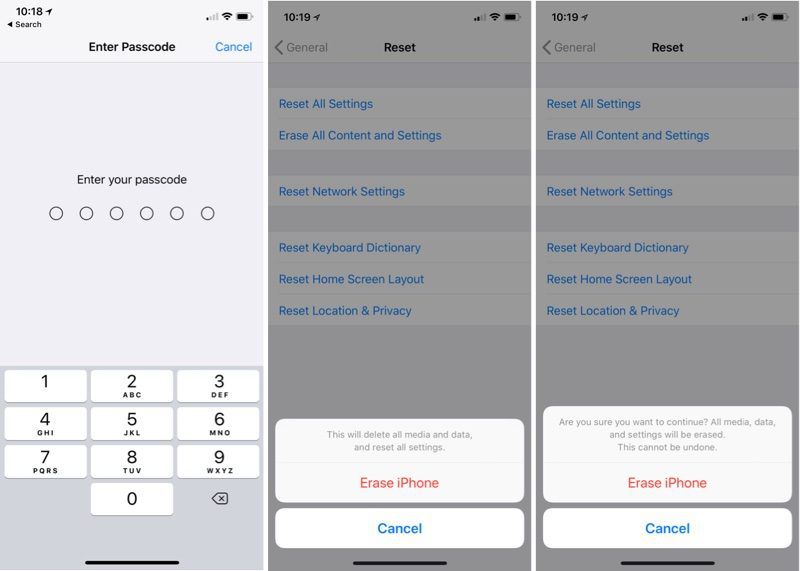
- If you didn't already turn off Find My iPhone, it will be turned off at this juncture and your device will be removed from your iCloud account.
Your iPhone will switch over to an Apple loading screen as the erasing process starts. It will take a few minutes for the device to be fully erased, but once it's done and boots up again, your old iPhone or iPad is clean, unassociated with your Apple ID, and ready to be sold.
Popular Stories

Apple Responds to iPhone Duo Display Cracking Reports

Apple Announces New iPad Mini With 8.5-Inch OLED Display, A20 Pro Chip, and More

