
How to Set Up a System-Wide Word Count Service on Your Mac
How to Set Up a System-Wide Word Count Service on Your MacFriday May 11, 2018 12:14 AM PDT by Tim HardwickIn this article, we're going to show you how to create a system-wide service that enables you to get an immediate word count
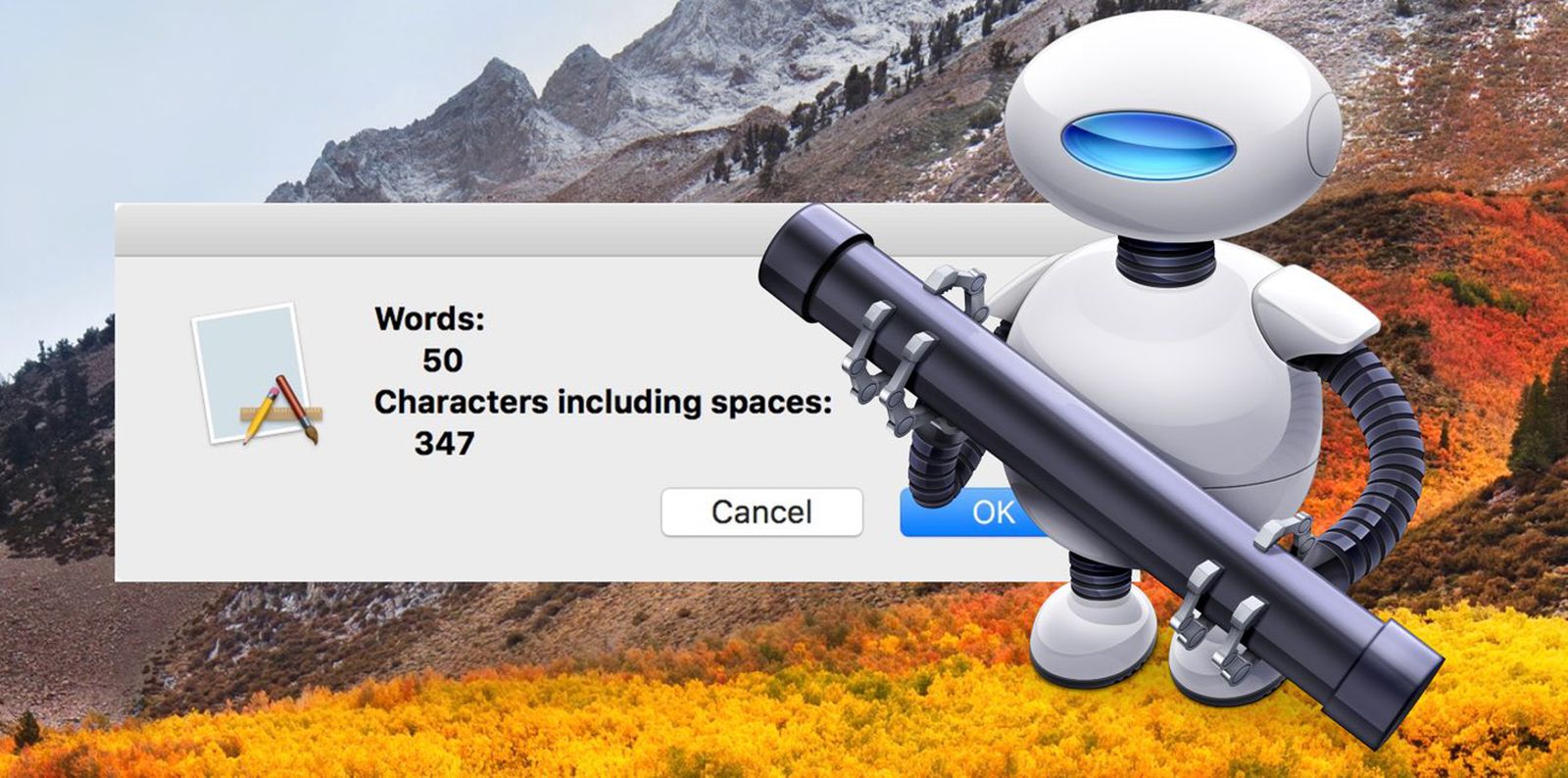
Table of Contents
How to Set Up a System-Wide Word Count Service on Your Mac
In this article, we're going to show you how to create a system-wide service that enables you to get an immediate word count and character count in TextEdit, Safari, Mail, or indeed any app on your Mac that lets you highlight text. It offers a handy home-made solution if you often find yourself pasting into a blank Word or Pages document for no other reason than to find out how many words are in a text selection.
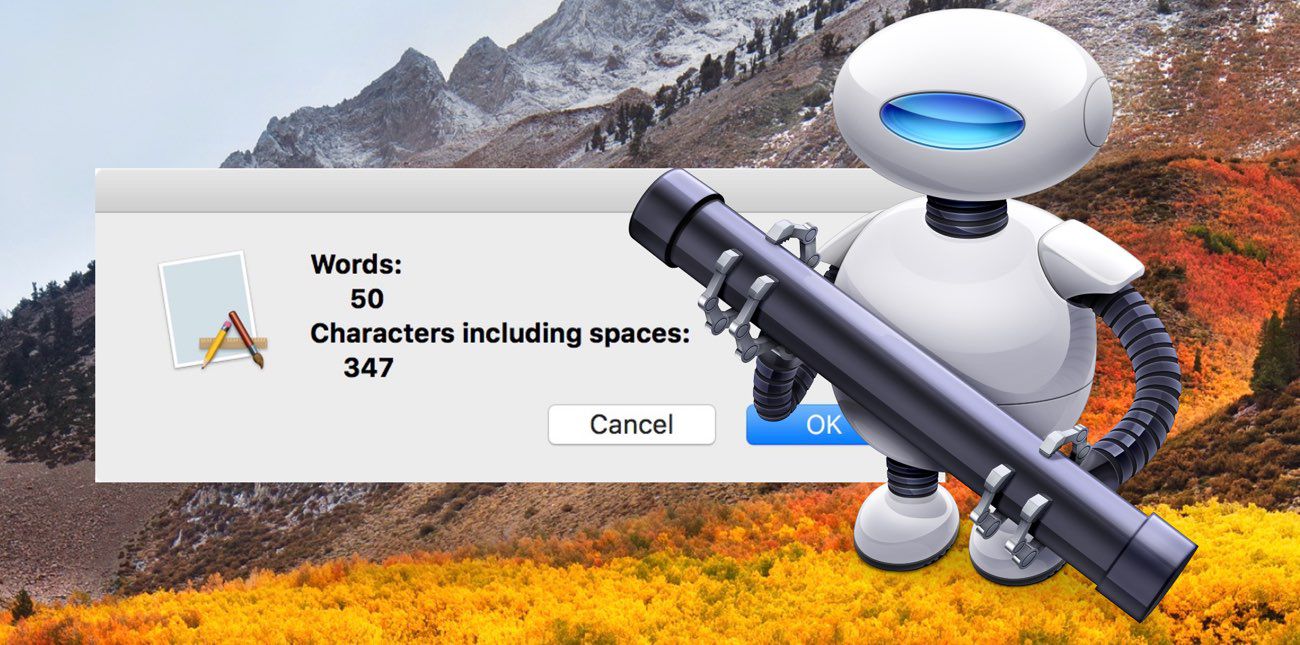
The steps below will guide you through the process of creating your own word count service using the macOS Automator app. It's a simple procedure to follow and should only take five minutes, but if you'd rather use a third-party solution, then check out WordCounter, a free Mac menu bar utility from Onekerato.
How to Create a Word Count Service in Automator
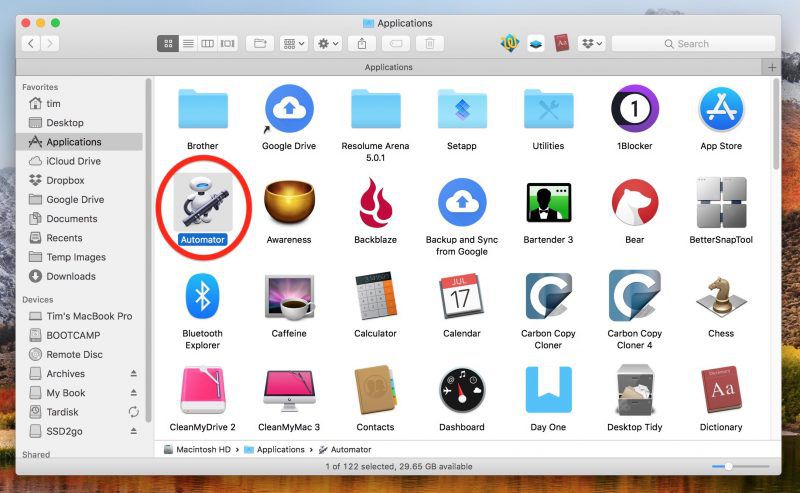
- Launch Automator from the Applications folder.
- Click New Document.
- Choose Service as the type of your document.

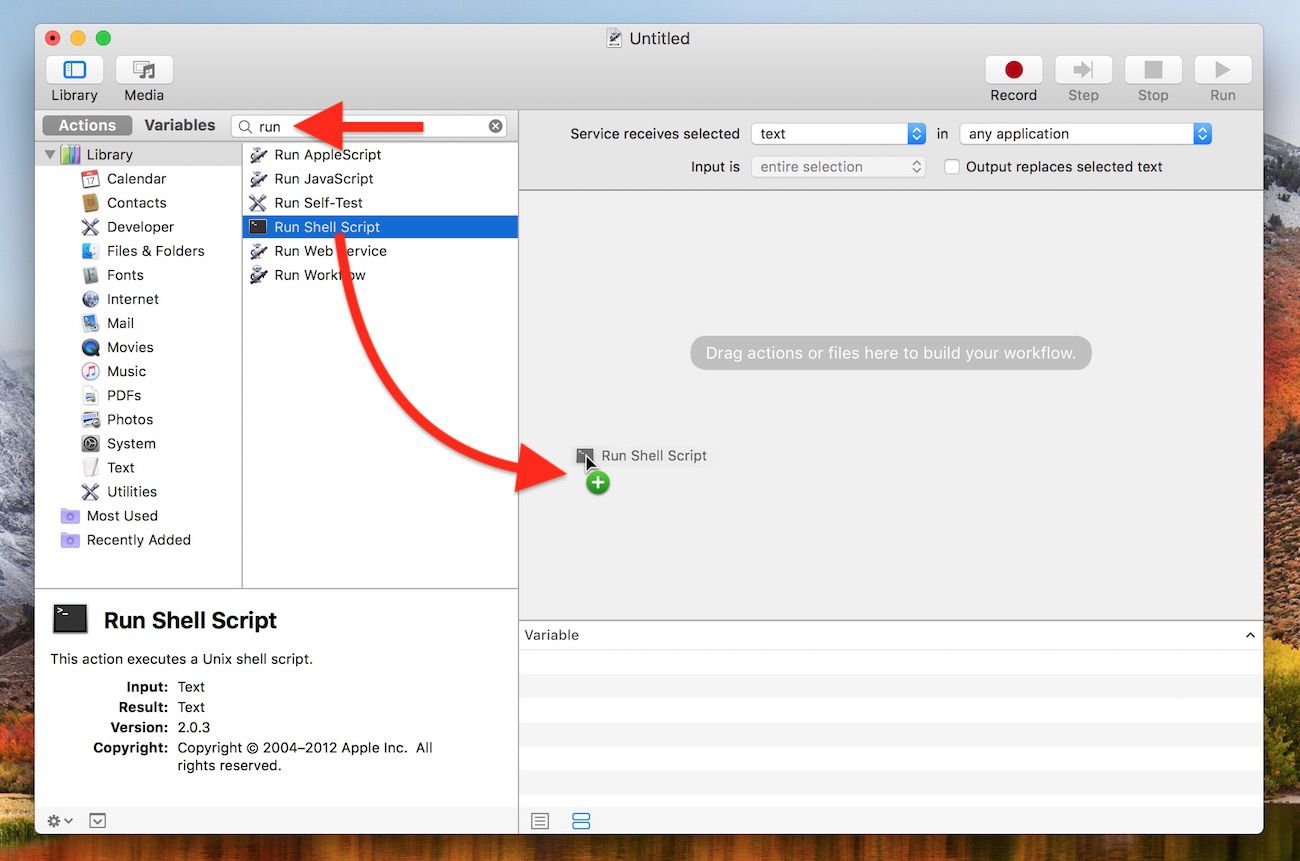
- Type "run" into the Library search field at the top of the Automator sidebar, then drag the Run Shell Script action into the empty workflow area.
- In the Run Shell Script action window, change the Pass Input: option to as arguments using the dropdown menu.
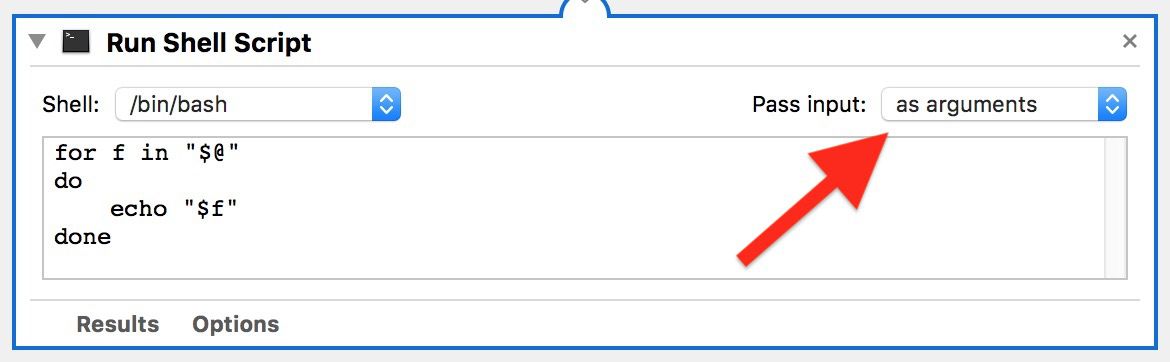
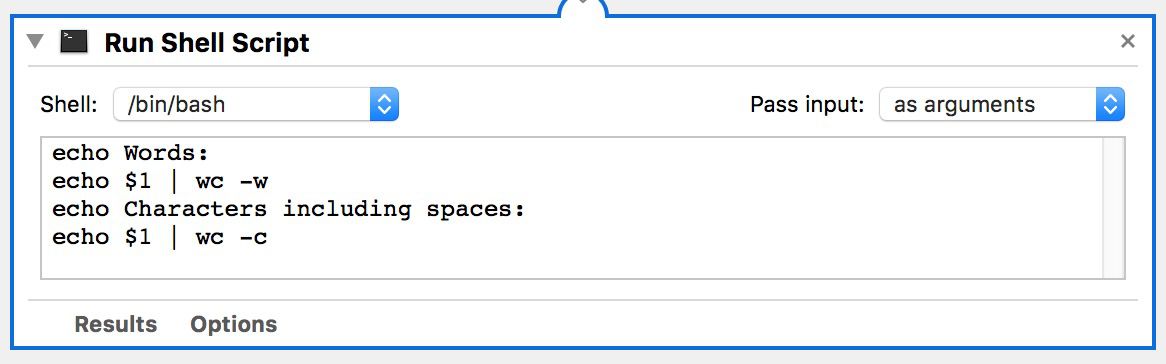
- Clear the text in the shell script box (highlight the text with your mouse cursor and hit Backspace) then copy and paste the following text into the same area:
echo Words:
echo $1 | wc -w
echo Characters including spaces:
echo $1 | wc -c
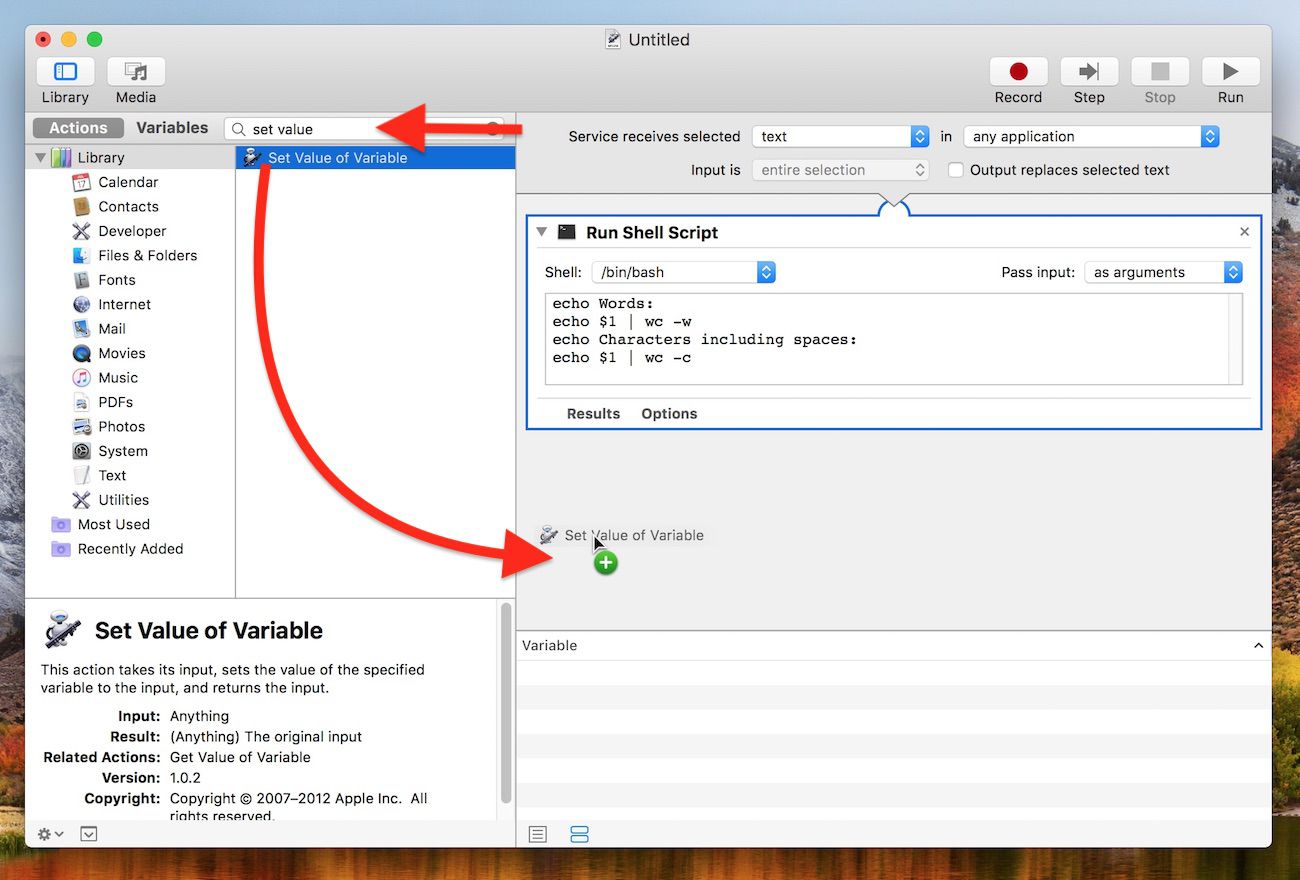
- Clear the Library search field at the top of the Automator sidebar and type "set value", then drag the Set Value of Variable action into the workflow area.
- Click the Variable: dropdown menu and select New Variable....
- In the blue dialog that appears, click inside the Name: input field. It may default to "storage", but you can rename it – we'll call it "count". Click Done, and you should now see "count" (or whichever name you used) appear in the variable list below the workflow area.

- Clear the Library search field at the top of the Automator sidebar again, and this time type "ask", then drag the Ask for Confirmation action into the workflow area.
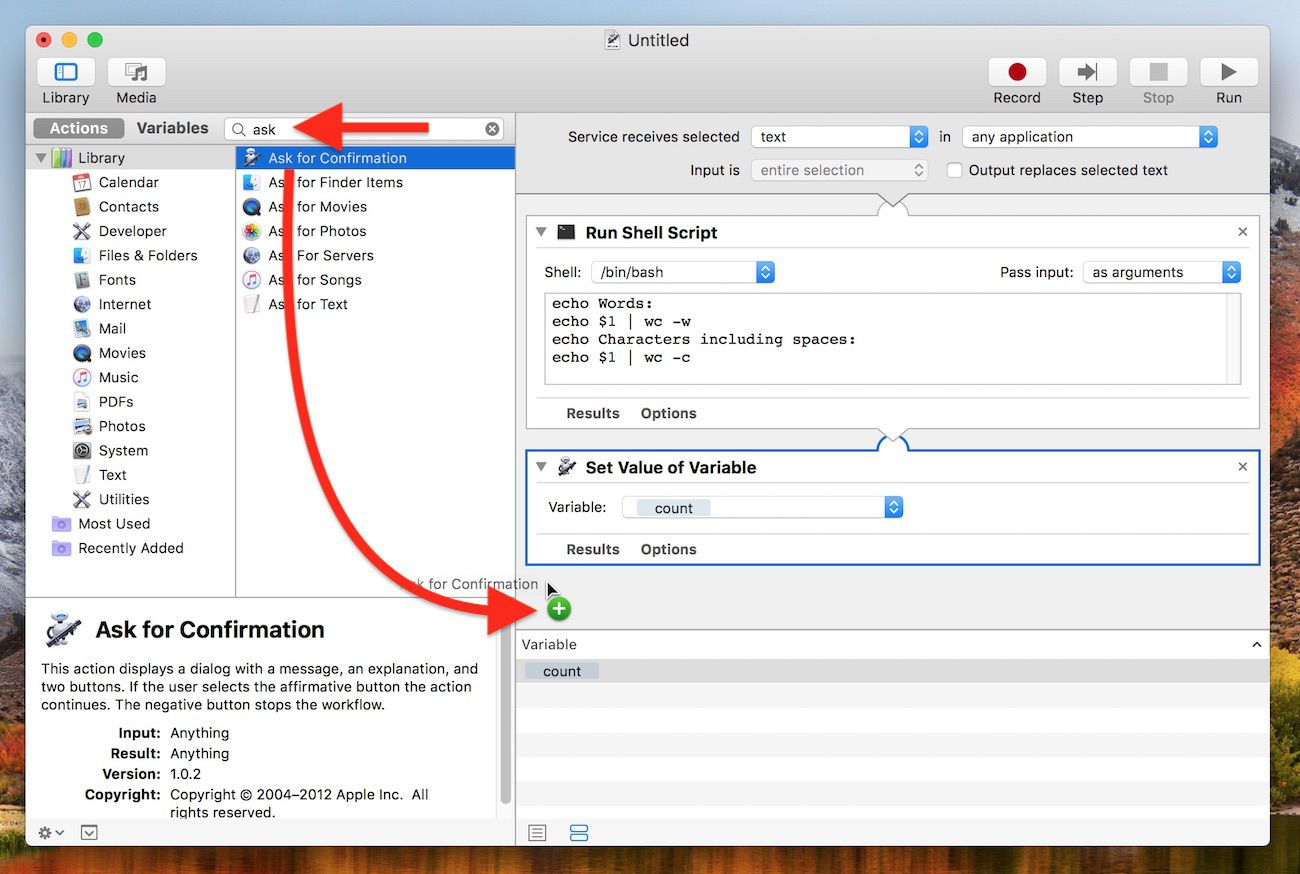
- Now, drag your "count" variable from the variable list up to the "Message" title in the Ask for Confirmation action.
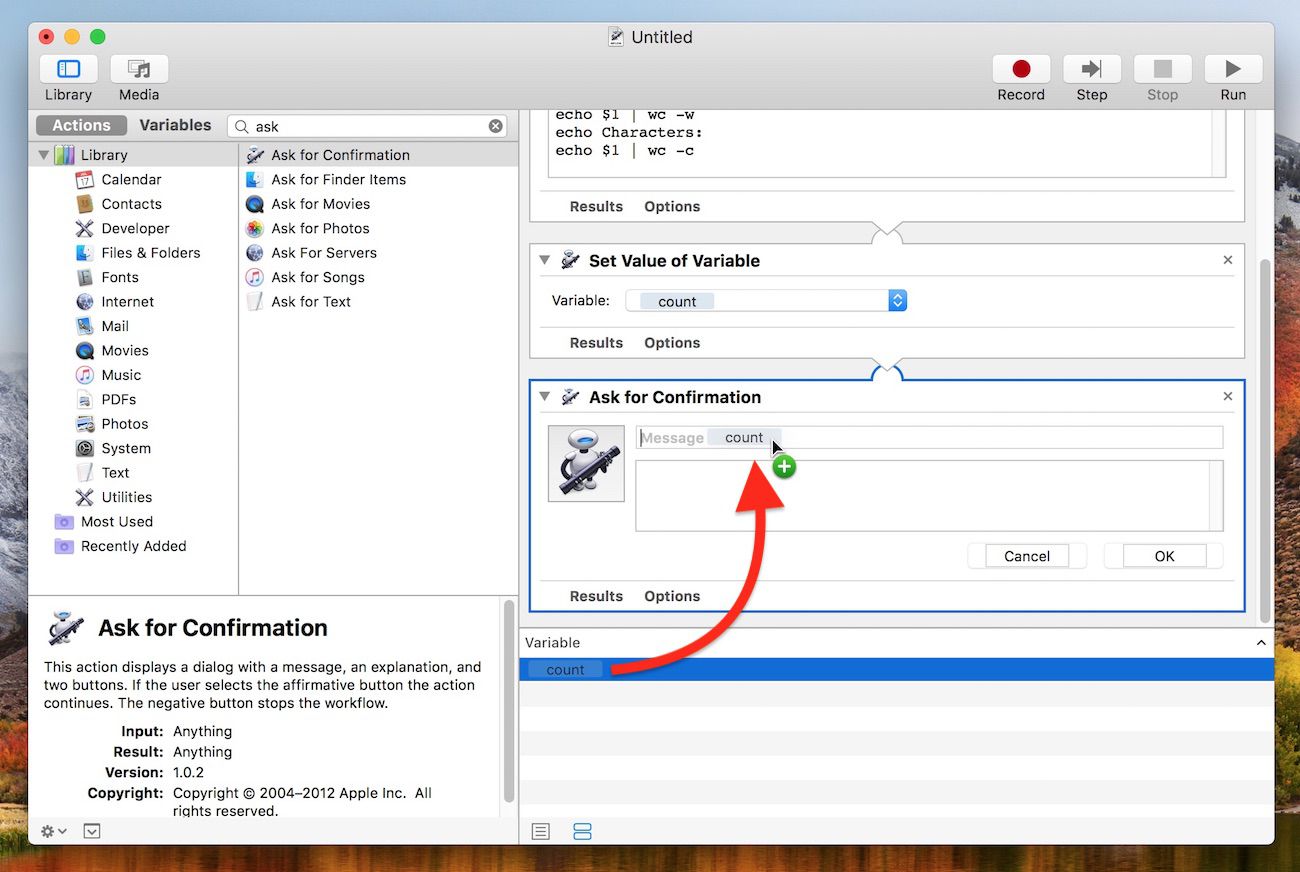
- In the Automator menu bar, select File -> Save..., call your new service "Word Count", and click Save.
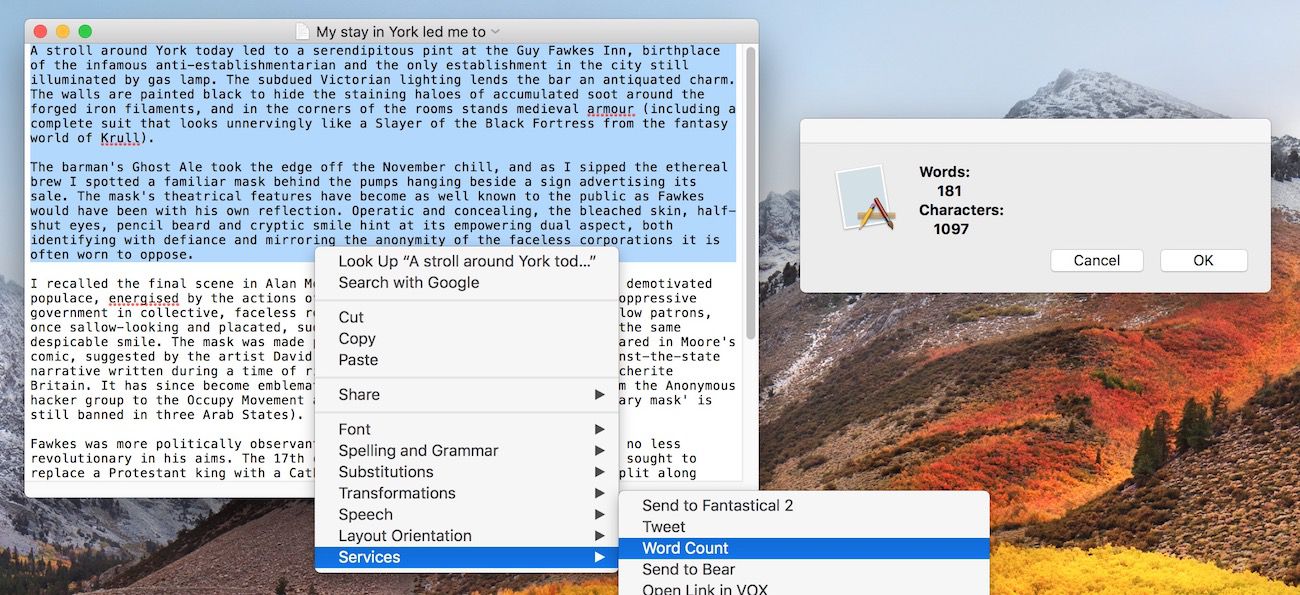
Next time you want to get a word count and/or character count for some text you've highlighted, simply right-click (or Ctrl-click) on the text and select Services -> Word Count from the contextual dropdown menu.
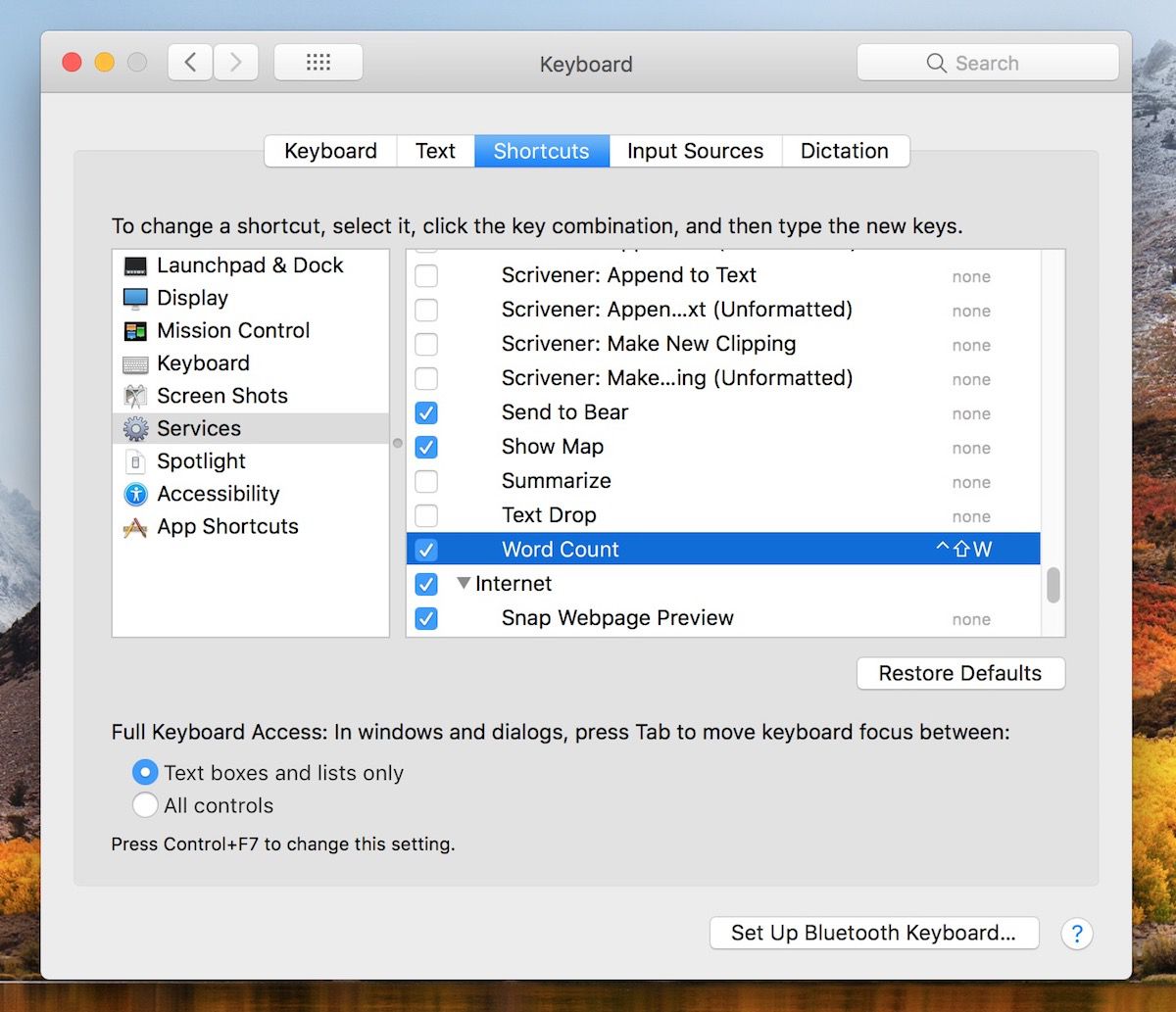
You can assign a key shortcut to it for even faster access. To do so, launch System Preferences, select the Keyboard pane, and click the Shortcuts tab. Select Services from the sidebar and you should find Word Count near the bottom of the list. Just click it, select Add Shortcut, and finally, enter your custom key combination.
Popular Stories

Apple Responds to iPhone Duo Display Cracking Reports

Crackgate? iPhone Duo Owners Report Screens Breaking Along the Hinge

