
How to Set Up and Manage Notifications on Apple Watch
How to Set Up and Manage Notifications on Apple WatchTuesday May 5, 2015 12:14 PM PDT by Lory GilOne of the Apple Watch's most important features is the ability to keep you connected to your notifications without needing to have y
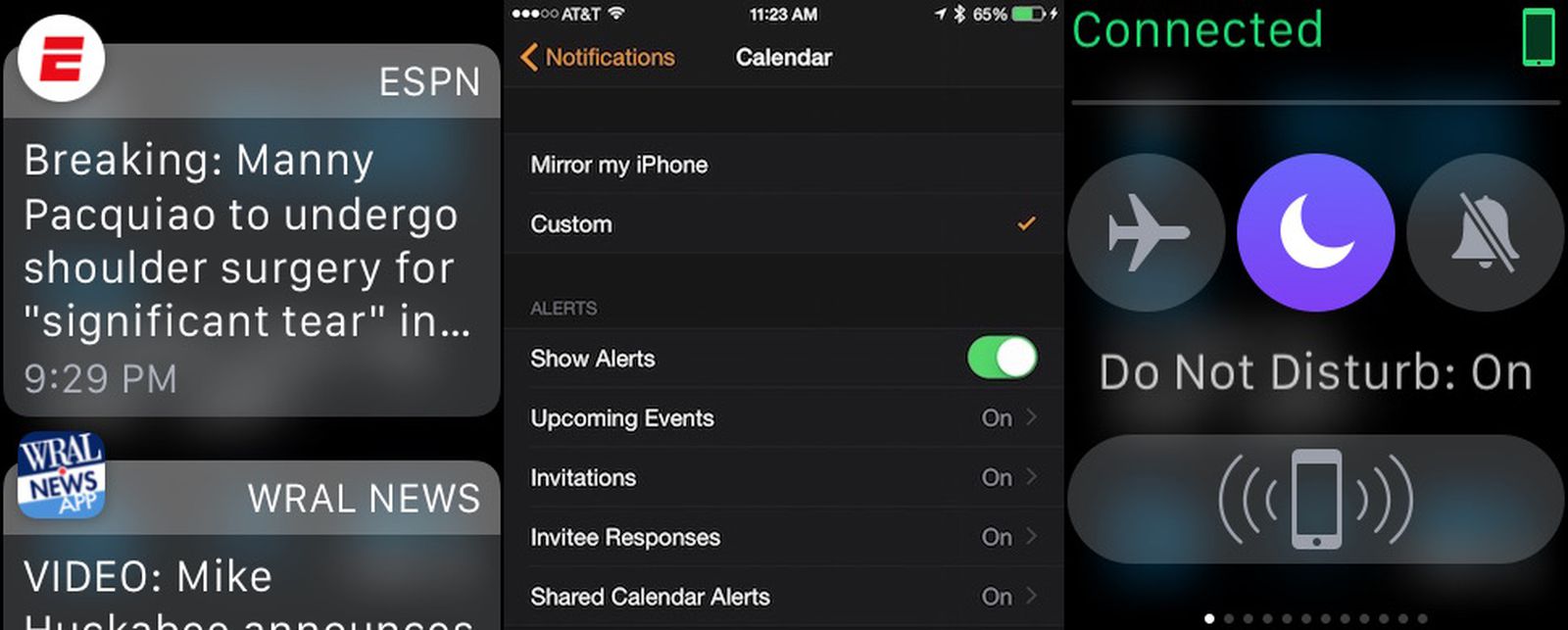
Table of Contents
- 1. Set Up Notifications
- 2. Customize Notifications
- 3. View and Respond to Live Notifications
- 4. View and Respond to Unread Notifications
- 5. Silence Notifications
- 6. Popular Stories
- 7. Apple Watch Series 12, Ultra 4 Owners Report Skin Irritation
- 8. MacRumors Giveaway: Win an Apple Watch Series 12 and a Nylon Band From Southern Straps
- 9. Apple's $634 Million Apple Watch Patent Bill Just Got Even Bigger
- 10. Next Article
How to Set Up and Manage Notifications on Apple Watch
One of the Apple Watch's most important features is the ability to keep you connected to your notifications without needing to have your iPhone in your hand or even in your pocket all of the time. I often miss important text messages because my iPhone is too far away from me to hear my alerts.
But with Apple Watch, all of your notifications are at your fingertips, as if someone is next to you, tapping you on the wrist whenever you get an alert. We've got a tutorial for you today that will explain how to set up and manage notifications so that you get the alerts you want and aren't distracted by the ones you don't want.

Set Up Notifications
Notifications on Apple Watch are actually mirrored from your iPhone by default, so any app you have notifications enabled for on your iPhone will also appear on your Apple Watch. To make sure you don't miss any notifications, you can turn on a Notification Indicator that will display a red dot on your watch face if you have unread notifications.
- Enable compatible apps on your iPhone via Notification Center that you want to receive alerts for. It is likely these apps are already enabled on your iPhone, but it is a good idea to check on them.
- Open the Apple Watch app on your iPhone.
- Tap the My Watch tab.
- Select Notifications from the menu list.
- Toggle Notification Indicator to the On position.
- You can also set your notifications to private so that it requires you to tap the screen in order to see it.
Customize Notifications
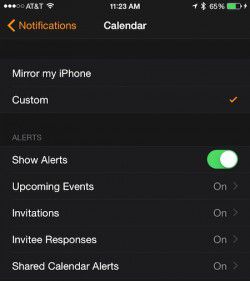
Some Apple apps, like Calendar, Mail, and Messages are customizable with a few additional features. Be sure that the notification you wish to customize is already enabled on your iPhone first.
- Open the Apple Watch App on your iPhone
- Tap Notifications
- Select the app you wish to customize
- Change "Mirror my iPhone" to "Custom" to see your options, like sound, haptics, and repeat options.
Third-party apps do not have customization options, offering only a toggle to turn on or off the mirroring of notifications from your iPhone for a given app.
View and Respond to Live Notifications
Viewing a notification is as simple as raising your arm. To respond to it, scroll to the bottom of the notification and tap the button to perform the action.
You can also dismiss a notification by swiping down on it or scrolling to the bottom of it and tapping Dismiss.

View and Respond to Unread Notifications
When you receive a notification on Apple Watch that you do not view right away, as long as you have the Notification Indicator turned on you will see a red dot at the top of your watch face, so you can access the notifications at any time.
- Navigate to the watch face, and then swipe down from the top of the screen.
- Rotate the Digital Crown or swipe up and down to scroll through unread notifications.
- Tap a notification to respond to it.
- Clear a notification by swiping to the left on it and then pressing clear. Use a hard "Force Press" on a notification to bring up an option to clear all notifications.
Silence Notifications
If you are in a meeting, going to the movies, or would like to otherwise be undisturbed for a short period of time, you can do so two ways.
 Silent Mode
- Navigate to the watch face, and then swipe up.
- Swipe to the Settings glance.
- Tap Silent Mode
- You will still feel a tap when a notification arrives.
 Do Not Disturb
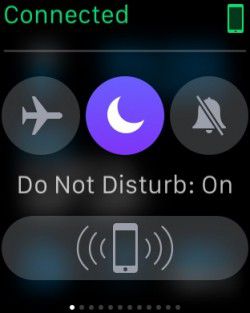
- Navigate to the watch face, and then swipe up.
- Swipe to the Settings glance.
- Tap Do Not Disturb.
- Both sound and vibrations will be turned off.
By managing and customizing your Apple Watch notifications, you will be able to ensure that you stay connected to the things you want while avoiding distractions from unnecessary alerts. Plus, for those times when you just need to disconnect, you can silence your notifications temporarily.
Popular Stories

Apple Watch Series 12, Ultra 4 Owners Report Skin Irritation
MacRumors Giveaway: Win an Apple Watch Series 12 and a Nylon Band From Southern Straps

