
How to Set Up Apple Pay on Apple Watch
How to Set Up Apple Pay on Apple WatchSunday May 24, 2015 6:56 AM PDT by Lory GilApple restricted Apple Pay to the iPhone 6 and 6 Plus due to the need for an NFC chip that's not included in older phones, which means Apple Pay has
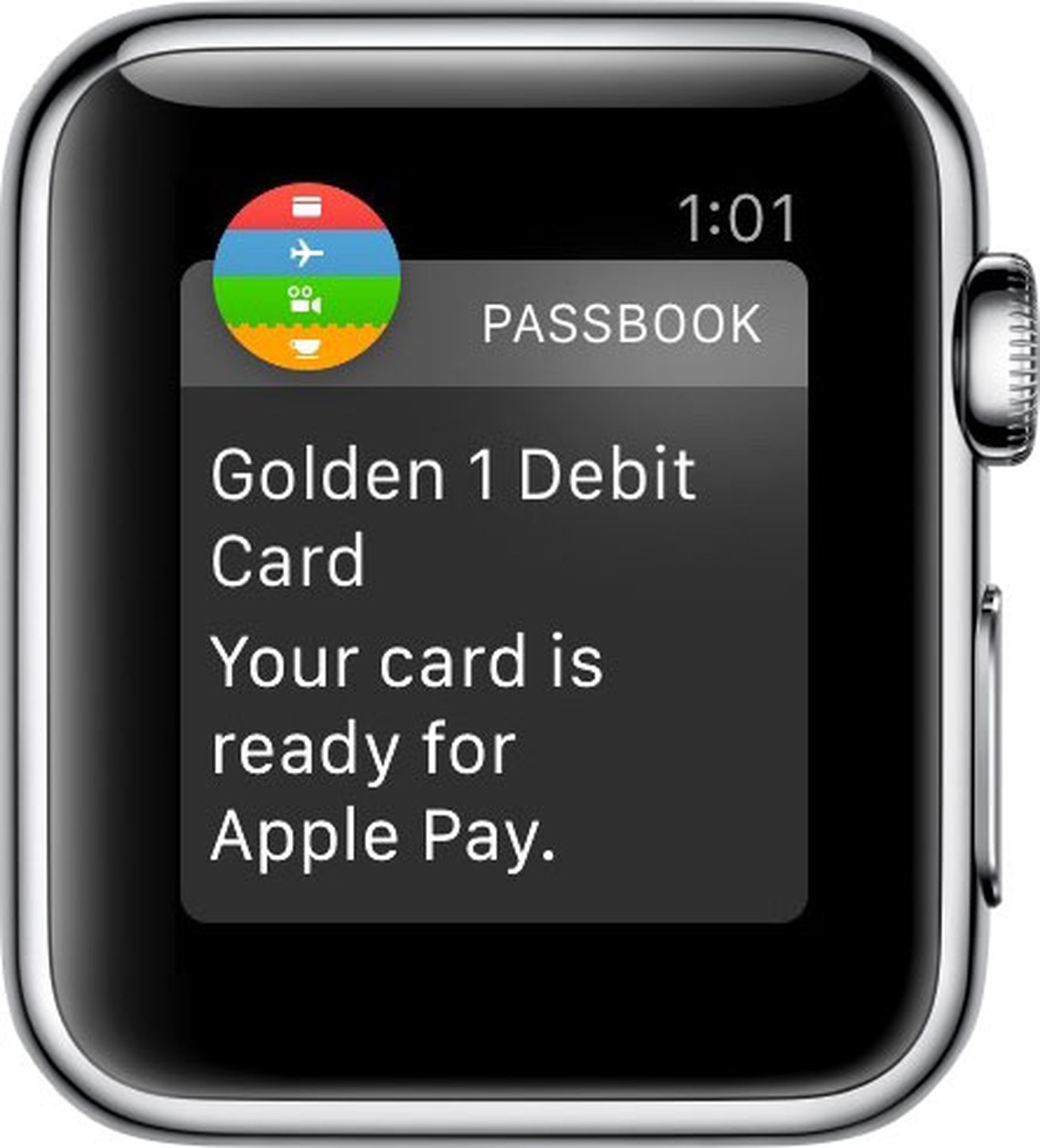
Table of Contents
How to Set Up Apple Pay on Apple Watch
 Apple restricted Apple Pay to the iPhone 6 and 6 Plus due to the need for an NFC chip that's not included in older phones, which means Apple Pay has been limited to those with newer iPhones since it debuted in October of 2014.
One of the major perks of the Apple Watch is that it enables Apple Pay for some older iPhones because it has the same NFC chip that's in the iPhone 6 and 6 Plus. If you have an Apple Watch and an iPhone 5, 5c, or 5s, you can now use Apple Pay and the watch to make secure purchases in retail locations.
For those of you who haven't had a chance to use Apple Pay, we've written up a tutorial that walks through how to set it up on your watch.
Setting Up Apple Pay
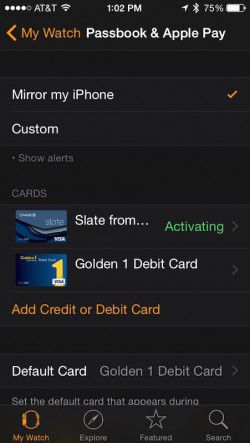 Even if you are already using Apple Pay on iPhone 6, you will need to add your credit and debit cards to Apple Pay for Apple Watch. You can add up to eight cards.
- Open the Apple Watch app on your iPhone and then select My Watch.
- Select Passbook and Apple Pay.
- Tap "Add Credit or Debit Card.
- Apple will automatically ask you to enter the security code of the credit card that is on file for iTunes and the App Store. If you don't want to use this card, select "Add a different credit or debit card."
- When the camera viewfinder appears, position your credit or debit card inside the frame. The app will scan the card for relevant information.
- If the card does not automatically scan, you can enter the information manually.
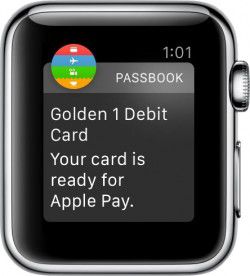
Once the card is added, you will see that it is listed as "activating." When it has been activated, you will receive a notification on Apple Watch that the card is ready for Apple Pay.
Using Apple Pay
When you are ready, head out to one of the participating retail stores. At checkout, simply open Passbook and Apple Pay app on Apple Watch and select the card you wish to use.

When prompted, you will double-click the Side button (the button normally used to access your favorite contacts list). Make sure you are close to the reader so it will register your Apple Watch via near-field communication.
Deleting Credit Cards
You can remove credit cards from Apple Pay through the app on Apple Watch. Tap to select the card, then firm press to delete it from the list. You can also remove a card using the Apple Watch app on the iPhone.
If Your Apple Watch is Lost or Stolen
Since Apple hasn't yet added Find My Apple Watch, you should probably first start by deleting your credit card information from Apple Watch
- Sign into your account via icloud.com.
- Select Settings, then My Devices.
- Choose Apple Watch and click Remove All.
- You can also put a hold on your cards by calling your bank or credit card issuer directly.
Using Passbook
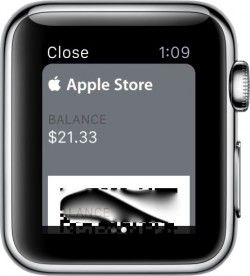 Within the same app, you can use your Passbook loyalty and gift cards. Set up cards on your iPhone using the Passbook App.
When you are near the location of a store that you have a card saved in Passbook for, you will receive a notification on Apple Watch. Tap the notification to open Passbook and scroll to the relevant card. When ready, show the barcode on Apple Watch to the employee that will be scanning your card.
If you rearrange or delete old cards on Passbook on your iPhone, all changes will be reflected on Apple Watch.
Apple's contactless payment service uses a security feature that creates a unique Device Account Number that is assigned to cards once they are installed in Apple Pay. These encrypted card numbers, as well as a transaction-specific dynamic security code, are used at payment kiosks instead of your actual credit card numbers. So, not only is your transaction safer from hacking issues, but your personal information is no longer transmitted to the merchant.
Popular Stories

Apple Watch Series 12, Ultra 4 Owners Report Skin Irritation

Apple Pay Now Available in India With Axis Bank Cards
