
How to Snap Back to Your Search Results When Browsing in a Safari Tab
How to Snap Back to Your Search Results When Browsing in a Safari TabWednesday May 2, 2018 12:28 AM PDT by Tim HardwickSay you want to look up a topic online, so you type a search word or phrase into Safari's address bar. The firs
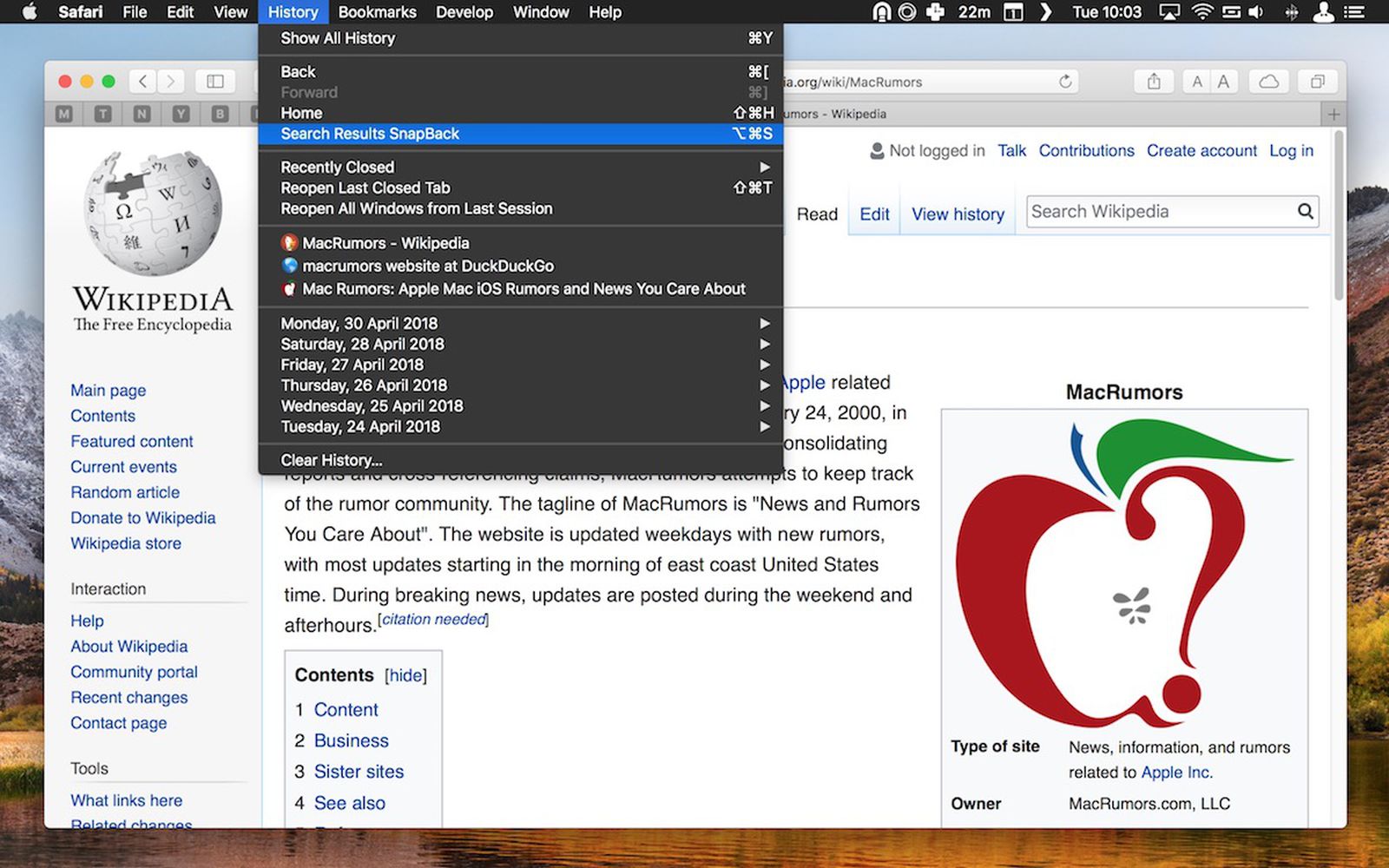
Table of Contents
How to Snap Back to Your Search Results When Browsing in a Safari Tab
Say you want to look up a topic online, so you type a search word or phrase into Safari's address bar. The first link in the returned results looks promising, so you click it. On the site you're sent to, you see another link about a related topic, so you click that, too.
Moments later another link grabs your attention, and you check it out. Soon you're distracted by some other tangential subject, and before you know it you've fallen down a rabbit hole of clicks and links without finding out much about what you were actually looking for in the first place.
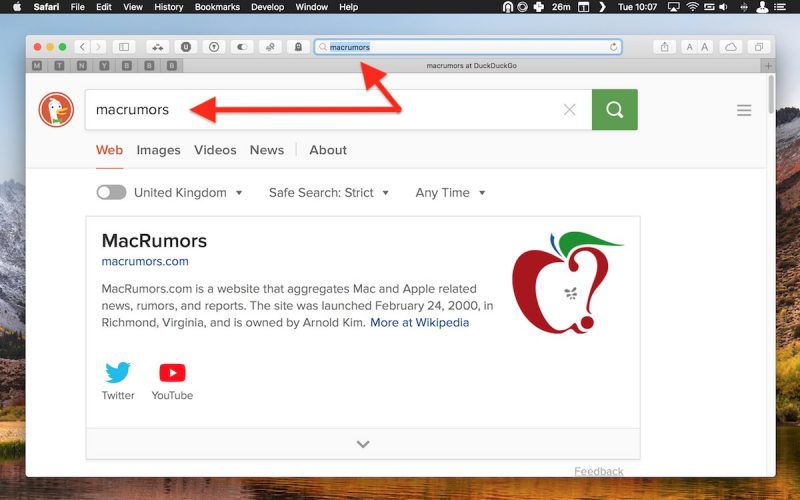
If that sounds familiar, Safari SnapBack can help you. It's a long-standing feature of Apple's desktop web browser that's often overlooked, but saves having to tediously click the previous page button multiple times to return to your original search results, or start rooting through your web history to locate where your latest online meander began.
You can find it in Safari's menu bar, under History -> Search Results SnapBack, or even better, use its Command-Option-S keyboard shortcut. As the name suggests, SnapBack instantly takes you back to your original search results, although the function's availability depends on a couple of conditions.
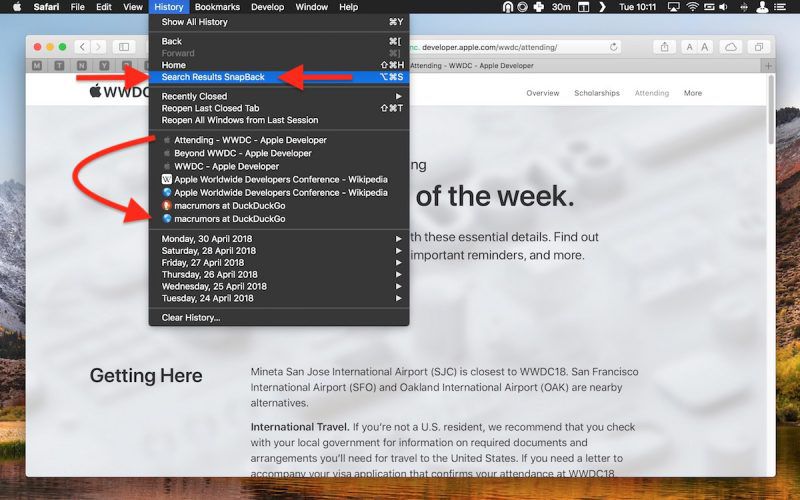
First, SnapBack only works if your wayward browsing occurred in the same tab that you used to initiate the search, so if a link you clicked on opened a new tab and you continued browsing in that, the SnapBack menu option will be grayed out. Second, the search needs to be performed from Safari's address bar or from the website of the search engine that Safari is set to use.
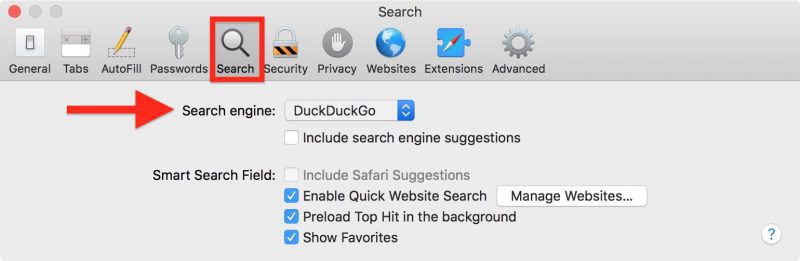
To change the browser's default search engine, select Safari -> Preferences... from the menu bar, click the Search tab, and choose one from the Search engine: dropdown menu. Your options are Google, Yahoo, Bing, and DuckDuckGo. Next time you use the search engine you select and get lost in myriad clicks, SnapBack will be available to help get you back on track.
Popular Stories

Apple Explains Why Chrome Users Should 'Switch to Safari'

Apple Wants to Fix Safari's Cramped Layout on iPhone Duo
