
iOS 16: How to Limit Browsing to a Specific Safari Tab Group in Focus Mode
iOS 16: How to Limit Browsing to a Specific Safari Tab Group in Focus ModeTuesday August 2, 2022 10:39 AM PDT by Tim HardwickApple in iOS 15 introduced Focus mode, an expansion of Do Not Disturb that allows you to set up different

Table of Contents
iOS 16: How to Limit Browsing to a Specific Safari Tab Group in Focus Mode
Apple in iOS 15 introduced Focus mode, an expansion of Do Not Disturb that allows you to set up different permissions for apps, contacts, and more depending on what you're doing. In iOS 16, Apple has expanded what Focus modes can do with new features, including the ability to add Focus Filters. This article explains how Focus Filters can be used to associate a Safari Tab Group with a Focus.

Introduced in iOS 15, Tab Groups are designed to make organizing and preserving your open browser tabs more manageable without having to have those tabs active. Tab Groups are a way to easily save and manage related tabs, such as those used when planning trips or shopping, or groups can be used to store the tabs you visit daily.
In iOS 16, you can set Safari to only show a specific Tab Group when a Focus is turned on. The idea is that by limiting your browsing to only the webpages in the Tab Group, you can avoid going down a rabbit hole of irrelevant links as well as the temptation of going on social media sites or browsing something equally unrelated to the task at hand.
Before you link a Tab Group to a Focus, you'll need to create a Tab Group ahead of time in the Safari app. Once that's done, you can associate the Tab Group with a Focus profile by following the steps below.
- Launch the Settings app on your iPhone, then tap Focus.
- Select the Focus mode that you want to associate a Tab Group with.
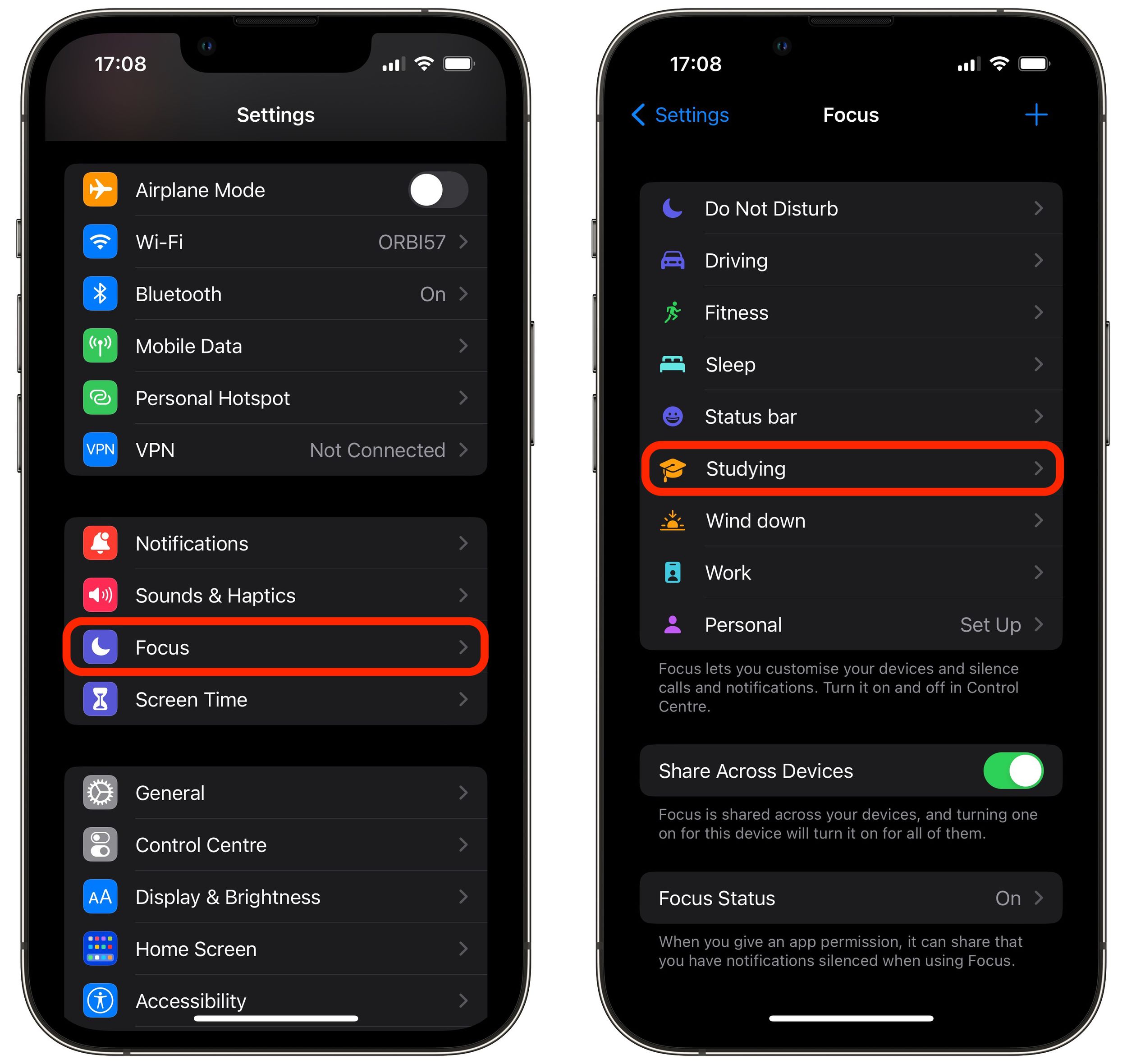
- Scroll down, and under "Focus Filters," tap Add Filter.
- Choose Safari from the app filter options.

- Tap Choose.
- Tap the Tab Group that you want to include in this Focus, then tap Add on the previous screen.

Your Safari Tab Group will now be active the next time you enable the Focus mode. Note that when you choose the Tab Group in Focus, you can also toggle a switch to enable or disable opening external links in your Focus Tab Group.
Popular Stories

Apple Explains Why Chrome Users Should 'Switch to Safari'

Apple Wants to Fix Safari's Cramped Layout on iPhone Duo
